
You can quickly enter a prescription in a patient's record by using one of your prescription templates, or you can write a new prescription.
Note: When you display the Patient Prescriptions page and enter a prescription, these actions are recorded as two logs in the Audit Log page as Prescription types with "Prescription reviewed" in Details.
To enter a prescription for a patient
How to get there
-
From the Patient menu, under General, select Prescriptions.
The patient's Patient Prescriptions page displays.
Note: If the correct patient is not already selected, use the Patient Search field to access the patient's record.
-
On a patient's Patient Prescriptions page, clicktap the Prescription menu and select Enter New Prescription.
The New Patient Prescription page displays with all of your prescription templates grouped by category.

Tips:
-
To search for an existing template, in the Prescription Templates section > Search field, enter a part of a drug name as necessary to narrow the search results. The matching template(s) display as a list or in categories of expandable and collapsible sections.
-
If the Group by category check box is selected, expand a section to locate a prescription template in that category.
-
-
Complete one of the following:
-
Use an existing prescription template.
-
Select a prescription template.
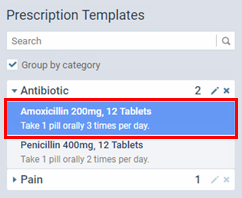
The Information on the prescription displays.

-
Skip to Step 4.
-
-
Use an existing prescription template that requires some modification.
-
Select a prescription template.
The Information on the prescription displays.
-
ClickTap Customize.

The options for editing the prescription template displays.

-
Skip to Step 3.
-
-
Create and use a new prescription.
-
ClickTap Add New Prescription.

The options for adding a prescription becomes available.

-
Skip to Step 3.
-
-
-
Enter or modify the prescription information, such as the category, drug name, dosing instructions, amount to dispense, and number of refills.
-
Drug category - Select the drug's category from the drop-down list. To create a new category, select Create a new category and enter the new category name in the generated window.

-
Drug name - Enter the drug's name.
Example: Tylenol III 1000mg.
-
Controlled substance - Select the check box if you want to specify that it's a controlled substance and to have the prescribing provider's DEA number on the prescription.
-
Sig - Enter the dosing instructions.
Example: Take one pill orally as needed for pain.
-
Dispense and Unit - Enter the amount to dispense in the Dispense field and select the unit of the dispense from the Unit drop-down list. If the correct unit does not exist, clicktap Add new unit and enter the new unit's name in the generated window.

Tip: If a generic version of the drug is not allowed, select the Dispense as written radio button. Otherwise, select Generic substitution permitted.
-
Refills - Enter the allowed number of refills. If refills are not allowed, enter '0'.
-
Patient note - Enter any additional notes for the patient.
-
Provider - Select the prescribing provider.
-
-
(Optional) Select the Save this prescription as a template check box to save the prescription as a template that can be used on other patients .
Note: It selected, the prescription saves without the selected prescribing provider.
-
ClickTap Add Prescription.
Comments
0 comments
Please sign in to leave a comment.