
You can view a patient's information in eRx. This includes personal information, active and pending medications, and any applicable drug/allergy interactions.
Note: You can access eRx according to your security rights.
To view a patient
How to get to there
-
From the Patient menu, under General, clicktap Prescriptions.
The Patient Prescriptions page displays.
-
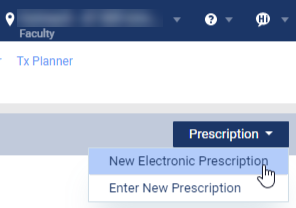
ClickTap the Prescription drop-down menu and select New Electronic Prescription.
Note: If logging in as a proxy clinician, you are prompted to select the clinician you are acting on behalf of.
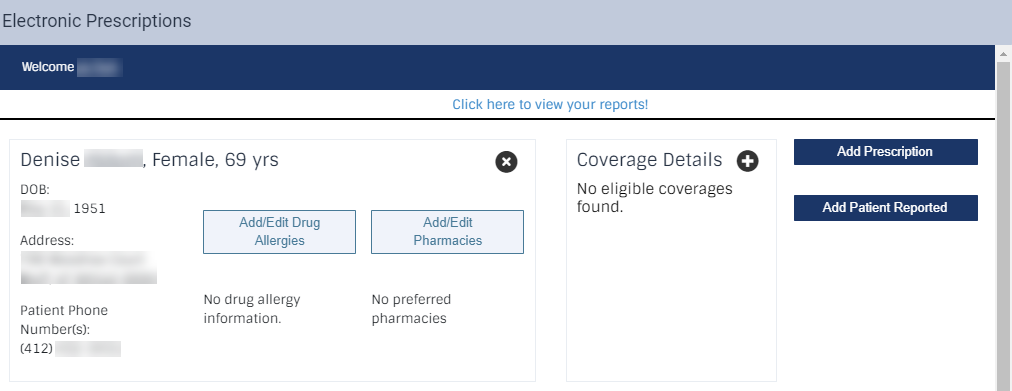
The Electronic Prescriptions window and the Patient Details page display.
-
On the Patient Details page, review the displayed patient.
-
To view the patient's drug/drug and drug/allergy interactions between new and existing medications.
-
Under the patient details, next to the Drug/Allergy Interactions section, clicktap the + icon to display the drug/allergy interaction.
Note: The color of an alert indicates the severity of drug-drug interactions (Minor, Moderate, or Severe). Alerts are also ordered by the severity of the interactions, with the most severe at the top of the list.
-
Review the interaction information.

-
ClickTap the X icon to close the drug/allergy interaction.
-
-
To view the patient's active medications.
-
ClickTap the Active Medications tab and clicktap the Simple or the Detailed tab.
-
Review the additional prescription details, including dispense, date, and number of dispensings.
Note: The number of dispensings totals the initial fill with the number of refills for that prescription.

-
Comments
0 comments
Please sign in to leave a comment.