
You can edit pending electronic prescriptions that are attached to a patient record before they are sent or printed.
Note: You can edit electronic prescriptions according to your security rights.
To edit an electronic prescription
How to get to there
-
From the Patient menu, clicktap Prescriptions to display the Patient Prescriptions page.
-
ClickTap the Prescription drop-down menu and select New Electronic Prescription.
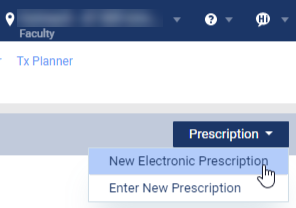
Note: If logging in as a proxy clinician, you are prompted to select the clinician you are acting on behalf of.
The Electronic Prescriptions window and the Patient Details page display.
-
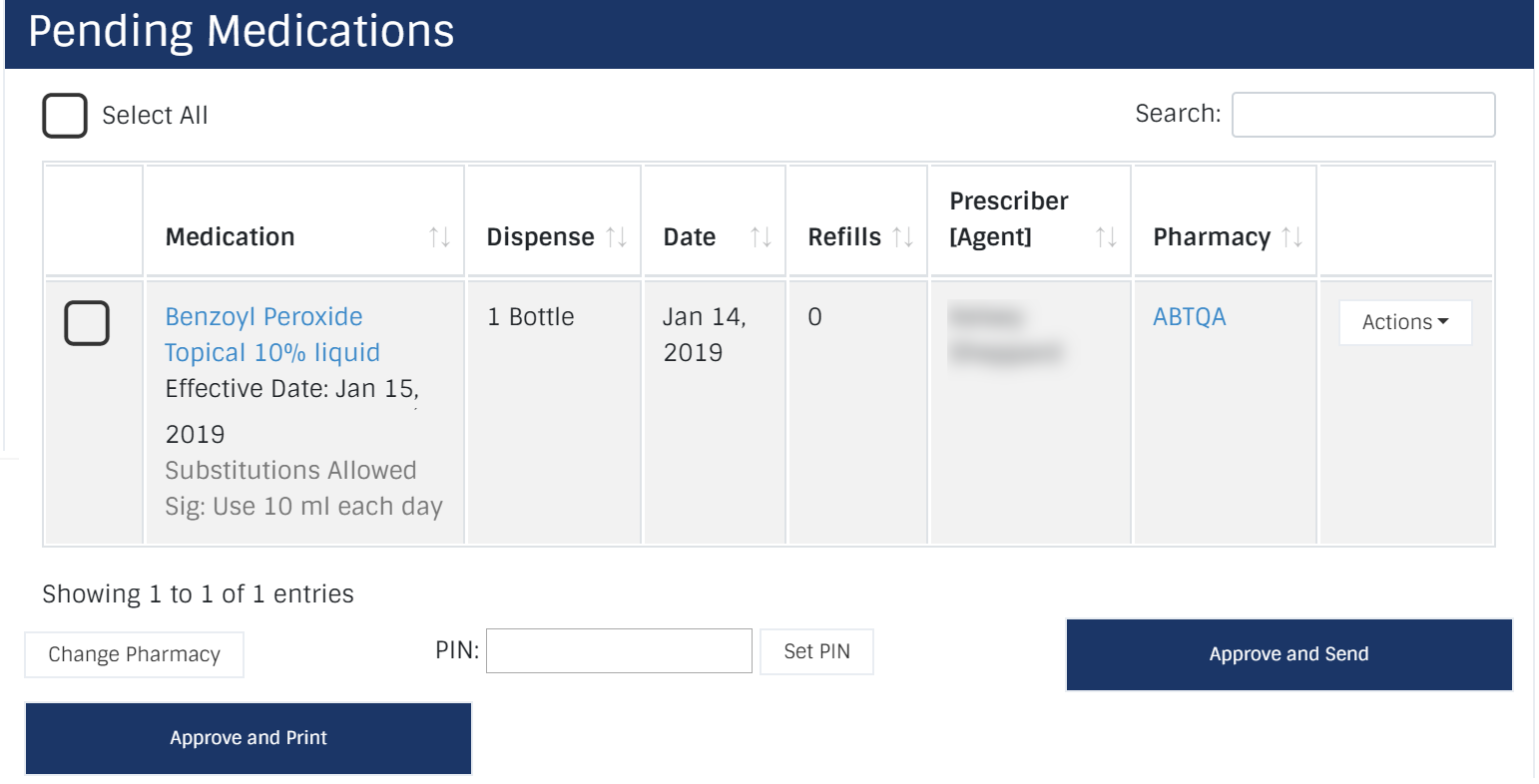
On the Patient Details page, review the Pending Medications list.
-
Next to a listed medication, clicktap the Actions drop-down list, and select Edit to open the Add Prescription - Step 3 page.
-
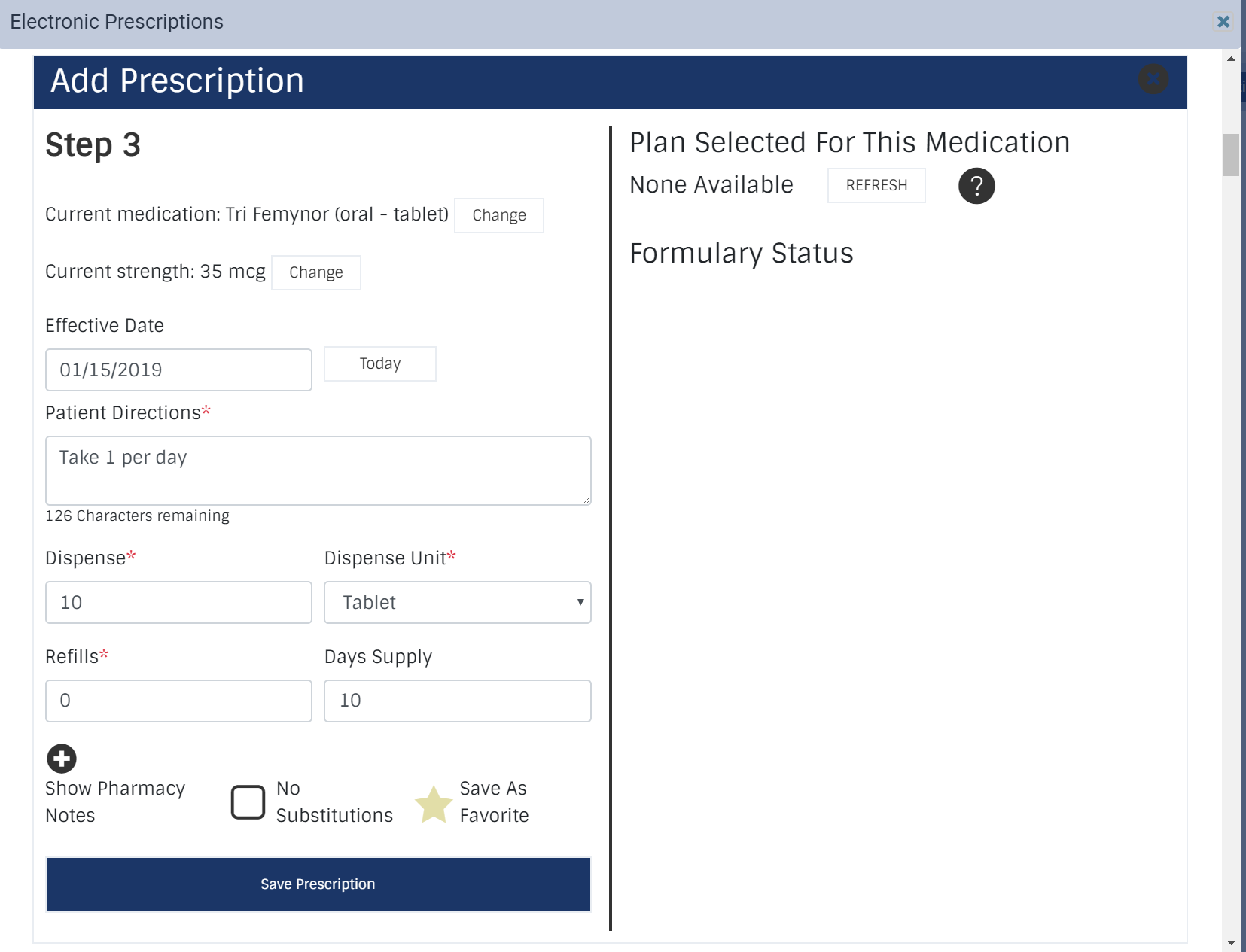
Modify the fields as necessary and clicktap the Save Prescription button.
-
Current medication: ClickTap the Change button and enter and select the medication.
-
Current strength: ClickTap the Change button and set the medication strength.
-
Effective Date: Enter the date the medication will be available or clicktap the Today button.
-
Patient Directions: Enter the directions that patient must follow to take the medication.
-
Dispense: Enter the number of medication items in each dispense unit.
-
Dispense Unit: Enter the packaging or method that the medication is dispensed in.
-
Refills: Enter the number of refills the patient is entitled to.
-
Days Supply: Enter the number of days the medication should last.
-
No Substitutions: Select the check box if substitutions are not allowed.
-
Pharmacy Notes: ClickTap the + icon next to display the field and enter any necessary notes.
-
The prescription displays in the Pending Medications list.
Comments
0 comments
Please sign in to leave a comment.