
You can edit allergy information about a patient in eRx.
Note: You can access eRx according to your security rights.
Important: Any allergies you edit within eRx do not synchronize with the patient allergies set in Ascend Academic.
To edit an allergy
How to get to there
-
From the Patient menu, clicktap Prescriptions to display the Patient Prescriptions page.
-
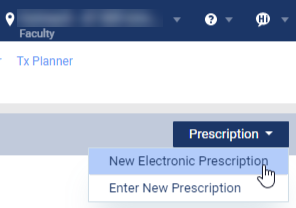
ClickTap the Prescription drop-down menu and select New Electronic Prescription.
Note: If logging in as a proxy clinician, you are prompted to select the clinician you are acting on behalf of.
The Electronic Prescriptions window and the Patient Details page display.
-
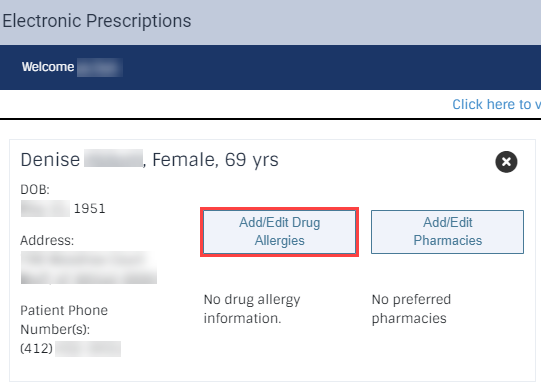
On the Patient Details page, clicktap the Add/Edit Drug Allergies button to display the Add Drug Allergy section.
-
Under Current Drug Allergies, clicktap Edit.

-
Modify the fields as necessary.
-
No Known Allergies - Select the check box if the patient has no known allergies.
-
Name - Enter a free-text allergy or select a drug from the drop-down list.
-
Status - Select Active or Inactive from the drop-down list.
-
Reaction Type - Select Allergy or Adverse Reaction from the drop-down list.
-
Reaction - Enter the full description of the reaction.
-
Onset Date - Enter the date the allergy began.
-
ClickTap Save
The modified allergy displays in the Current Drug Allergies list.
Comments
0 comments
Please sign in to leave a comment.