
You can review and send electronic prescriptions from a patient's record to a pharmacy.
Note: You can send electronic prescriptions according to your security rights.
To send an electronic prescription
How to get to there
-
From the Patient menu, under General, clicktap Prescriptions.
The Patient Prescriptions page displays.
-
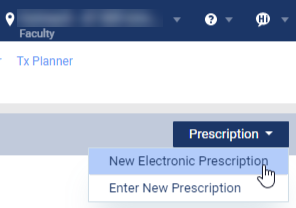
ClickTap the Prescription drop-down menu and select New Electronic Prescription.
Note: If logging in as a proxy clinician, you are prompted to select the clinician you are acting on behalf of.
The Electronic Prescriptions window and the Patient Details page display.
-
On the Patient Details page, review the Pending Medications list.

-
Select the Select All check box to select all pending medications or select the check box(es) of specific medication(s).
-
(Optional) Change the associated pharmacy.
-
ClickTap the Change Pharmacy button to open the Change Pharmacy window.

-
Complete one of the following:
-
If the correct pharmacy is listed, next to the pharmacy, select the check box and clicktap the OK button.
-
If the correct pharmacy is not listed, search for the pharmacy.
-
ClickTap the Search Pharmacies button.
-
ClickTap the Search By Patient button or complete one or several of the search fields and clicktap the Search button.
-
Under Pharmacy Results, clicktap a listed pharmacy.
-
-
-
-
If you have a PIN, enter it in the PIN field.
-
ClickTap the Approve and Send button.
The prescription displays in the Active Medications list.
Comments
0 comments
Please sign in to leave a comment.