
You can approve or reject procedure and treatment plan approval requests from the Pending Approvals page.
You can only approve approval requests that meet one of the following conditions:
-
You are assigned to it as an attending provider
-
It has no attending provider
Note: To approve or reject the approval requests, you need the Approve patient procedures and/or Approve Treatment Plans security right.
To approve or reject an approval request
How to get there
-
From the Home menu, under Location, clicktap Overview.
The Provider Overview page displays.
ClickTap the Unapproved Items widget.
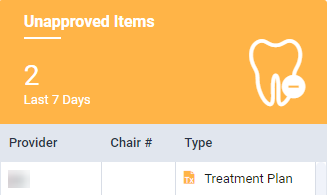
The Pending Approvals page displays.
-
On the Pending Approvals page, review the list of approval requests pending for approval.
-
(Optional) Set the filters as necessary.
-
ClickTap the Date/Time field and select an option to display approval requests within a certain date range.
Note: The field defaults to today's date.
-
If you selected Specific Date, select a date from the calendar that displays and clicktap Done.
-
If you selected Custom Range, select two dates from the calendar that displays and clicktap Done.
-
-
Set the Provider to display approval requests that has a specific user set as the provider.
-
ClickTap the Provider field.
-
(Optional) Enter the first few letters of their short name or full name
-
Select a listed provider.
-
-
Set the Operatory to display approval requests that is associated with a specific operatory.
-
ClickTap the Operatory field.
-
Select the check boxes of the operatories as necessary.
-
-
Set the Patient to display approval requests that associated with a specific patient.
-
ClickTap the Patient field and enter a patient's first or last name or chart number (at least the first four digits) and continute as necessary to narrow the search results.
Tips:
-
To include patients from all locations in the search results, set the Include all locations toggle to On.
-
You can include inactive patients in the search results by setting the Include inactive patients toggle to On.
-
-
(Optional) If necessary, you can clicktap the Use advanced patient search link and use the generated fields for a more specific search results.

-
Select a patient.
-
-
Set the Type to only display treatment or procedure approval requests.
-
ClickTap the Type field and select the necessary check box.
-
-
Set the Attending Provider to display approval requests associated with a different attending provider.
-
ClickTap the Attending Provider field and clicktap
 on the right corner of the field.
-
Enter the first few letters of the attending provider's short name or full name.
-
Select a listed user.
-
-
-
ClickTap an approval request to display the Approve Treatment Plans window or the Approve Procedures window
Note: The window displays according to whether you clickedtapped a treatment plan approval request or a procedure approval request.
-
Address the request(s) as necessary.
-
Approve a treatment plan request.
-
Select the check box for each treatment plan case you want to approve.
-
ClickTap Submit.
All selected case(s) are approved and updated to Pending Patient Consent status. Any unselected case(s) are rejected and updated back to Draft status.

Note: The treatment plan cases(s) are grouped according to Phase, and are listed in alphabetical order by case name under each Phase. Also, the Attending Provider displays the faculty provider assigned to the treatment plan approval request.
-
-
Reject a treatment plan request.
-
ClickTap Delete Request.
All listed case(s) are rejected and updated back to Draft status.
Note: The treatment plan cases(s) are grouped according to Phase, and are listed in alphabetical order by case name under each Phase. Also, the Attending Provider displays the faculty provider assigned to the treatment plan approval request.
-
-
Approve a procedure request.
-
ClickTap Approve.
The procedure is posted automatically to the Ledger, the Date changes to today's date, and a sessional evaluation request is automatically generated.

-
-
Reject a procedure approval request.
-
Deselect the check box for each procedure you want to reject and clicktap Delete.
-
-
-
Repeat Steps 3-4 as necessary to address additional requests.

Comments
0 comments
Please sign in to leave a comment.