
The Provider Overview page is a single location that displays all the items and tasks you need to complete as a provider. You can use the page to review and perform your duties.
Important: If you have the Requires Evaluation, Requires Approval to post, and/or Requires approval for Treatment Plan cases security rights, the dashboard identifies you as a student provider, and displays differently based on your user role.
To use the Provider Overview page
How to get there
-
From the Home menu, under Location, clicktap Overview.
The Provider Overview page displays.
Important: If the Overview page displays instead, set the Provider Overview toggle to Yes.
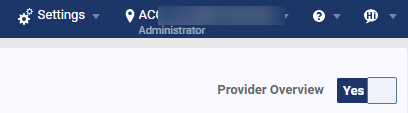
Important: If you are not a provider, the toggle does not display.
-
On the Provider Overview page, review the widgets as necessary:
-
Schedule - This widget displays a list of the following:
-
Future appointments within the next seven days that you are assigned to as an appointment or attending provider.
-
Future events within the next seven days that you are assigned to as a provider or part of the provider group that will attend the event.
Note: Recurring events only display once per recurrence. For example, if it's an everyday event, it displays only once per day.
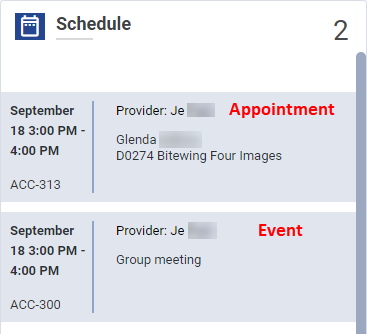
If you clicktap an appointment or event, the Calendar page displays with the selected appointment's Appointment Information panel or the selected event's Event Information panel open.
-
-
Unapproved Items - Depending on your user role, this widget displays the following:
-
If you are a student provider, the total number of your own approval requests for procedures and treatment plans from the last seven days.
-
If you are not a student provider, the total number of approval requests that you are assigned to as attending provider and all approval requests without an attending provider.
Additionally, each request displays the requesting user's short name, chair location (if available), and the approval request type.
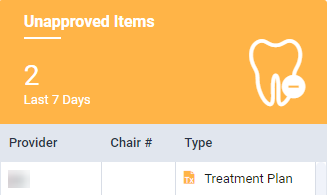
To view older data, you can clicktap the widget to display the Pending Approvals page. By default, the page's Date/Time filter is set to Last 7 Days and the Provider filter is set to the logged in user.
-
-
Unsigned Clinical Notes - This widget displays the total number of your unsigned clinical notes. Notes that are ready to sign display in the Ready category, and notes that are not ready to sign display in the Draft category.
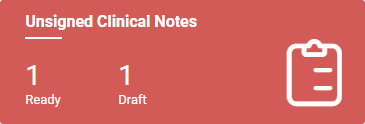
You can clicktap the widget to display the Clinical Note Tasks page.
-
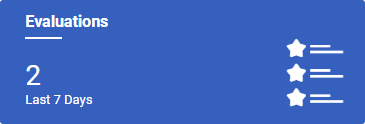
Evaluations - Depending on your user role, this widget displays the following:
-
If you are a student provider, the total number of the new and in-progress evaluation requests that has you set as the student, based on your view settings for the Student Evaluations page. You can clicktap the widget to display the Student Evaluations page.
-
If you are not a student provider, the total number of new and in-progress evaluation requests from the last seven days, based on your view settings for the Faculty Evaluations page. You can clicktap the widget to display the Faculty Evaluations page.
-
-
Assigned Patients - This widget displays the total number of patients that have you set as their primary provider. The lower section lists each patient's name and status (ACTIVE and NEW). You can clicktap a patient name to open their chart or clicktap the header to navigate to the Ongoing Patient Care page > My Patient List tab.

-
-
(Optional) Select a widget to view more information on an item or a task, and if necessary, complete the task.
-
(Optional) Set the Provider Overview toggle to No to switch to the Overview page.
Comments
0 comments
Please sign in to leave a comment.