
After an appointment, student providers must request and obtain approval for a patient's procedure to confirm:
-
The procedures are correct and complete.
-
The billing information is accurate.
-
The future re-care treatments are recorded appropriately.
Faculty providers can address these pending procedure approval requests in multiple areas of Ascend Academic.
Note: If you are a faculty member approving from a student's workstation, you must authenticate yourself with your user ID and password. If approving from your workstation, you can approve without credentials.
To approve a procedure
How to get to there
-
From the Patient menu, under Clinical, select Progress Notes.
The Progress Notes page displays.
Tip: You can also open the Progress Notes page from the Patient Routing panel. ClickTap the
 icon, clicktap the Schedule Peek tab, and clicktap the correct appointment.
Note: If more than one appointment is scheduled for the day, under Filters, select the correct appointment time radio button.
How to get to there
-
Use the Patient Search field to access a patient's record.
Notes:
-
If the last patient record you accessed since you last logged on is the correct patient's record, you do not need to re-enter the patient's name in the Patient Search field.
-
You can include inactive patients in the search results by setting the Include inactive patients toggle switch to On.
Important: If the Access Confidential Patient window displays after selecting the patient from the search results, it means the patient is a confidential patient and you don't have the security rights to access their record. To continue, a user with the security rights must enter their credentials into the window. Once given access, you have access to the patient's information until your session expires.
-
-
Complete one of the following:
-
From the Patient Information ribbon, clicktap the Tx Planner link.

-
From the Patient menu, under Clinical, clicktap Treatment Planner.
-
From the Patient menu, under General, clicktap Overview.
The patient's Overview page displays.
ClickTap the Treatment Plan widget.
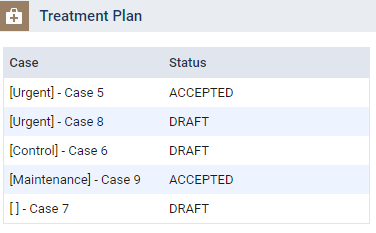
The patient's clinical record displays with the Treatment Planner tab selected.
-
How to get to there
-
ClickTap the
icon, clicktap Chair, and review the listed patients.
-
Open the Approve Procedures window from one of the following areas of the system:
-
A patient's Progress Notes tab
-
On a patient's Progress Notes tab, clicktap Approve Procedure Request.
Note: If the button is disabled, it means the patient doesn't have a pending procedure approval request.
-
-
A patient's treatment planner
-
On a patient's treatment planner, clicktap Approve Procedure Request.
Notes:
-
The Approve Procedure Request button also display on accepted treatment plan cases.
-
If the button is disabled, it means the patient doesn't have a pending procedure approval request.
-
-
-
The Patient Routing panel
-
On the Patient Routing panel, select an appointment that is in Chair or Checkout.
-
ClickTap Approve Procedure Request.
Note: If the button is disabled, it means the patient doesn't have a pending procedure approval request.
-
The Approve Procedures window displays a list of patient's procedure(s) that are pending for approval.

Note: The disabled Operatory field displays the operatory associated with the approval request, not the appointment.
-
-
(Optional) Deselect the check box(es) of the procedure(s) that you do not want to approve.
-
Address the procedure(s) as necessary:
-
To approve the selected procedure(s), clicktap Approve.
Note: If approving from a student's machine, the Approve Procedures window has Approver and Password fields that must be completed to finalize the approval.
The procedure is posted automatically to the Ledger, the Date changes to today's date, and a sessional evaluation request is automatically generated.
If the provider is a student that requires evaluation and you are approving from the student's workstation, a notification displays, reminding them to complete their self-evaluation.

-
To reject the procedure(s), clicktap Delete.
The approval request is deleted.
Note: Deleting an approval request has no affect on the procedure and, if any, the associated appointment and/or treatment plan. However, the procedure will not be posted to the Ledger until it is completed or approved.
-
Comments
0 comments
Please sign in to leave a comment.