
As you work with existing treatment plans, you will need to update the status to reflect where it is in the treatment planning workflow.
Notes: If you do not have the Change Treatment Plan case status permission set and you change a treatment plan status, a supervising faculty member with permissions will be prompted to log in. However, the audit log identifies you as the user that updated the treatment plan status.
Important: A supervising faculty member is not prompted to log in if you have to move a case status back to Draft or Pending Faculty Approval.
There are a number of possible treatment plan statuses:
-
Draft - New cases are set to Draft by default. If set, the Move/Copy To button is enabled, and you can add procedures to a case or remove them from a case.
-
Pending Faculty Approval - You can move a case to Pending Faculty Approval when you request approval for the case. If set, the Move/Copy To button is enabled, and you can add procedures to a case or remove them from a case.
Note: In order to see the Request Approval button, the user must have the Requires approval for Treatment Plan permission set and must have a plan from the Draft category selected.
-
Pending Patient Consent - This applies to a case that has received faculty approval, but still requires patient sign off.
Note: Students do not have to set a case to Pending Patient Consent manually. The status auto-changes to Pending Patient Consent when a faculty member approves a case set to Pending Faculty Approval.
-
Accepted - You can move a case to Accepted status when it has received faculty approval and patient consent. Only cases set to Accepted status can have their associated treatments completed. If necessary, you can request approval for the case's procedure(s) or approve a pending approval request based on your user role.
Note: Treatments that do not belong to a case can also be completed.
-
Rejected - You can move a case to Rejected status if it did not receive patient consent, but contains treatments that must remain on record.
To change a treatment plan status
How to get there
-
Use the Patient Search field to access a patient's record.
Notes:
-
If the last patient record you accessed since you last logged on is the correct patient's record, you do not need to re-enter the patient's name in the Patient Search field.
-
You can include inactive patients in the search results by setting the Include inactive patients toggle switch to On.
Important: If the Access Confidential Patient window displays after selecting the patient from the search results, it means the patient is a confidential patient and you don't have the security rights to access their record. To continue, a user with the security rights must enter their credentials into the window. Once given access, you have access to the patient's information until your session expires.
-
-
Complete one of the following:
-
From the Patient menu, under Clinical, clicktap Treatment Planner.
-
From the Patient menu, under General, clicktap Overview.
The patient's Overview page displays.
ClickTap the Treatment Plan widget.
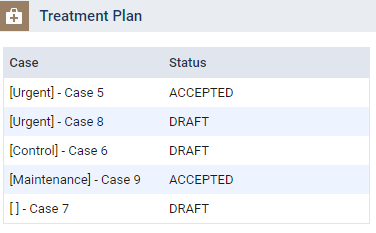
The patient's clinical record opens with the Tx Planner tab selected.
-
-
On the Treatment Planner tab of a patient's clinical record, review the listed treatment plans and categories.

-
Under a category, select a case to display the treatment plan case.

-
From the Status drop-down list, select Draft, Pending Patient Consent, Accepted or Rejected.
Notes:
-
If you do not have the Change Treatment Plan case status permission set, a supervising faculty member with permissions will be prompted to log in when you change a treatment plan status.
-
To change the status to Pending Faculty Approval, you must request approval for the treatment plan.
-
-
If prompted with a Change Case Status window, a supervising faculty member with permissions to change treatment plan statuses must enter their username and password.

The selected treatment plan status displays.
Comments
0 comments
Please sign in to leave a comment.