
You can accept or reject treatment plans pending for patient consent by presenting them to the patient, accepting or rejecting the associated treatment plan cases on their behalf, and collecting their consent using a digital treatment consent form.
Tip: If installed, an electronic signature pad can be used to provide patient consent.
Note: You can only accept or reject treatment plans if the Can Obtain Patient Consent security right is set and the patient has at least one treatment plan pending for their consent.
To accept or reject treatment plans pending for patient consent
How to get there
-
Use the Patient Search field to access a patient's record.
Notes:
-
If the last patient record you accessed since you last logged on is the correct patient's record, you do not need to re-enter the patient's name in the Patient Search field.
-
You can include inactive patients in the search results by setting the Include inactive patients toggle to On.
Important: If the Access Confidential Patient window displays after selecting the patient from the search results, it means the patient is a confidential patient and you don't have the security rights to access their record. To continue, a user with the security rights must enter their credentials into the window. Once given access, you have access to the patient's information until your session expires.
-
-
Complete one of the following:
-
From the Patient Information ribbon, clicktap the Tx Planner link.

-
From the Patient menu, under Clinical, clicktap Treatment Planner.
-
From the Patient menu, under General, clicktap Overview. The patient's Overview page displays. ClickTap the Treatment Plan widget.
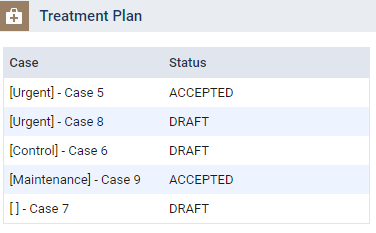
The patient's clinical record displays with the Tx Planner tab selected.
-
-
On the Tx Planner tab of a patient's clinical record, click the Pending Patient Consent category.
-
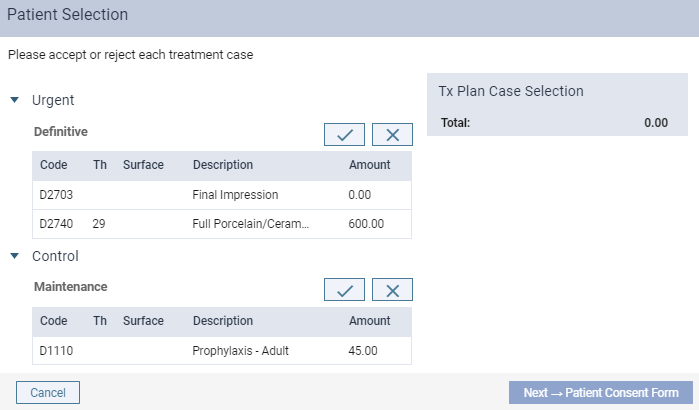
ClickTap Sign to display the Patient Selection window and review any listed cases with the patient.
Treatment plans display according to their set Phase. If there is more than one case, they are grouped under the applicable Phase and listed in alphabetical order by case name. Each treatment also lists the procedures included and the cost of each procedure.
-
On behalf of the patient, clicktap the associated
 button to accept a treatment plan case or clicktap the associated
  button to reject a treatment plan case.
 Note: You do not need to accept or reject all the displayed treatment plan cases.
-
(Optional) Review the list of accepted procedures and the total cost under Tx Plan Case Selection.

-
ClickTap Next -> Patient Consent Form to display the Consent Form window.
Note: If using a signature pad to capture the patient signature, an icon displays if the pad is successfully installed and indicates the pad is ready for use.

-
When ready, let the patient sign the window using a touchscreen or signature pad and click Sign & Confirm to submit their consent form.
Tips:
-
If necessary, you can clicktap Clear field to re-do the patient signature.
-
If using a Topaz Standard pad instead of a Topaz LCD pad, you can tap to activate the pad and clicktap Clear field once to reduce signature pad delays.
Once submitted, the accepted treatment plan cases update to the Accepted status, the rejected treatment plan cases update to the Rejected status, and the treatment plan cases that were not accepted or rejected remain in the Pending Patient Consent status.
-
Comments
0 comments
Please sign in to leave a comment.