
Contents:
Introduction
Ascend Academic is a web-based application. To use a supported Topaz signature pad, you must install the required Topaz software and browser extension on each Windows computer that you want to use to capture patient consent signatures.
Important: Topaz signature pads can currently be used in Ascend Academic only when capturing a patient's consent signature in a Treatment Plan. They are not currently supported for other signature workflows in Ascend Academic.
You must install the following on each computer that will be used with a Topaz signature pad:
-
SigPlus - Topaz software that communicates with the signature pad.
-
SigPlusExtLite - A small application that allows the browser to communicate with the Topaz signature pad.
-
SigPlusExtLite browser extension - The browser component that allows Ascend Academic to communicate with SigPlusExtLite.
Tip: You do not need to install the Topaz components on computers that you will use only for other Ascend Academic tasks.
Note: The Topaz signature pad must be connected, and the required software and browser extension must be installed before you can use the device to capture a patient consent signature.
System Requirements & Version Requirements
System Requirements:
-
Windows 10 or later is required.
-
Use Google Chrome, Microsoft Edge, or Mozilla Firefox.
-
.NET Framework 4.8 or later should be available on the computer.
-
You must have local administrator permissions to install the Topaz software.
-
Connect the Topaz device using its supported USB or serial connection.
-
For BSB/serial devices, an available COM port below COM4 may be required.
Version Requirements:
Ascend Academic requires SigPlusExtLite version 3.0 or later and the corresponding browser extension version 3.0 or later. The current Topaz versions shown below are provided for reference and may change as Topaz releases new versions.
| Component | Ascend Academic requirement | Current Topaz version* |
|---|---|---|
| SigPlus | Required | 4.6.5.100 |
| SigPlusExtLite | 3.0 or later | 3.2.17.2 |
| Chrome extension | 3.0 or later | 3.1.39.0 |
| Edge extension | 3.0 or later | 3.1.39.0 |
| Firefox extension | 3.0 or later | 3.1.15.0 |
Note: *Current Topaz versions are provided as a reference and can change. If a newer version is available, use the version recommended by Topaz unless Ascend Academic Support advises otherwise.
Install and Configure the Topaz Signature Pad (Windows)
1. Identify the Topaz device.
-
Confirm the model number on the device.
-
Supported signing devices include Topaz SigLite, SigGem, and GemView display pads.
-
If the device is a BSB/serial model, see To configure a BSB/serial Topaz device below.
2. Install SigPlus.
-
Download the appropriate SigPlus software from Topaz Systems.
Topaz software downloads:Topaz Software Downloads -
Run the installer with Administrator privileges if required.
-
Select the correct Topaz device model when prompted.
-
For GemView Tablet Displays, use the GemView-specific configuration.
-
Complete the installation.
3. Install SigPlusExtLite.
-
Download the current SigPlusExtLite installer from Topaz Systems.
-
If an older version is installed, follow the current Topaz installation instructions for upgrading or removing it.
-
Right-click the installer and select Run as administrator.
-
Complete the installation.
Topaz SigPlusExtLite:SigPlusExtLite information
4. Install and enable the browser extension.
-
Install the Topaz SigPlusExtLite extension for the browser you use to access Ascend Academic.
-
Google Chrome: install and enable the Topaz SigPlusExtLite extension.
-
Microsoft Edge: install and enable the Topaz SigPlusExtLite extension.
-
Mozilla Firefox: install and enable the Topaz SigPlusExtLite extension.
-
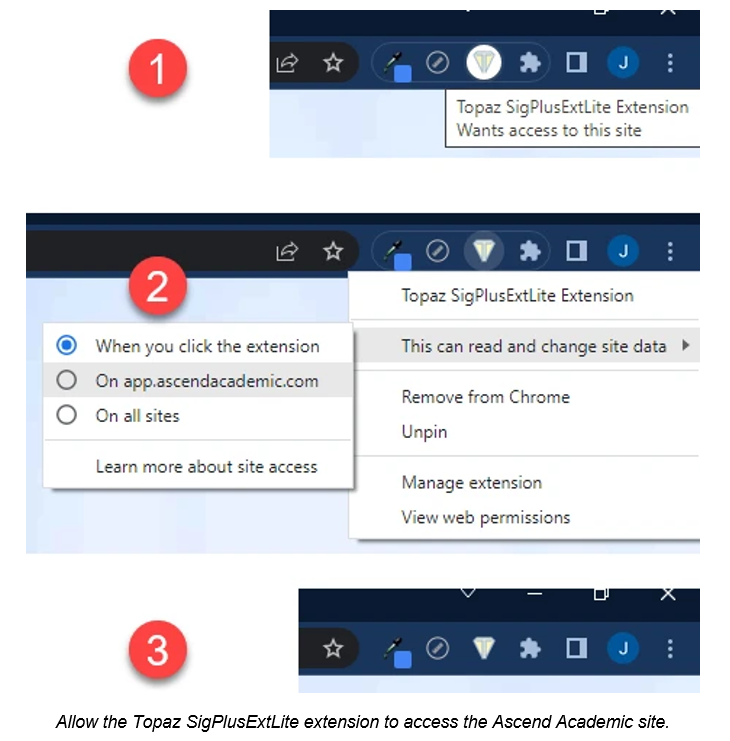
If the extension is installed but not detected, open the browser's Extensions settings and allow the extension to access the Ascend Academic site.
-
Reload the Ascend Academic page after changing the extension permission.
5. Test the Topaz device.
-
Open the Topaz SigPlusExtLite Basic Demo.
Topaz test page:SigPlusExtLite Basic Demo -
Confirm that the signature pad is detected.
-
Sign on the Topaz pad.
-
Confirm that the signature appears in the test page.
-
If the test succeeds, close the test page and continue to Ascend Academic.
6. Verify the device in Ascend Academic.
-
Sign in to Ascend Academic.
-
Open a patient's Treatment Plan.
-
Start the patient consent signing workflow.
-
Select the option to capture the consent signature.
-
Confirm that the patient can sign on the Topaz device.
-
Confirm that the signature is returned to the Treatment Plan.
Success criteria: The patient can sign the Treatment Plan consent using the Topaz signature pad, and the signature is captured successfully.
Configure a BSB/Serial Topaz Device (Windows)
Use these steps only if your Topaz device uses a BSB/serial connection and Windows assigns it a COM port.
1. Find the COM port.
-
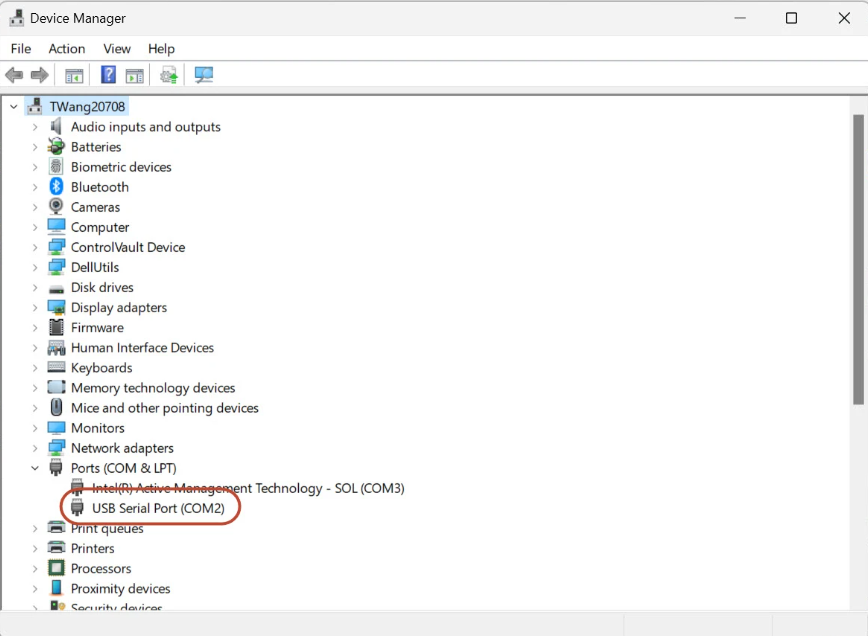
Open Windows Device Manager.
-
Expand Ports (COM & LPT).
-
Connect the Topaz device.
-
Identify the COM port assigned to the device.
2. Change the COM port when required.
-
If the assigned port is greater than COM4, right-click the device and select Properties.
-
Open Port Settings and select Advanced.
-
Choose an unused COM port below COM4.
-
Click OK to save the change.
-
Do not assign a COM port that is already being used by another device.
3. Configure SigPlus.
-
Run the SigPlus installer/configuration.
-
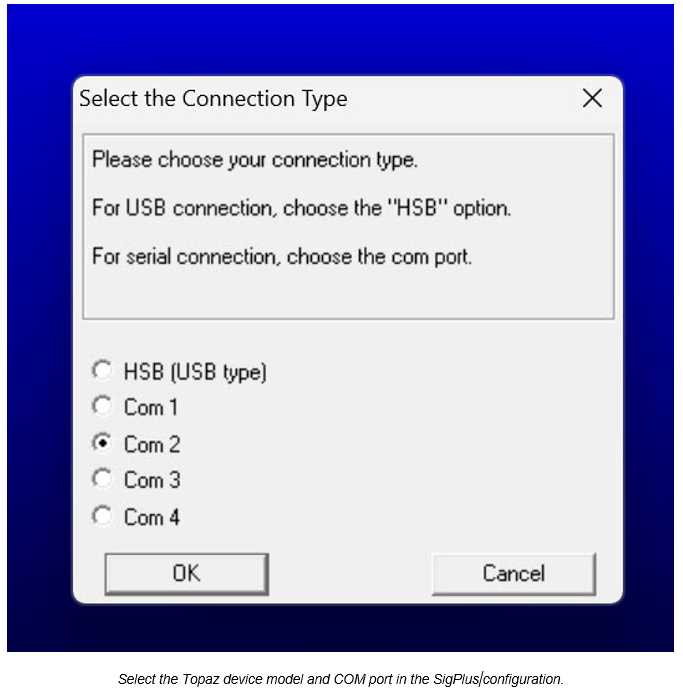
Select the Topaz signature-pad model.
-
Select the COM port assigned to the device.
-
Complete the configuration.
Troubleshooting
If the Topaz signature pad is not detected
-
Confirm that SigPlus is installed.
-
Confirm that SigPlusExtLite is installed.
-
Confirm that the browser extension is installed and enabled.
-
Confirm that the extension is allowed to access the Ascend Academic site.
-
Disconnect and reconnect the signature pad.
-
Reload the browser page.
-
Test the device using the Topaz SigPlusExtLite Basic Demo.
If the browser extension is not detected
-
Open the browser's Extensions settings.
-
Confirm that Topaz SigPlusExtLite is installed and enabled.
-
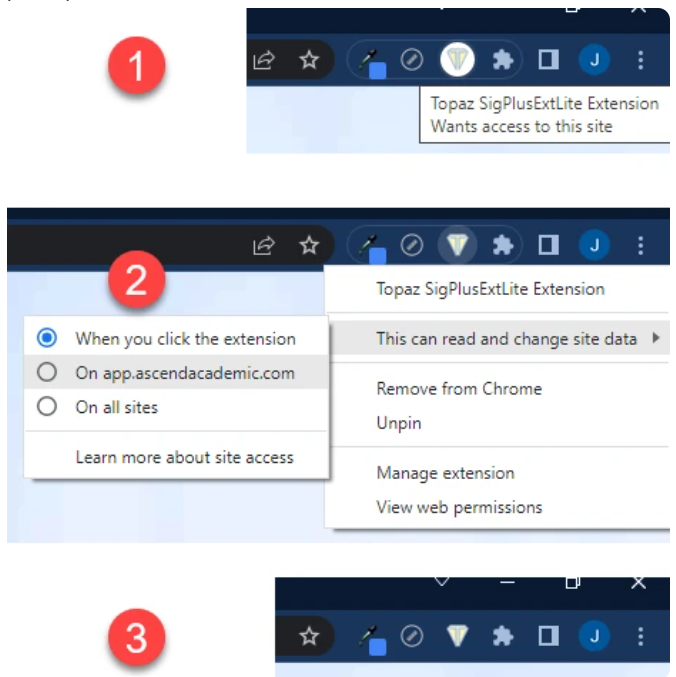
Allow the extension to access the Ascend Academic site.
-
Reload Ascend Academic.
If the Topaz device does not work in the Topaz test page
-
Check the USB or serial connection.
-
For BSB/serial devices, verify the COM-port configuration.
-
Confirm that the correct Topaz device model was selected during installation.
-
Reconnect the device and run the Topaz test again.
-
If the device still does not work, contact the Topaz device supplier or Ascend Academic Support.
If the Topaz device works in the Topaz test page but not in Ascend Academic
-
Confirm that the browser extension is enabled.
-
Confirm that the extension is allowed to access the Ascend Academic site.
-
Reload Ascend Academic.
-
Confirm that you are testing the device while capturing patient consent in a Treatment Plan.
-
If the issue persists, contact Ascend Academic Support.
Installation checklist
- Correct Topaz device identified.
- SigPlus installed and configured.
- SigPlusExtLite version 3.0 or later installed.
- Browser extension installed and enabled.
- Browser extension has permission to access the Ascend Academic site.
- Topaz test page successfully detects and captures a signature.
- Treatment Plan patient consent signature successfully captured using the Topaz pad.
Where can I use the Topaz signature pad in Ascend Academic?
-
Currently supported: Capturing a patient's consent signature in a Treatment Plan.
-
Not currently supported: Using the Topaz signature pad for other signature or signing workflows in Ascend Academic.
Support
If you have completed the setup and the Topaz signature pad still does not work, contact Ascend Academic Support. When contacting Support, provide the Topaz device model, Windows version, browser and browser version, SigPlus version, SigPlusExtLite version, and the step where the issue occurs.
Comments
0 comments
Please sign in to leave a comment.