
After a student provider completes a procedure, they may need to complete an evaluation to record an assessment of their work.
There are two types of evaluations:
-
Sessional evaluation: This is a regular assessment that is completed after an appointment. They are created by a student provider or a faculty member without an appointment.
-
Competency evaluation: This is a formal assessment that directly relates to required coursework and a specific appointment. They can be requested by a student provider or a faculty member from an appointment but may also be created without an appointment.
Note: You can complete evaluations according to your security rights for Academic Evaluations.
To complete a self-evaluation
How to get to there
-
From the Academic menu, clicktap Student Evaluations.
The Student Evaluations page displays.
-
On the Student Evaluations page, clicktap the Pending tab and review the list of evaluations.

Notes:
-
The Date/Time column displays the date/time the evaluation was created.
-
Evaluations that require a self-evaluation display an icon under the
 column.
Tip: You can clicktap the
 icon to refresh the list and display any updated statuses.
 -
-
(Optional) Filter the list of evaluations as necessary.
-
ClickTap the Date Range field and select an option to display evaluations within a certain range.
Note: The field defaults to today's date.
-
If you selected Specific Date, select a date from the calendar that displays and clicktap Done.
-
If you selected Custom Range, select two dates from the calendar that displays and clicktap Done.
-
-
ClickTap the
 column header as necessary to sort the evaluations by competency or sessional evaluations.
-
-
To open the evaluation, clicktap Start.
Tip: If your copy of the evaluation is in-progress, a Resume button displays instead. For in-progress evaluations, under Evaluator column, you can check if faculty have completed their copy of the evaluation. If completed, a check mark
 icon displays beside their masked name.
-
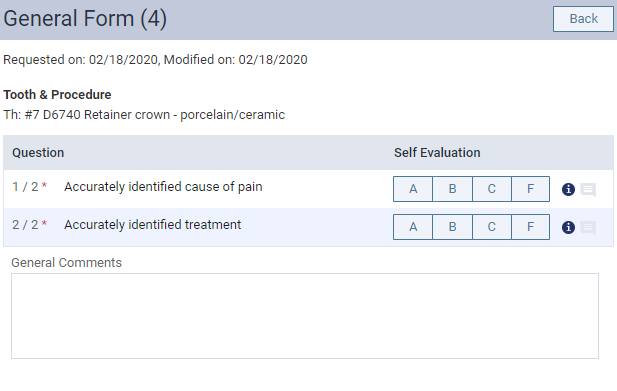
Complete the evaluation as necessary.
-
To complete a question, clicktap the appropriate grade button.
Tip: You can clicktap the
 icon to view the description for each grade in the grading scheme.
 -
To add a question-specific comment, click the
 icon next to a question to display a Comments field and enter the comment.
 -
To use the Comment Assistant, next to each descriptor, clicktap the
 and
and  icons as necessary.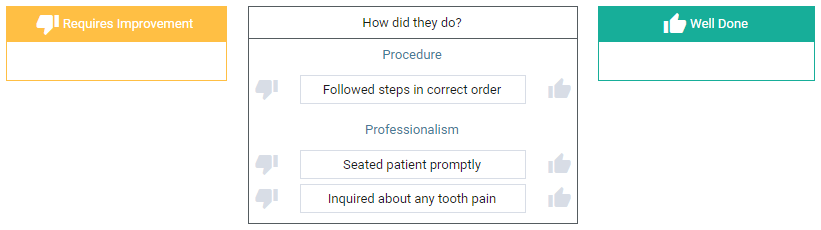
-
To add a general comment, enter the comment in the General Comments field.
Notes:
-
Not all evaluations include question-specific comments or a Comment Assistant.
-
If the evaluation is for a multi-visit procedure, only complete the sections that relate to the completed appointment.
-
-
When the evaluation is complete, clicktap Submit.
Tip: If you need to complete the evaluation later, clicktap Save & Exit.
Important: Multi-visit procedures may have sections that are required, but must be completed on a later date. If this is the case, a Warning window displays.ClickTap Submit as multi-visit or clicktap Back to evaluation and complete the remaining sections.

Once complete, submitted evaluations display on the Completed tab with a View button, and saved evaluations display on the Pending tab with a Resume button.
Note: If a faculty copy of the evaluation is not complete, a Remind Faculty button displays.
Comments
0 comments
Please sign in to leave a comment.