
You can add drug allergy information to a patient in eRx.
Note: You can access eRx according to your security rights.
Important: Any allergies you add to a patient within eRx do not synchronize with the patient allergies set in Ascend Academic.
To add an allergy
How to get to there
-
From the Patient menu, under General, clicktap Prescriptions.
The Patient Prescriptions page displays.
-
ClickTap the Prescription drop-down menu and select New Electronic Prescription.
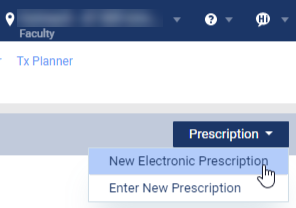
Note: If logging in as a proxy clinician, you are prompted to select the clinician you are acting on behalf of.
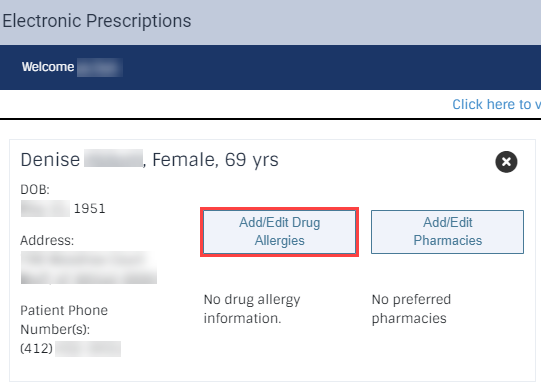
The Electronic Prescriptions window and the Patient Details page display.
-
On the Patient Details page, clicktap the Add/Edit Drug Allergies button to display the Add Drug Allergy section.
-
Under the Add Drug Allergy section, complete the fields as necessary.
-
No Known Allergies - Select the check box if the patient has no known allergies.
-
Name - Enter a free-text allergy or select a drug from the drop-down list.
-
Status - Select Active or Inactive from the drop-down list.
-
Reaction Type - Select Allergy or Adverse Reaction from the drop-down list.
-
Reaction - Enter the full description of the reaction.
-
Onset Date - Enter the date the allergy began.

-
-
ClickTap Save.
If you added an allergy, it displays in the Current Drug Allergies list.
If you selected the No Known Allergies check box, No Known Allergies displays in the list and the Add Drug Allergy form is hidden from view.
Comments
0 comments
Please sign in to leave a comment.