
You can add electronic prescriptions to a patient record.
Note: You can add prescriptions according to your security rights.
To add an electronic prescription
How to get to there
-
From the Patient menu, clicktap Prescriptions to display the Patient Prescriptions page.
-
ClickTap the New Electronic Prescription button.
Note: If logging in as a proxy clinician, you are prompted to select the clinician you are acting on behalf of.
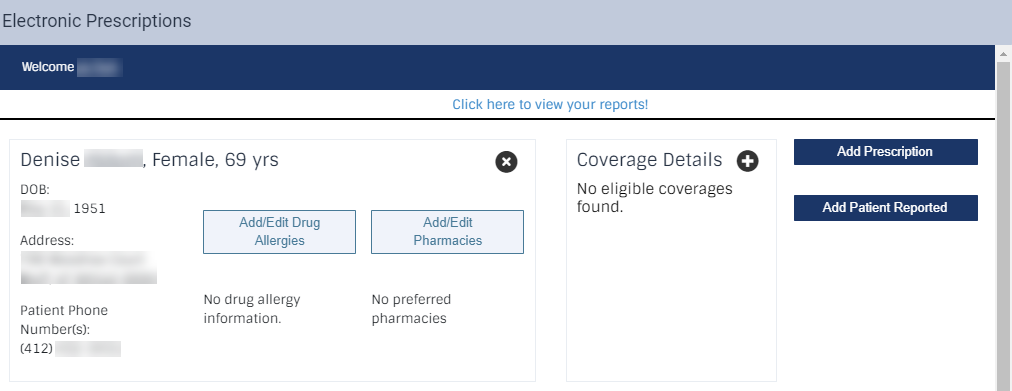
The Electronic Prescriptions window opens and the Patient Details page displays.
-
On the Patient Details page, clicktap the Add Prescription button to display the Add Prescription section.
-
Search for a medication.
-
Enter a medication name in the search bar.
-
From the auto-completed drop-down list, select the correct medication.
Tip: If you have any medications listed under My Favorites, you can also select a medication from there.
Note: If diagnosis is enabled in the clinic's configurations, you can also select a diagnosis for the prescription.
Important: If diagnoses are enabled, and the clinician is adding an EPCS prescription, a diagnosis is required.

-
-
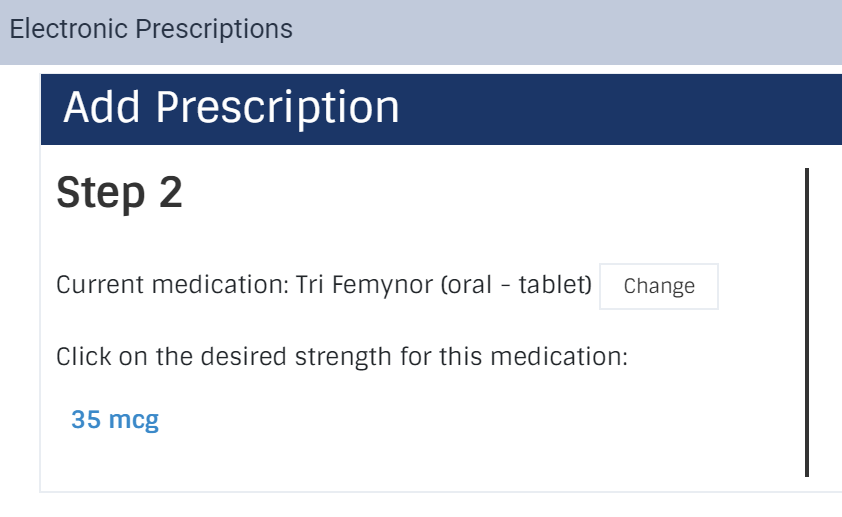
Select the medication dose and form.
Note: Only the legal variations of the drug are available.
-
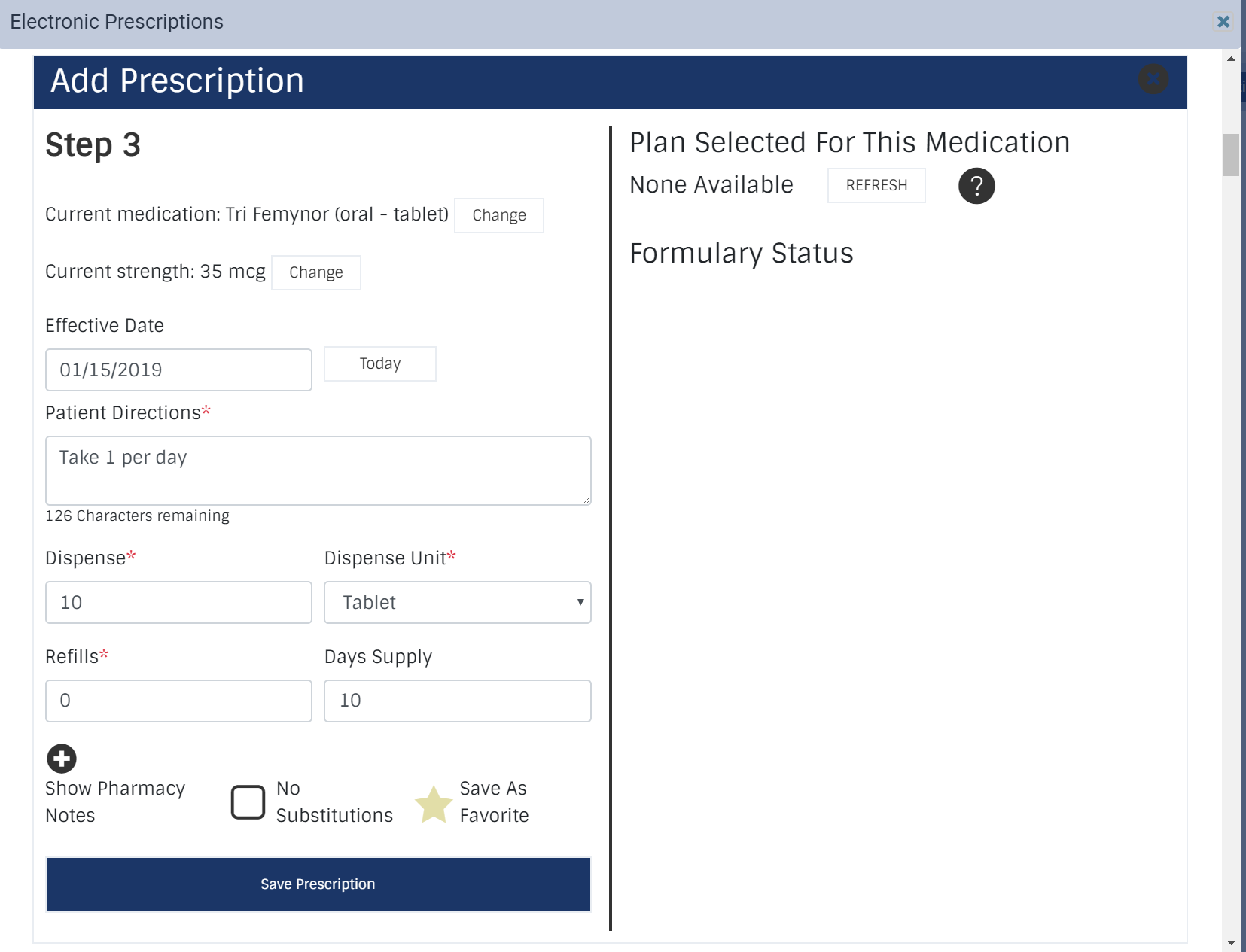
Complete the other prescription fields as necessary.
Note: If the patient has eligibility information saved, formulary information displays on the screen. This includes formulary status, copay details, and alternative medications if applicable.
-
Effective Date: Enter the date the medication will be available or clicktap the Today button.
-
Patient Directions: Enter the directions that patient must follow to take the medication.
-
Dispense: Enter the number of medication items in each dispense unit.
-
Dispense Unit: Enter the packaging or method that the medication is dispensed in.
-
Refills: Enter the number of refills the patient is entitled to.
-
Days Supply: Enter the number of days the medication should last.
-
No Substitutions: Select the check box if substitutions are not allowed.
-
Pharmacy Notes: ClickTap the + icon next to display the field and enter any necessary notes.
-
-
(Optional) ClickTap Save As Favorite to save all entered prescription details to the My Favorites list.
-
ClickTap the Save Prescription button.
-
Enter a nickname for the favorite and clicktap the OK button.
Tip: If you want to save it as a master favorite, add an asterisk (*) to the beginning of the name.
If you clickedtapped Save As Favorite, an Add Favorite window displays.
The prescription displays in the Pending Medications list.
Comments
0 comments
Please sign in to leave a comment.