
Using the treatment-planned procedures that have been added to a case, you can preview a treatment plan for a patient.
To preview a treatment plan
How to get there
-
Use the Patient Search field to access a patient's record.
Notes:
-
If the last patient record you accessed since you last logged on is the correct patient's record, you do not need to re-enter the patient's name in the Patient Search field.
-
You can include inactive patients in the search results by setting the Include inactive patients toggle switch to On.
Important: If the Access Confidential Patient window displays after selecting the patient from the search results, it means the patient is a confidential patient and you don't have the security rights to access their record. To continue, a user with the security rights must enter their credentials into the window. Once given access, you have access to the patient's information until your session expires.
-
-
Complete one of the following:
-
From the Patient Information ribbon, clicktap the Tx Planner link.

-
From the Patient menu, under Clinical, clicktap Treatment Planner.
-
From the Patient menu, under General, clicktap Overview.
The patient's Overview page displays.
ClickTap the Treatment Plan widget.
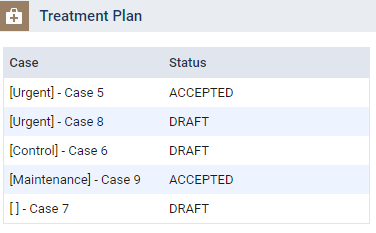
The patient's clinical record displays with the Tx Planner tab selected.
-
-
On the Tx Planner tab of a patient's clinical record, select a case listed under a category.

The procedure(s) associated with the selected case display.
-
ClickTap Preview.
The treatment plan displays.

Note: If an
 icon displays next to the name of any of the patient's insurance plans, there is a note for that insurance plan. To view the note, clicktap the icon.
 -
(Optional) To change the status of the treatment plan, clicktap the Status field and select a status.
Note: You can only change the status to Draft, Pending Patient Consent, Accepted, or Rejected.
-
(Optional) To print the treatment plan, clicktap Print.
Notes: As Print only displays the latest version of the treatment plan, it displays the following for treatment plans in Accepted or Rejected status:
-
If a treatment plan was accepted or rejected with the patient's signature, their e-signature, the full name of the provider that presented the treatment plan to the patient, and the date of the presentation displays on the treatment plan.

-
If a treatment plan was accepted and/or rejected multiple times, it only displays the patient's latest e-signature.
-
If a treatment plan was accepted or rejected without the patient's signature, their signature, the full name of the provider that presented the treatment plan to the patient, and the date of the presentation does not display.
-
If a treatment plan was accepted or rejected by the patient on paper, their signature, the full name of the provider that presented the treatment plan to the patient, and the date of the presentation does not display on the e-document.
-
-
To return to the Treatment Planner page, clicktap <- Back to Treatment Planner.
Comments
0 comments
Please sign in to leave a comment.