
Several new feature enhancements are included in the product update released in early October 2021. The major enhancements in this release includes new ability to inactivate and activate multiple providers at once and new In-Process status to identify procedures that have started but aren't finished yet.
New ability to inactivate and activate multiple providers at once
To save time, users can now inactivate or activate multiple providers in a same user group at once, instead of doing it individually. To do it in bulk, you need to select the check boxes of providers you want to update within a user group on the User Groups page (Settings > Location > User Groups).
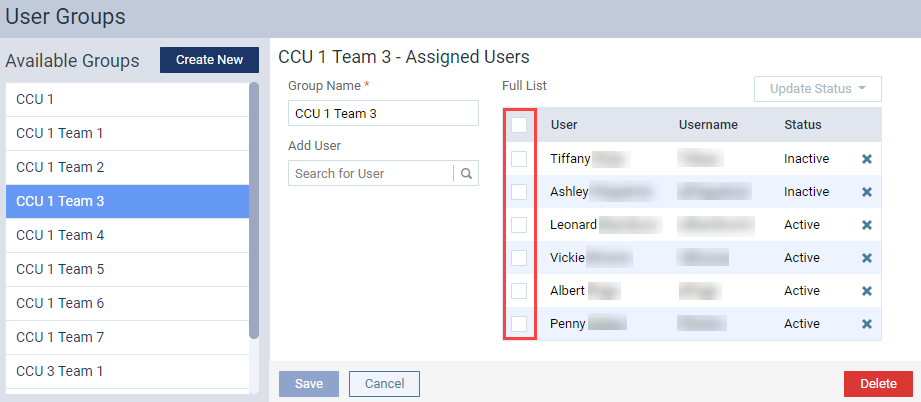
Tip: To update all providers, you can select the check box in the header to select all.
Once selected, the (new) Update Status drop-down menu enables, which provides you the option to inactivate or activate the selected providers.
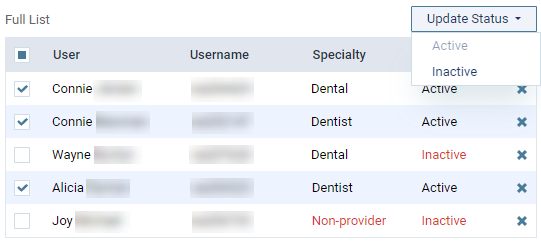
Note: If the selected providers are all active, only the Inactive option is enabled. If the selected providers are all inactive, only the Active option is enabled. If the selected are a mix of active and inactive providers, both options are enabled.
If you select Active to activate inactive providers, the (new) "The user(s) have been activated" notification message displays and the action is audited in the Audit Log. Specifically, audit entries are created individually for all activated providers with the following information in the Details column: Bulk activate: [Firstname Lastname of the provider] - [username of the provider].

If you select Inactive to deactivate active providers, one of the following occurs:
-
If the selected providers didn't have any pending patient activities and/or aren't assigned as active patients' primary providers, the (new) "The user inactivation has been initiated and may require some time to process" notification message displays. Also, the action is audited in the Audit Log. Specifically, audit entries are created individually for all deactivated providers with the following information in the Details column: Bulk deactivate: [Firstname Lastname of the provider] - [username of the provider].

-
If the selected provider(s) have any pending patient activities and/or are assigned as active patients' primary provider(s), the Inactivate Providers window displays.

Like the existing Inactivate Provider - [name of provider] window, you will need to transfer the pending activities and active patients to active providers to complete the inactivation process.
After you clicktap Inactivate, the "The user inactivation has been initiated and may require some time to process" notification message displays. Also, 2 kinds of entries are audited in the Audit Log: the Bulk deactivate: [Firstname Lastname of the provider] - [username of the provider] entries and another for transfers from old providers to new providers. Specifically, the changed areas display as such in the Audit Log:
-
Schedule - Upcoming appointments that had the inactivated providers as the appointment provider, and were transferred to a new provider.

-
Chart - Pending procedures that had the inactivated providers as the procedure provider, and were transferred to a new provider. Displays the old value with the username of the previous procedure provider, and the new value with the username of the new procedure provider.

-
Unsigned Clinical Notes - Unfinished clinical notes that are associated with the inactivated providers, and were transferred to a new provider. Displays the note's old provider, the portion of the note, whether it's ready to sign, and the username of the attending provider.

For unfinished clinical notes, axiUm Ascend automatically locks it if the inactivated provider is set as the note's provider or attending provider, and keeps the inactivated provider in the note. Also, a message on the locked note displays, indicating it was locked due to the inactivation of the provider.
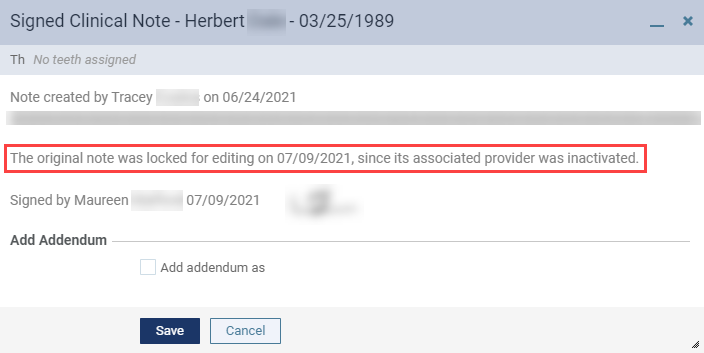
However, if the inactive provider was only set as the additional provider, the note remains open, and the new provider displays as the note's additional provider.
-
Patient Information - Active patients that had the inactivate providers set as their primary provider, and was updated to have the new provider set as their primary provider. The entry contains the value of the old provider as OLD: "[username of old provider] - [Firstname Lastname of old provider]". The value of the new provider displays as NEW: "[username of new provider] - [Firstname Lastname of new provider]".

Important: These new audit entries for transfers from old to new providers also applies individual inactivation.
-
Important: To inactivate and activate providers in bulk, you need to have the Review User Group and Inactivate User user role permissions set. Without the Review User Group user role permission set, you won't be able to access the user group workspace. Without the Inactivate User user role permission, the Update Status drop-down menu remains disabled.
Note: All these entries in the Audit Log are now available in the auditing report.
Tips:
-
The deactivation of providers in bulk may take few seconds or few minutes to complete depending on the amount of pending patient items and/or active patients that needs to be transferred to new providers. If you need to deactivate providers that have a large number of pending patient items and/or patients that requires transferring, it is recommended you inactivate in smaller batches to make the inactivation process faster and smoother.
-
For any inactivation of large user groups, it is recommended to not perform bulk inactivation during peak work hours. Instead, you can do it at the end of the work day for faster and smoother performance experience.
-
You can also use this method to inactivate or activate non-provider users in bulk as long as they are within a user group.
New In-Process status to identify procedures that have started but aren't finished yet
To mark and identify procedures that have started but aren't finished yet, we have added a (new) In-Process status to procedures throughout axiUm Ascend. The new status is only meant for identification purposes, and doesn't impact any workflow. Users can mark a procedure as in-process by setting it's status to (new) In-Process on the Edit Procedure window.

However, the In-Process status only displays if the associated treatment plan is in the Accepted status. If the treatment plan is in any other status, such as Draft, the option won't display.
Important: If the associated treatment plan moves back to the Draft, Pending Faculty Approval, or Pending Patient Consent status, the procedure will automatically update to the Tx Plan status.
You can locate and identify these procedures in the following areas:
-
Tx Planner tab of a patient's clinical record (Patient > Clinical > Treatment Planner) - You can identify which procedures on a patient's treatment planner is in-process by checking the Date field of a treatment plan case.

Like the existing behavior for completed procedures, the Date field displays the status of in-process procedures instead of the date of the procedure.
-
Progress Notes tab of a patient's clinical record (Patient > Clinical > Progress Notes) - All in-process procedures display on progress notes with a In-Process status.

If necessary, you can filter a patient's progress notes to only display in-process procedures by using the (new) In-Process filter on the page.

Scheduled Aged Receivables report doesn't generate monthly after implementation of 377-0
Issue: When users navigate to the Aged Receivables page, the View Reports section doesn't display any scheduled monthly reports after the implementation of 377-0.
Solution: Fixed so the report generated monthly as scheduled.
New providers doesn't display for other logged in users
Issue: When an administrator creates a new provider, other users that are currently logged in can't find the new provider from any Provider drop-down and search fields anywhere in the system, except for the User Accounts page.
Solution: Fixed so new providers display for all logged in users as expected.
Wrong error message displays when deleting a procedure associated with a previously approved treatment plan
Issue: When users attempt to edit a previously approved treatment plan that's in Draft or Pending Faculty Approval status by deleting its only procedure on Tx Planner page, the wrong error message displays. Instead of "Please delete the associated treatment plan" error message, the "An error has occurred. The procedure hasn't been deleted" error message displays.
Solution: Fixed so the proper error message displays.
Wrong week day on automated text messages
Issue: When axiUm Ascend sends an automated text message to a patient, such as an appointment reminder, the message may display the wrong day of the week.
Solution: Fixed so the text messages display the proper week day.
Confidential patient's appointments doesn't display after receiving permission to view and access information
Issue: When users without the security rights to access confidential patients receive permission to view and access information on a specific confidential patient, and then navigates to the Calendar to view the patient's appointment, the appointment may not display on the Calendar.
Solution: Fixed so it displays properly.
Comments
1 comment
Not a big deal, but in the introduction of this release and the previous one it states September. This releases were distributed in October.
Please sign in to leave a comment.