
Many new feature enhancements and two bug fixes are included in the product update released in January 2025.
The major enhancements in this release include the following:
-
Evaluations
Two Ascend Academic bug fixes are included in this release.
Evaluations
Ability to edit procedure codes in the completed evaluations
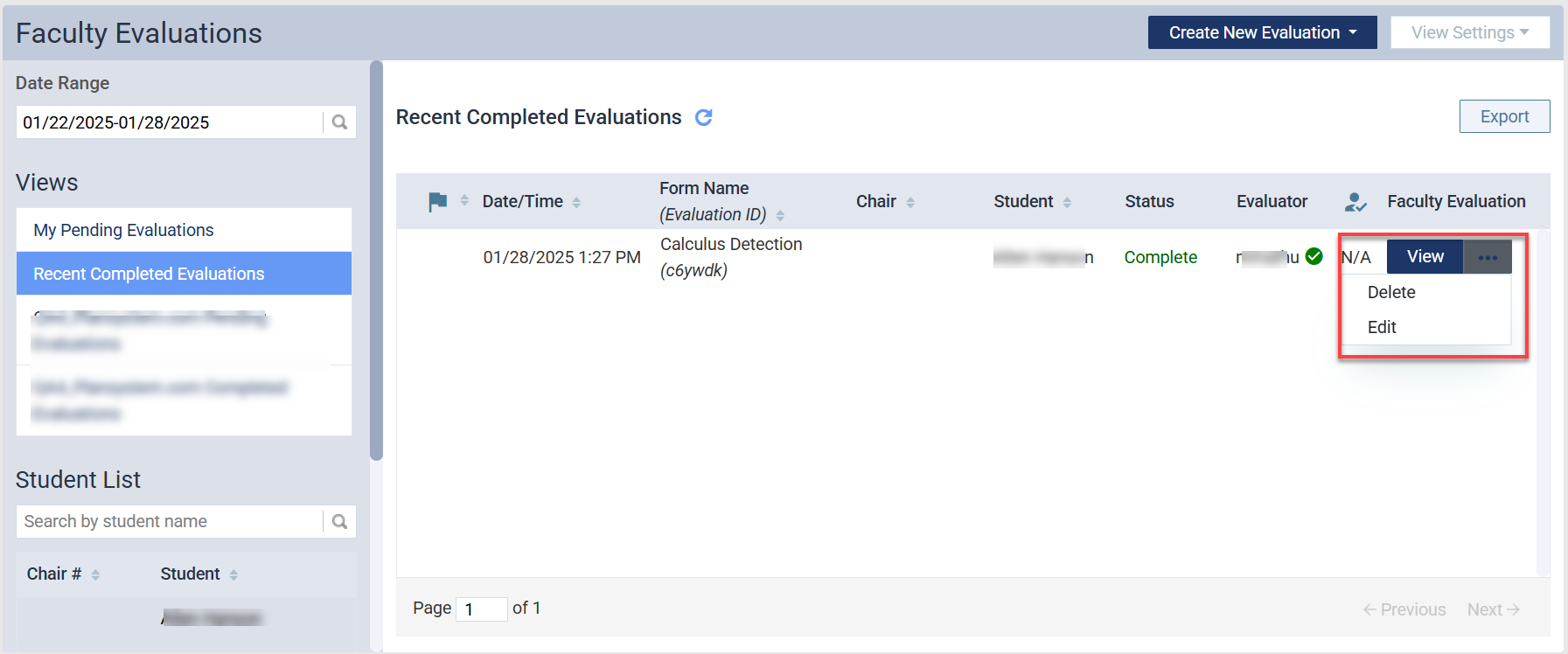
In the previous release 122-1, the ability to edit the procedure codes in the in-progress evaluations was added. In this release 122-4, users will be able to edit the procedure codes in the completed evaluations as well. When working with completed evaluations (Academic > Faculty Evaluations), faculty users can now add or delete the attached procedure codes using an ellipsis button and Edit option.
In the Edit mode, the user can add procedure codes or delete procedure codes previously added in the Tooth & Procedure area.
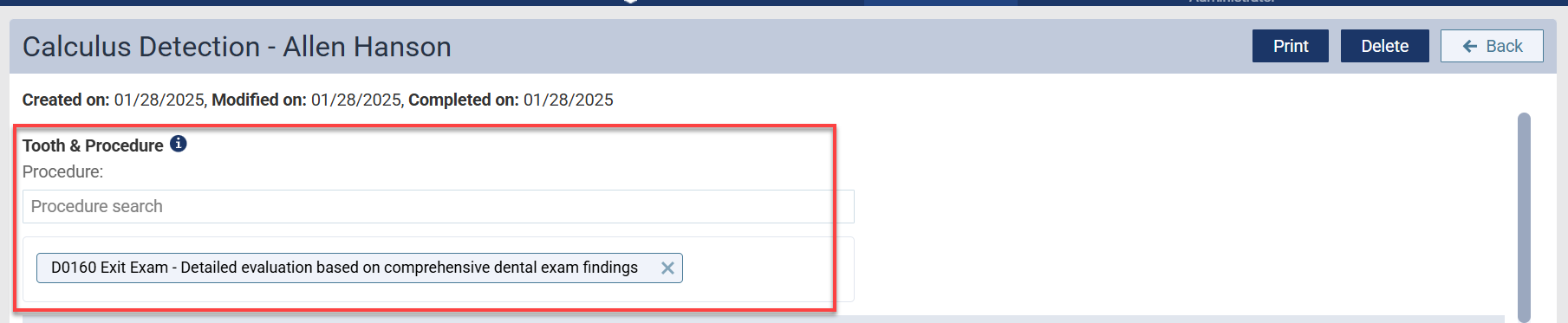
Note: Procedure codes added or deleted in the Edit mode are saved immediately. Users do not need to Submit or Save & Exit when no other changes are made. Cancel will not undo procedure codes added or deleted as well. Users can click the Back or Cancel button when editing procedure codes is done. When the user is editing their answers together, user is required to select Submit for it to reflect.
Important
-
Procedure codes cannot be edited if the form template has procedure-specific questions.
-
Editing procedure codes in the completed evaluation will not correctly update the procedure counts in the Power Reporting. This issue will be addressed in the next release. Until then, it is recommended to refer to the procedure counts in the Academic > Student Progress tab.
Ability to add a tooth chart in the evaluation template
You can add a tooth chart in the evaluation template to document students’ skill accuracy levels. The tooth chart will display 32 permanent teeth and 4 surfaces (F/L/D/M) per tooth (total 32 x 4 = 128 surfaces). Faculty evaluators can use it to assess students’ proficiency in relevant skills, such as full-mouth periodontal charting, probing, or dental plaque and calculus detection or removal skills.

Important
-
Tooth chart is not available for the student self-assessment.
-
Primary tooth chart is not available yet.
Adding a tooth chart to the evaluation template
You can add a tooth chart in both sessional and competency forms. When setting up evaluation forms on the Evaluation Setup page > Evaluation Forms tab (Settings > Academic > Evaluation Forms), a new section Tooth Chart is available under the General section.

You can select ‘Enable tooth chart’ checkbox to open the sub-settings.

-
Use tooth chart accuracy % as final grade - Selecting this option uses the accuracy percentage calculated based on the tooth chart entries as the final grade for the evaluation. Not selecting this option will use the final grade calculated by the criteria and grading scheme defined in the Questions section of the evaluation template.
-
Tooth Chart Title - Enter the title of the tooth chart.
-
Tooth Chart Guidelines - Describe guidelines for faculty instructors or evaluators of how to utilize the tooth chart in the student skill evaluation process in your program.
-
Tooth Chart Display - Select ‘Above form questions’ to add the tooth chart to show before the patient complexity and questions in the template. Select ‘Below form questions’ to add the tooth chart to show after the patient complexity and questions in the template.
The evaluation template with a tooth chart also requires at least one required (mandatory) question in the template. The required question will determine the status of the evaluation. The evaluation is completed when all required questions are answered by the required number of evaluators.
Note: With the addition of the tooth chart, a few more changes are made in the evaluation form settings to reorganize and group related properties.
-
Failable, Grading Scheme type, Comment setup for each question are moved from the General section to the Questions section.
-
General section now contains only settings applicable to the entire form.
Ability to evaluate specific teeth or surfaces using the tooth chart
Once the evaluation template is configured with a tooth chart, the user can use the tooth chart to enter their assessment results at the tooth and surface level in the evaluation. Faculty users can create the evaluation with a tooth chart in the same way as before (Academic > Faculty Evaluations > Create New Evaluation button).

When filling in the evaluation with the tooth chart, evaluators can mark tooth surfaces if the student made an error or a critical error during her examination or procedures.
-
Select a surface and click once to mark an error made (orange)
-
Select a surface and click twice to mark a critical error made (red)
-
Clicking three times on the surface will remove errors and reset the surface (blue)
Note: The application does not differentiate grading points for an error and a critical error in this release.

The evaluator can exclude teeth or surfaces from the considered for the specific evaluation using Exclude Surfaces or Exclude Teeth buttons.
-
Exclude Surfaces - Users can select surface(s) to exclude from the evaluation. For instance, users can exclude surfaces without calculus deposit from calculus removal skills evaluation. The selected number of surfaces is deducted from the total surfaces.
-
Exclude Teeth - Users can exclude the whole tooth and its surfaces from the evaluation. For instance, users can exclude missing teeth from the calculus detection skills evaluation. The selected teeth and their surfaces are deducted from the total surfaces.
Note: In 4 surface tooth chart, the default number of total surfaces is 128 (32 times 4).
As the user fills in the tooth chart, the application calculates the Accuracy Percentage in the Results (Tooth Chart) row. Accuracy Percentage is calculated by the number of surfaces without an error/critical error divided by the total number of surfaces considered for the evaluation.

For instance, when 7 surfaces are excluded from the evaluation, 4 errors are made, and 4 critical errors are made; then Total Surfaces = 121 and Surfaces without Errors = 113. Therefore, Accuracy % = 113 divided by 121, which equates to 93.4%
Evaluators can also add their overall comments about the tooth chart evaluation using the comment icon on top of the tooth chart.

Bug Fixes
Question-specific comments from the Evaluation form are missing from the printout
Issue: Users see only general feedback, not question-specific comments on the Evaluation form printouts.
Solution: Fixed so that the question-specific comments on the Evaluation form can now be printed.
Treatment plan procedure display in Previews and Print-outs does not match the stored sort order.
Issue: The Preview/Print-out screen displays procedures in an order that differs from the user’s selection.
Solution: Fixed so that procedures are displayed in the order the user selects on the Preview/Print-out screen.
Comments
0 comments
Please sign in to leave a comment.