
Several new feature enhancements are included in the product update released in late September 2021. The major enhancements in this release include new xfer record function, improvements to patient's related patients on the Patient Information ribbon, new behavior for the unlock insurance overrides function, and preparations for the new discount plan that will be implemented in a later release.
New xfer record function
Previously, the Ledger page (Patient > Financial > Ledger) didn't display any insurance estimate calculations that took place in the backend. To provide some transparency, all procedures on the page now comes with a (new) History of Transfer of Responsibility line item.

The History of Transfer of Responsibility displays a list of (new) xfer records, which displays the breakdown of insurance estimates and the total owed amounts for primary insurance, secondary insurance, and guarantor. It also displays write-offs.

When a payment is made, both partial and full, a new xfer record is added above the previously current xfer record. The new owed amount displays with the paid amount as a negative number in parentheses.

Note: Older xfer records display with a hatch pattern.
Balances displays as positive numbers.

Generally, new xfer records are automatically added whenever a procedure's amount changes. Specifically, when you do any of the following:
-
Post a guarantor payment
-
Post an insurance payment
-
Apply an automated write-off amount
-
Apply a charge/credit adjustment
-
Change the amount or allocation of an adjustment
-
Edit a payment so that the distribution of portions changes
However, axiUm Ascend doesn't create any xfer records for any other changes that can affect a procedure's insurance estimates. These include:
-
Coverage Tables
-
Coverage start or end dates
-
Deductibles and Benefits
-
Max allowable fee schedules
-
Coordination of Benefits (secondary insurance)
-
Billing providers (insurance default)
-
Providers switching from non-contracted to contracted of vice versa
When these occur, the Insurance Portion, Write-Off Adjustment, and Patient Portion located at the upper-half of the Ledger page displays with an orange box to indicate the insurance estimate is outdated.

If you want to update the insurance estimate on the Ledger, you can clicktap the (new) Ins. est. update available button. When prompted to confirm you do want to update, clicktap Update.

Important: The update applies to all unpaid procedures. Also, if you update for a patient that's covered by a specific subscriber, the update applies to all patients that are covered by the same subscriber.
If necessary, you can exclude the update for specific procedure(s) by setting the procedure's record > Insurance Estimates tab > (new) Outstanding Insurance Estimates section > Automatically calculate insurance estimates toggle switch to Off before you apply the update.

While the automated insurance estimate is turned off, the procedure goes through the following behavior changes until you turn it back on:
-
All future updates on patient's insurance estimate doesn't apply to the procedure
-
The procedure's calculations won't include benefits and deductibles
-
The Ins. est. update available button won't display when changes to the insurance plan occur
-
The procedure displays with the (new)
 icon on the Patient Portion page (Patient > Financial > Ledger) and the Guarantor Portion page (Patient > Clinical > Treatment Planner). On the Detailed View, the procedure also won't include any information relating to the allowable amounts or coverage percentage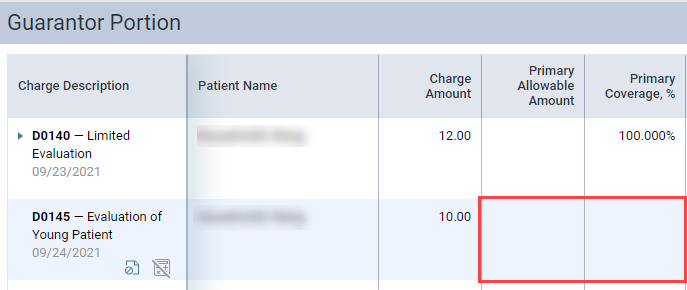
If necessary, you can also manually modify the insurance estimate calculations while it's turned off. If you adjust the insurance portion, the guarantor portion will update automatically to reflect the adjustment.
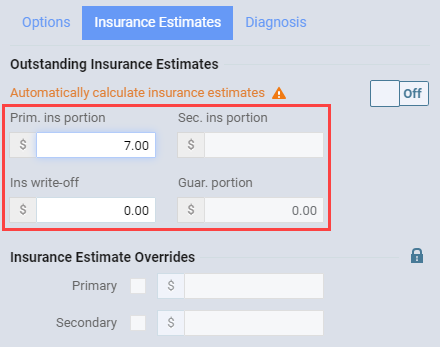
Important: To turn off the automated insurance estimate and to manually adjust the calculations, you need the Unlock Insurance Overrides and (new) Manage Outstanding Insurance Estimates user role permissions set.
By default, all xfer records come with a generic reason that's created automatically by the system. The reason is documented in the following format: [Action that caused the creation of the record] on [calendar date of the creation of the record in MM/DD/YYYY] [Type of action that caused the creation of the record in all uppercase letters]. You can view these reasons by selecting the xfer record on the Ledger page to open the xfer record.

If necessary, you can add more information on the xfer record by using the Add a tag field to add tags.

Note: Currently, there are no report for these tags.
We have updated the following reports to now include data from xfer records:
-
On the Aged Receivables report (Home > Reports > Aged Receivables Report), you can use the (new) As of filter to generate a report that contains insurance estimate calculations from that set date.

-
On the Outstanding Claims report (Home > Insurance > Outstanding Claims), we have added a (new) Expected column, which displays procedures' insurance portion from xfer records.

Important: The oldest xfer record data these reports can generate is September 17th, 2021. They can't generate any data before the 17th.
Note: The Ins. est. update available button also displays on the Patient Portion page and the Guarantor Portion page.


Improvements to patient's related patients on the Patient Information ribbon
When users expand a patient's Patient Information ribbon > Related Patients drop-down list, the following new information display:
-
Related patient's age in parentheses
-
Related patient's gender as M for male, F for female, or O for other
-
Related patient's next appointment as a separate column. If a related patient doesn't have any upcoming appointment, it displays as None. If they do have an upcoming appointment, it displays the date and time of the appointment as MM/DD/YYYY HH:MM AM or PM. Any upcoming appointments that aren't at the location you're currently logged into displays with a
 icon.
icon.

You can view more information or edit any of the appointments by clickingtapping it to navigate to the Calendar with the appointment's Appointment Information panel open. However, you can only clicktap appointments that are taking place at the location you're logged into. To view or edit appointments at different locations, you need to switch to the appointment's location and then clicktap it from the drop-down list. You can find out the location of the appointment by hovering overtapping and holding the icon to display the Location tooltip.

If a related patient doesn't have an upcoming appointment, you can schedule one by clickingtapping its  icon to open a new appointment's Appointment Information panel on the Calendar.

By default, the new appointment will have the related patient set as the appointment's patient, the date will be set to the selected patient's upcoming appointment's date, and the time will be set closest to the selected patient's upcoming appointment.
Example: Patient A has an upcoming appointment on December 1st, 2021 at 10AM. You clicktap the icon for patient B, one of patient A's related patients. axiUm Ascend automatically navigates to the Calendar on December 1st, 2021 with the Appointment Information panel set for a free time slot closest to 10AM. Patient B is also set as the appointment's patient.
New behavior for the unlock insurance overrides function
Previously, logged in users needed to have the Unlock Insurance Overrides user role permission set and enter their credentials when unlocking locked procedure records throughout axiUm Ascend.
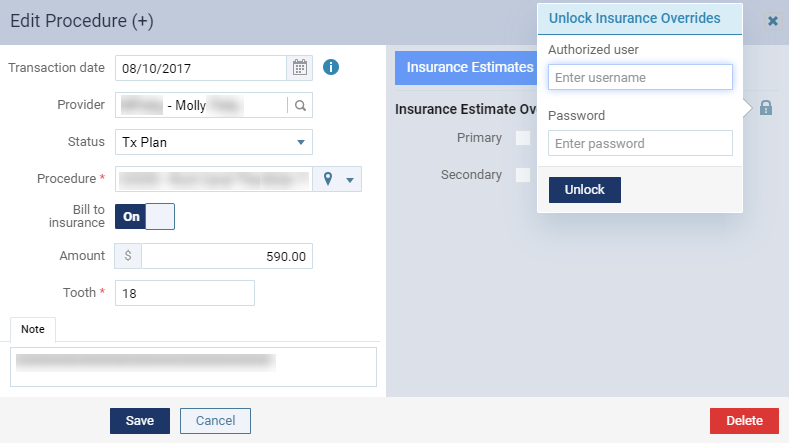
Now, the Unlock Insurance Overrides tooltip only displays if the logged in user doesn't have the Unlock Insurance Overrides user role permission set. If the logged in user does have the user role permission set, the procedure unlocks automatically when the  icon is clickedtapped.
Also, axiUm Ascend now records successful insurance estimate overrides in the Audit Log with the logged in user's username and the username of the person that unlocked the procedures.

Preparations for the new discount plan that will be implemented in a later release
We are planning to introduce a new discount plan that can be used for services not covered by insurance at a later release. To prepare for this enhancement, we have made several changes to the Patient Information page (Patient > General > Patient Information) > Basic Info tab > Discount Plan drop-down list:
-
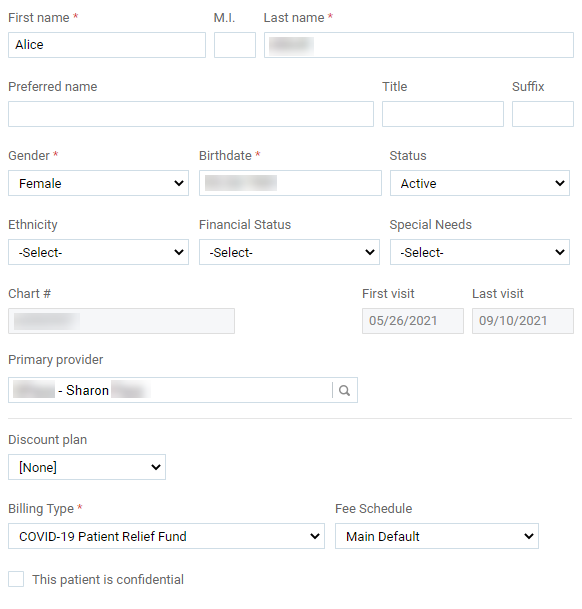
We moved the field below the Primary provider field. We've also added a (new) horizontal line between the Primary provider and the Discount Plan fields to visually separate fields that deal with finances from patient's personal information.
-
Except for Sliding fees, we've removed all list options from the Discount Plan drop-down list and replaced it with (new) Basic(uninsured). Also, the Sliding fees list option is no longer in bold text.
Before After 

To continue assigning patient-specific fee schedules, you need to set the field to Basic (uninsured).
-
We have added a (new) optional field called Discount plan expiration that only display when you set the Discount Plan drop-down list to Basic (uninsured).

For now, the field is only for reference.
Tip: You can use the field to document the expiration date of a discount in axiUm Ascend.
New filter option for Balance Aging filter
We have added a (new) no balance filter option to the Balance Aging filter on the Letters page (Home > Location > Letters). Users can now use the new filter option to filter the Recipient List to include patients with no balance.

New names for fields related to transaction history
Throughout axiUm Ascend, we've renamed fields that are related to transaction history by replacing the word "correction" with "revision".
Example: Edit Procedure window > Reason for Correction tab has been renamed to Reason for Revision.

Users can no longer edit appointment length without the Manage Appointments user role permission
Previously, if users didn't have the Manage Appointments user role permission set, they could edit the length of an appointment through the treatment planner (Patient > Clinical > Treatment Planner). Now, you can no longer edit an appointment's length unless you have the proper security rights.
Broken appointments doesn't display properly after refresh or login
Issue: For certain organization, when users set an appointment as broken or no show and then refresh the page or logout and log back in, the missed appointment doesn't display in the Calendar and the patient's Appointments page > Missed Appointments tab.
Solution: Fixed so it behaves as expected.
Appointment reminders as text messages doesn't work properly
Issue: When patients receive appointment reminders as text messages, an error occurs in the backlog. Also, patient's can't respond to appointment reminders.
Solution: Fixed so the text message function works as expected.
Comments
0 comments
Please sign in to leave a comment.