
Several new feature enhancements are included in the product update released in mid-July 2021. The major enhancements in this release include new ability to add conditions to Patient Complexity, needs consent when deleting a procedure associated with a partially completed treatment plan, and an update to an error message.
New ability to add conditions to Patient Complexity
On the Patient Complexity tab of the Evaluation Setup page (Settings > Evaluation > Patient Complexity), we have added a (new) Patient Category section that allows users to add, configure, and remove conditions that's not included in the default patient complexity setup, such as blindness and pregnancy.
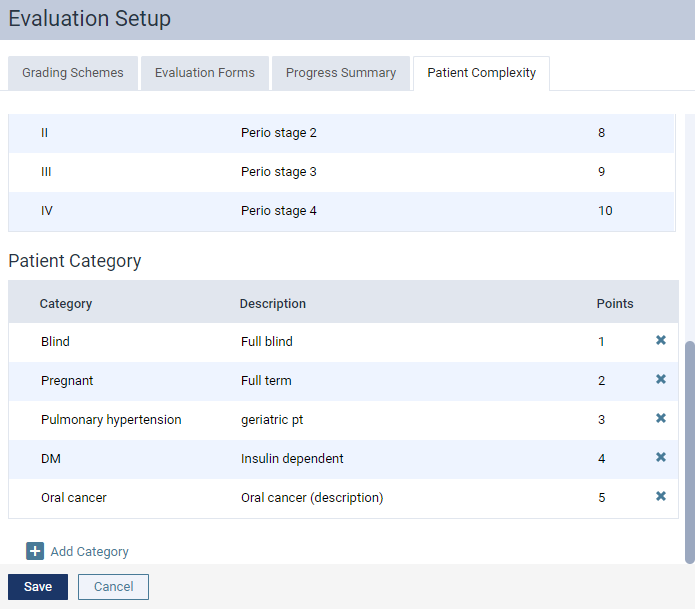
Conditions are added as a category, and each category displays the following fields:
-
Category - Name of the condition.
-
Description - Description of a condition. The description displays as a tooltip of an
 icon when users are completing an evaluation request.
 -
Points - Number of bonus points the student provider will earn if they select this condition.
To add a new category, you need to clicktap the (new) Add Category option to add a new row to the Patient Category section. From here, you can fill in the fields as necessary.

Important: You can only have maximum 10 categories. Once you have 10, the Add Category option is disabled to prevent further addition of categories.
You can also edit a category by selecting it to enable the fields, or remove it by clickingtapping the corresponding X icon.
Once set, the Patient Category section will display on evaluation forms with patient complexity as a list of categories with check boxes. Evaluators can select the corresponding check boxes of categories that applies to the evaluation.

Needs consent when deleting a procedure associated with a partially completed treatment plan
Previously, when users deleted an incomplete procedure associated with a treatment plan with multiple completed procedures and the deleted procedure was the only procedure in the Tx Plan status, the treatment plan case would automatically update to Completed, as the remaining procedures were complete. Now, instead of automatically updating to Completed, the case would update to Pending Faculty Approval. Once approved, the case would naturally update to Pending Patient Consent, and then the case would follow the general workflow.
If you don't have the permission to request approval for treatment plans, the case would update to Pending Patient Consent when you delete its only incomplete procedure.
This allows you to track the treatment plan case easier, as the new patient's consent form will be stored within axiUm Ascend. Also, this allows you to receive faculty approval and patient consent for the change in the treatment plan.
Update to an error message
For clarity on the cause of the error, we have updated the error message that displays when users without the proper security rights request an appointment. Now, the error message displays "Access Denied: Contact your office administrator", instead of There was an error saving the appointment".
The Confidential label doesn't display for users that doesn't have the security rights to access confidential patients
Issue: When users that doesn't have the security rights to access confidential patients view appointments in the Provider Overview > Schedule widget, appointments for confidential patients doesn't display with the Confidential label.
Solution: Fixed so the label displays as expected in the following locations: Provider Overview > Schedule widget, Unconfirmed Appts. page, Lab Cases page, and Patient Follow-up page.
Error when another user reads an unread text message at your location
Issue: When logged in users don't have access to the text message feature, an error occurs when an unread message is read by another user.
Solution: Fixed so the error doesn't occur.
Slow login for student providers
Issue: When student providers login to axiUm Ascend, it takes them longer than usual to login.
Solution: Fixed so student providers can login quickly as expected.
Comments
0 comments
Please sign in to leave a comment.