
Several new feature enhancements are included in the product update released in early December 2020. The major enhancements in this release include new ability to customize treatment consent messages, new confidential patient feature, new filter on evaluations, and a new message for changed view settings.
New ability to customize treatment consent messages
We have added a (new) Consent Messages page (Settings > Production > (new) Consent Messages).

Important: You need the (new) Manage Consent Messages user role permission set to have access to the page.
You can perform the following per section:
-
General Consent Message - Default consent message that displays for all procedures that doesn't have their own consent messages. If desired, you can configure the general consent message.
-
Procedure Consent Messages - Displays a list of ADA procedure code(s) that have their own customized consent message(s). You can add, configure, and delete a consent message for a single procedure code or a group of procedure codes as desired.
Once set, these consent messages display on the Print view and the Consent Form window of a treatment planner (Patient > Clinical > Treatment Planner). The general consent message displays first, followed by the procedure-specific consent message(s) with the associated ADA procedure code(s).
Print view

Consent Form window
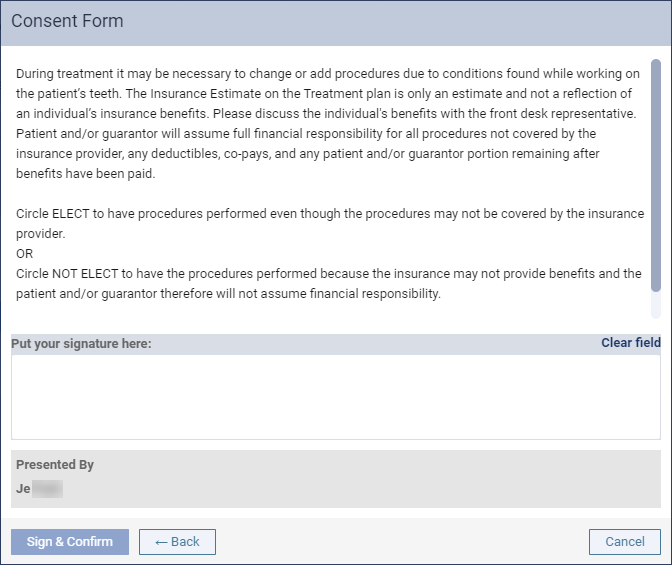
Notes:
-
The Print view and the Consent Form window only displays the saved general consent message. If you modified the general consent message and didn't save, it doesn't display in these areas.
-
The consent message configurations apply per location. To apply the same messages for your entire organization, you need to configure all the organization's locations individually.
Important: Admins of new organizations created after December 4th, 2020 will have access to this page by default.
New Confidential Patient feature
We have added a (new) Confidential Patient feature that allows admins to restrict users' access to specific patients and their personal information by setting them as a confidential patient. To set a patient as a confidential patient, admins must select the (new) This patient is confidential check box on the Create Patient page and the Patient Information page > Basic Info tab (Patient > General > Patient Information).

Note: If desired, you can always deselect the check box to reset a confidential patient as a regular patient.
Important: While the check box displays for all users, they will need the (new) View confidential patient user role permission set to use it. Without it, they cannot select or deselect the check box.
Once set, the confidential patient and their information will not display for users that doesn't have the user role permission set. This restriction also applies to the following:
-
Calendar page (Schedule > Calendar)
Note: The restriction also applies to the page's features, including the Fill Openings, Pinboard, Unconfirmed Appointments tab, Lab Cases tab, Insurance Eligibility, and Patient Follow-up. Users also can't view the confidential patients' appointments.
-
Patient Routing panel
By default, users cannot access a confidential patient's information unless they have the View confidential patient user role permission set. However, they can view the information by clickingtapping the confidential patient and having another user with the user role permission to enter their credentials in the (new) Access Confidential Patient window.

If entered correctly, the following occurs:
-
The user only has access to the requested confidential patient until their session expires. To access other confidential patient(s) or after their session expires, they need to submit another request.
-
The action is recorded in the audit log. The log contains the user that needed access to the information, the user that entered their credentials, and the associated confidential patient.
If the credentials aren't entered correctly, a message requesting the user to contact their admin for the right credentials will display.
To properly notify users when they interact with a confidential patient's data, a (new) message displays when they clicktap the patient. Even if the user have the security rights to view the data, the message will display to inform the user that they are viewing a confidential patient's information, and need to notify their system admin if it was unintentional or if they shouldn't have access to the data.
New filter on evaluations
We have added a (new) search field throughout axiUm Ascend that users can use to search for a specific evaluation form when they create, request, and view a list of evaluations.
Specifically, you can find the search field at the following areas:
-
Pick a form search field - When you request or create an evaluation, you can use the search field to search for a specific evaluation form when your location has a lengthy list of evaluation forms. This search field is located on the Request Competency Evaluation window (Schedule > Calendar), Create Sessional Evaluation, Create Competency Evaluation, and Select a form windows (Academic > Faculty Evaluations or Student Evaluations).

-
Form List section - You can use the section to filter a list of faculty evaluations (Academic > Faculty Evaluations) by the assigned evaluation form.

Like the other filters, this filer's setting is saved when you navigate away and back into the page.
New message for changed view settings
When a user is on the Faculty Evaluations page (Academic > Faculty Evaluations) and a clinical manager changes their view settings, a (new) message displays, informing the user to refresh their page as their view settings have been updated.
Incorrect information on the Review Payment Plan window
Issue: When users generate the Review Payment Plan window for the first time, the Last payment information on the Review Payment Plan window and the Initial values information icon > Initial values of Payment Plan tooltip displays incorrect data.
Solution: Fixed so it displays the correct data.
Users unable to edit providers
Issue: When users disable the eRx feature for a provider and then attempt to edit or inactivate the provider, an error message displays.
Solution: Fixed so users can edit as expected.
Inability to save e-signatures
Issue: When users update their e-signature and then attempt to sign anything in axiUm Ascend, such as a clinical note or a treatment plan, an error may display.
Solution: Fixed so users can sign properly.
The Unsaved Changes window doesn't display
Issue: When users sign, add an addendum, or modify a clinical note's provider as an additional provider and then attempt to cancel or close the window, the Unsaved Changes window may not display.
Solution: Fixed so it displays as expected.
Incorrect name of the system
Issue: When users clicktap the information icon beside the View drop-down menu > Sextant selectors check box from a patient's chart, the tooltip displays the incorrect name of the system.
Solution: Fixed so it displays as axiUm Ascend as expected.
Comments
2 comments
About the Confidential Patient Feature, the guidesheet states, "The user only has access to the requested confidential patient until their session expires." What is considered a session? How long before it expires?
Hi Melissa, good question! A session is a period of activity after login that ends when you logout or when the system logs you out due to inactivity. The length of time before a session expires due to inactivity depends on a user's user account settings. Specifically, the Inactivity Timeout drop-down field on the User Accounts page.
Please sign in to leave a comment.