
Several new feature enhancements are included in the product update released in early October 2020. The major enhancements in this release include improvements to the Calendar, improvements to the medical alert feature, new ability to complete all procedures associated with an appointment, and new power report.
Improvements to the Calendar
Several changes have been made to the schedules and actual production data that displays on the Calendar page (Schedule > Calendar):
-
The button located on the upper-right corner that displayed the total scheduled and actual production amounts have been updated to display as Production Totals. The button no longer displays the amounts.
Before

After

For consistency, the button's Location Production window has been renamed as Production Totals.

Also, it now displays (new) 4 types of data instead of 2:
-
Scheduled Gross - Displays the sum of the scheduled charged for the scheduled procedures.
-
Scheduled Net - Displays the sum of the scheduled charges for the scheduled procedures, and is calculated by subtracting any discounts or insurance adjustments that are applied to those procedures. Remaining benefits and deductibles are excluded from the calculation.
-
Actual Gross - Displays the sum of expected incomes without any discounts or adjustments.
-
Actual Net - Displays the cleared amount for a location, and is calculated by subtracting estimated insurance write-offs and applied credit adjustments that affect production from the procedure charges.
Tip: Select a type in the legend to exclude it from the bar graph. If necessary, select it again to add it back into the graph.
We have also added a (new) Refresh Values button that is only enabled when there's a change that affects the displayed data, and the graph is no longer up-to-date. When enabled, you can clicktap it to refresh the window.
-
-
We have added 2 (new) links that displays the gross and net production numbers of the displayed date on the Calendar.

When selected, the (new) View Gross link displays the gross production numbers, and the (new) View Net link displays the net production numbers.

If necessary, you can clicktap the Renew link(s) if you want to refresh the displayed data.
Note: The Renew link is disabled until a change occurs that affects the displayed data. If the link is enabled, it means the displayed data is outdated.
-
When the page is set to provider view settings, you can clicktap a provider's (new) Show production link to view their scheduled and actual net production for the displayed date.

If necessary, you can clicktap the Renew link to update the displayed scheduled net production amount.
Note: Only the actual net production amount updates automatically.
Improvements to the medical alert feature
Several enhancements have been made to the medical alert feature:
-
The Medical Alert page (Settings > Patient Care > Medical Alerts) and the Medical Alerts option from the navigation bar have been renamed as Medical Alerts Library
-
The conditions on the Medical Alerts Library page have been split into (new) Allergies and (new) Problems categories, and we replaced the New Medical Alert button with (new) Create New buttons, which are located beside the names of the 2 categories.

-
A medical alert's Permanent condition check box and the Alert Importance section have been modified to display as toggle switches.
Before

After

Now, when you want to set a medical alert to display for a patient, you need to set the (new) Set alert toggle switch to Yes. You can easily identify these medical alerts set as such by the (new)
 icon that displays on the Medical Alerts Library.
When you want to set a patient's condition as permanent, you need to set the (new) Is Permanent toggle switch to Yes.
-
When you add/edit a medical alert from the Patient information page (Patient > General > Patient Information), you can now include the expected type of reaction if exposed and its severity by setting the (new) Reaction and (new)Severity sections.
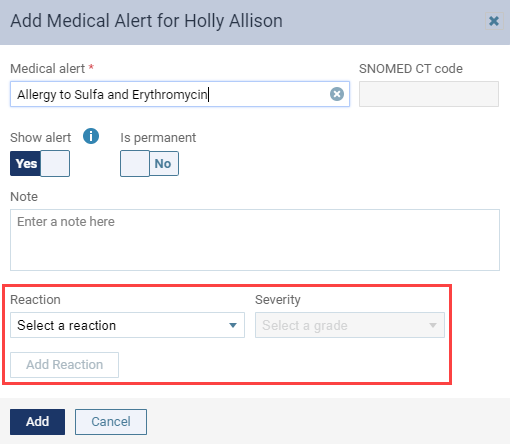
When ready, you can clicktap the enabled (new) Add Reaction button to add it to the medical alert.
New ability to complete all procedures associated with an appointment
From the Patient Routing panel, users can now post or complete all procedures associated with an appointment by using the (new) Complete All button.
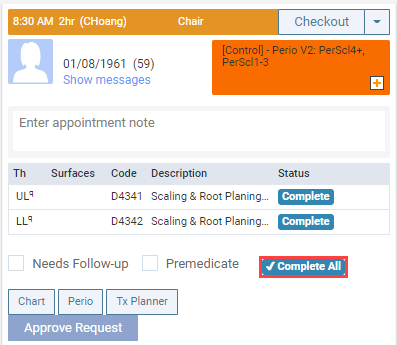
Important: The button only displays when the appointment is in the Chair, Checkout, or Complete status. However, if you require approval to post procedures to the ledger, the button is disabled.
When selected, all treatment-planned procedures are updated to the Completed status, and are automatically posted to the Ledger.
New power report
We have added a (new) Patients & Production by Referral Type - Chart power report users can use to identity which patients' referral sources generate more new patients and better production, and can be accessed at these following areas:
-
The Insights Dashboard > Patients widget (Home > Reports > Insights)

On the dashboard, it always displays your Patient Count, which displays the number of new patients you've seen in the past 12 months, and your Production Total, which displays the production total from these new patients.
-
The Power Reporting page (Home > Reports > Power Reporting)
As a pie chart, it displays data from 5 referral source types: Marketing, No Referral Source, Other, Patient, and Professional.
Note: No Referral Source are new patients that doesn't have their referral sources documented in axiUm Ascend, and is meant to replace the Not Available: spaces etc. field value. If you built a custom report with the Not Available: spaces etc. filter, you need to replace the field value with No Referral Source.
Changes in the Claims reports' columns
All claim reports have been updated with the following changes:
-
We have added a (new) Created On column that displays the date the most valid/recent claim was created.
-
The Date of Service column has been renamed to Service Date, and it displays the date a procedure was created.
Specifically, the changes apply to the following:
-
The Unsent Claims page (Home > Insurance > Unsent Claims)
Note: Displays as sections instead of columns.
-
The Sent Claims page (Home > Insurance > Sent Claims)
-
The Unresolved Claims page (Home > Insurance > Unresolved Claims)
-
The Outstanding Claims page (Home > Insurance > Outstanding Claims)
-
A patient's Insurance Claims page (Patient > Insurance > Insurance Claims)
-
The Unsent Claims widget (Home > Overview)
-
A patient's Sent Claims page (Ledger > Patient Walkout > Sent Claims)
New ADA 2019 claim forms
We have added a (new) 2019 ADA claim form that can be used to print claims. To set an insurance carrier's accepted form as the 2019 claim form, you need to update the insurance carrier (Home > Insurance > Carriers) by setting the (new) Claim Form Options section > Printed claim format drop-down list to the (new) American Dental Associated, 2019 version.

Calculation changes to the day sheet
Several calculation changes have been made to the day sheet (Home > Reports > Day Sheet):
-
We have added (new) Entered Payments and Entered Credit Adjustments report types that displays for each location(s) on the day sheet. You can use them to view and compare the distribution of payments and adjustments from different locations.

-
We have removed the credit adjustments from collection transaction types. Now, if a credit adjustment type is set as Collection on the Ledger Options page (Settings > Production > Ledger Options), it is not included in the production numbers. The page only displays the production adjustments count.
New ability to edit unpaid claim procedures
Previously, when users needed to modify a procedure in a claim that was sent to an insurance carrier, you had to delete and resubmit the claim. Now, you can modify it without deleting it by unlocking it first and then changing the provider, the procedure, and/or the amount. When completed, the original claim is automatically marked as invalid and the Ledger (Patient > Financial > Ledger) will create a new, unsent claim with the updated information. You need to manually resubmit the new claim. Also, the action is audited in the Audit Log.
Important: You can only edit sent claims that are unpaid.
New billing and patient statements on the Audit Log
axiUm Ascend now audits the printing and submission of statements on the Audit Log (Home > Reports > Audit Log) from the following areas:
-
Patient > Billing statement
-
Ledger > Patient Walkout
-
Report > Billing Statements
Tip: To display a list of audits on electronic and print statements, set the Type filter to Report and enter "Billing statement" in the Details search field.
No more duplicate x-ray postings from the imaging module
Previously, the imaging module would create duplicate x-ray posts to a patient's Ledge and the Progress Notes for complete procedures associated with an appointment: one for the appointment and one for the completed procedure. To prevent duplicate posts, we have improved the communications between the imaging module and the Patient Routing panel, the Ledger, and the Progress Notes. Now, when an appointment has an imaging procedure and you acquire imaging for that procedure, the procedure is set as Completed and is posted on the Ledger.
New prescription template for New Jersey
We have added a new prescription template that meets the facility requirements for the state of New Jersey. Users can provide a location access to this template on the Prescription Setup () by setting the Modify Print Settings button > Template drop-down list to the (new) New Jersey Facility.
New name for the Unspecified gender option
The Unspecified gender option has been renamed as Other, and will displays as Other or O throughout axiUm Ascend. For claims, this option still displays as U.
The eRx notification doesn't display properly
Issue: The red circle that displays the total number of eRx that are pending or errors on the navigation bar doesn't display for providers with enabled eRx feature that doesn't require additional eRx approval.
Solution: Fixed so it displays properly.
Error when setting a medical alert as high importance and then navigating to the Patient Overview page
Issue: When users set a patient's medical alert as high importance and navigate to the Patient Overview page, an error occurs.
Solution: With the introduction of the Show alert toggle switch, the error no longer occurs.
An error message displays when deleting operatory groups
Issue: When users attempt to delete an operatory group, a "There was an error on the server" message displays.
Solution: Fixed so operatory groups are deleted as expected. Any group events tied to the operatory group will be converted to a single event. If tied to recurring group events, the recurrence setting will be retained for each event.
Incorrect display of new user groups
Issue: When users create a user group, users that are not part of the new user group is able to access it on the Calendar to search for an opening once.
Solution: Fixed so it doesn’t display for users that are not part of the new user group as expected.
Incorrect display of unread notification red circle
Issue: When users without the Review inbox messages user role permission set login to axiUm Ascend, the unread message notification red circle displays on the navigation bar.
Solution: Fixed so it doesn't display as expected.
Notification message doesn't display when a treatment plan is added to a patient's chart
Issue: When multiple users view the same patient's chart and one user adds a treatment plan to the chart, the notification message informing other users that the chart has been edited doesn't display.
Solution: Fixed so it displays as expected.
Incorrect navigation to the home page
Issue: When users change their location, axiUm Ascend may incorrectly navigate to the home page.
Solution: Fixed so it stays on the original page.
Dates for appointment requests associated with recare doesn't display
Issue: When student providers create an appointment request for a recare that has them set as the primary provider, the Recare Management report still displays the Unscheduled link.
Solution: Fixed so it displays the appointment request date.
Treated conditions are not highlighted on the Progress Notes
Issue: When users treat a condition on the Progress Notes tab of a patient's clinical record, the condition is not highlighted as expected.
Solution: Fixed so it's highlighted properly.
Outdated Terms of Use
Issue: The patient form feature's Terms of Use message is outdated.
Solution: Fixed so it displays the updated Terms of Use.
Clinical notes doesn't save properly
Issue: When users edit a clinical note with a tooth selected by selecting another tooth, it doesn't save properly.
Solution: Fixed so it saves as expected.
Issues adding an addendum to a signed clinical note
Issue: When users attempt to add an addendum to a signed clinical note, the Save button is incorrectly enabled when the Addendum text field is blank and it doesn't save properly.
Solution: Fixed so the Save button functions as expected.
Error message displays when procedure set as Complete
Issue: When users delete a procedure from the Tx Planner that is associated with an appointment with a Chair status, and they clicktap the procedure's Complete button on the Patient Routing panel, an incorrect error message displays.
Solution: Fixed so the correct error message displays.
Comments
2 comments
The release notes state that these features and bug fixes were released in July of 2020. Isn't this the most recent release notes?
Hi Melissa, yes, this is the latest release notes! I apologize, the article's introduction was from the previous release. It's been updated, and thank you for pointing it out!
Please sign in to leave a comment.