
Several new feature enhancements are included in the product update released in late November 2019. The major enhancements in this release include improvements to evaluation requests, improvements to clinical notes, a new field when submitting approval request and approving procedures, and improvements to treatment planner.
Improvements to evaluation requests
Several changes have been made to evaluation requests (Academic > Student Evaluations or Faculty Evaluations):
-
We have added a (new) Create New Evaluation button that allows users to create an evaluation request without an appointment.
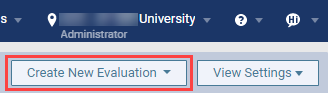
When you clicktap Create New Evaluation, options to either create a sessional or competency evaluation display.
When you select Sessional or Competency, a (new) Create Sessional Evaluation or a (new) Request Competency Evaluation window displays.

You can set the following fields to decide how you want to request the evaluation:
-
Student - Assigns a student provider to the evaluation request. This field is only enabled when you request from the Faculty Evaluations page. If you request from the Student Evaluations page, the field is disabled.
-
Multi-Visit Exam - If necessary, you can continue an existing evaluation by selecting the Continue a multi-visit evaluation radio button and then selecting the existing evaluation from the Please select an existing evaluation drop-down list. This field is only available on the Request Competency Evaluation window.
-
Procedure - Decides the procedure(s) that require evaluation.
-
Evaluator - Assigns faculty provider(s) to the evaluation request. The number of fields are based on the selected evaluation form.
-
Pick a form - Sets the evaluation form. When selected, displays a preview of the form and the required number of evaluator(s).
When ready, you can clicktap Create to create the evaluation request. If it was created successfully, a (new) notification message displays.
-
-
You can now export a list of pending or completed evaluation request(s) as an excel file by clickingtapping the (new) Export button on the Faculty Evaluations page.

If necessary, you can filter and/or sort fields on the excel sheet.
-
Evaluation form previews on Select a form window now displays a (new) PREVIEW watermark to indicate it's a preview.
Improvements to clinical notes
We have made several improvements to clinical notes (Patient > Clinical > Progress Notes):
-
Users can now link an unlocked clinical note to an appointment by setting the (new) Appointment field and the Date field to the appointment's date and time.
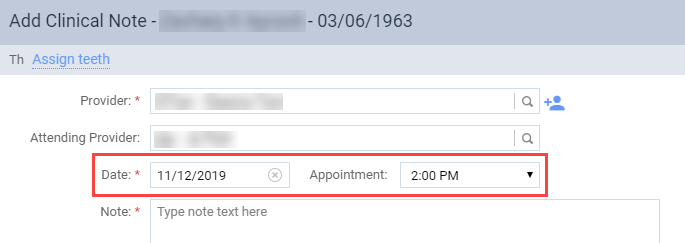
Once linked, the clinical note's Attending Provider field automatically updates to the linked appointment's attending provider. If the appointment does not have a set attending provider, the field displays [None].
Notes:
-
The Appointment field automatically sets to the earliest appointment based on the Date field. To unlink a clinical note, select - in the field's drop-down list.
-
If an appointment's attending provider is the same provider as the clinical note's provider, the Attending Provider field displays [None].
-
If you update the attending provider of a linked appointment and the clinical note hasn't been signed, the clinical note automatically updates to display the new attending provider.
-
If you update the attending provider of a linked clinical note, the linked appointment does not update to display the new attending provider on the note.
-
-
When users view a locked Clinical Note window, they have an option to navigate to older or newer locked clinical notes by clickingtapping the (new) < or > buttons or pressing the left and right arrow keys.

Note: When you display and navigate through locked clinical notes, it skips unlocked clinical notes and displays the next locked clinical note.
To view older clinical notes, clicktap > or press the right arrow key. To view newer clinical notes, clicktap < or press the left arrow key.
-
We have enlarged the Add Clinical Note and unlocked Clinical Note windows to provide more space for users.
New field when submitting approval request and approving procedures
We have added a (new) Operatory field to the Submit Request for Approval and Approve Procedures windows from the Patient Routing panel and the Progress Notes page (Patient > Clinical > Progress Notes).

When you open the Submit Request for Approval window from the Patient Routing panel, the field displays the operatory associated with the appointment. When you open the window from the Progress Notes page, the field displays based on the set Procedures radio buttons:
-
If you select the Scheduled for today radio button and open the window, the field displays the appointment's operatory.
-
If you select the All radio button and open the window, the field displays -Select- as the procedures are not associated with an operatory.
If necessary, you can change it to a different operatory by selecting a different operatory.

On the Approve Procedures window, the field is disabled and displays the operatory associated with the approval request.
Important: If an appointment changes operatories after an approval request was submitted, the operatory on the Approve Procedures window does not update to display the new operatory.
Improvements to treatment planner
Several changes have been made to treatment planner (Patient > Clinical > Treatment Planner):
-
PDF reports of signed patient consent forms that are invalid now display (new) INVALID watermarks on the top right corners of all pages of the report.
A patient consent form is invalid if the associated treatment plan is not in the Accepted or Rejected status or if it's not the latest version for the treatment plan.
-
When users request for approvals for treatment plans, completed procedure(s) that are part of the treatment plan no longer display in the request approval, approve request, and the patient consent workflow.
Slow performance when searching for procedures on quick exams
Issue: When users search for a procedure in the treatment plan section and the existing work section of a quick exam, performance may be slow.
Solution: Improved responsiveness when searching for procedures.
Comments
0 comments
Please sign in to leave a comment.