
Several new feature enhancements are included in the product update released in late January 2023. The major enhancements in this release include ADA Procedure Codes 2023 update, new emoji feature on text messaging, improvements on My Patient List, new warning messages for incomplete or missing billing information, and new ability to add a note on a patient's recare record.
Important: Enhancements from this release will be available on PROD on January 20th, 2023.
ADA Procedure Codes 2023 update
Important: This code update only applies to American organizations, and won't affect Canadian organizations.
The Code on Dental Procedures and Nomenclature (CDT) have been updated to the ADA's 2023 CDT codes.
| New | Updated | Inactivated | ||
| D0372 | D1782 | D0210 | D9110 | D0351 |
| D0373 | D1783 | D0393 | D9350 | D0704 |
| D0374 | D4286 | D0709 | D4342 | |
| D0387 | D6105 | D3333 | ||
| D0388 | D6106 | D4240 | ||
| D0389 | D6107 | D4241 | ||
| D0801 | D6197 | D4266 | ||
| D0802 | D7509 | D4267 | ||
| D0803 | D7956 | D4355 | ||
| D0804 | D7957 | D4921 | ||
| D1781 | D9953 | D7251 | ||
New codes include diagnostic tomosynthesis bitewing and periapical images, 3D dental and facial surface scanning procedures, removal of non-resorbable barriers, removal of implant body (not requiring bone removal or flap elevation), guided tissue regeneration, and indirectly relining custom sleep apnea appliances.
Important: We've also added codes D1781 - D1783, which represents the 3 doses for the administration of the human papillomavirus vaccine (HPV).
Changes have been made to the descriptions of several codes for periodontics, oral and maxillofacial surgery, orthodontics, and adjunctive general services.
Important: The treatment area for D4342 (scaling & root planning for 1-3 teeth) has been changes from Quadrant to a Range of teeth. The previous version of D4342 will remain in Ascend Academic, but existing posts will be renamed to D4342.-, and it'll be marked as inactive. Also, it's recommended users make sure their fees for the procedure code are up to date with this change.

Inactivation by deletion includes 3D photographic (image and image capture only). Starting from this update, inactivated codes will stop displaying in search results. Inactivated codes attached to an outstanding claim will remin in the system. The update won't affect existing claims.
Tip: The system will automatically insert new procedure codes into your existing fee schedules and update your fee schedule templates. As the charge on new codes will be set to $0, it's recommended you update your fee schedules to reflect your office's desired charge. If you've been importing fee schedules from a spreadsheet, you'll also want to update your spreadsheet template.
New emoji feature on text messaging
Ascend Academic has been updated to allow users to send and receive standard SMS emojis in text messages. You can see and insert these emojis in all areas of the system that allows communication with the patient:
-
The Inbox page (Home > Location > Inbox) > Messages tab
-
The Patient Routing panel > Text messages link

-
The Calendar page (Schedule > Calendar) > Appointment Information panel > Text messages link

-
The patient ribbon >
 icon
icon
-
The Patient Connection page (Patient > General > Patient Connection) > Text Messages tab
To enter an emoji in a text message, clicktap the  icon to open the emoji library.

Select the desired emoji to insert into the text, and then send the text as usual.
After some use, emojis you use the most will display on the emoji library under Frequently used.
Improvements on My Patient List
Several changes have been made to the Ongoing Patient Care page (Home > Reports > Ongoing Patient Care) > My Patients List tab:
-
Users can now preview the last 5 changes to a patient's patient list note by hovering over tapping and holding a
 icon.
icon.
This allows you to track what and when the note was updated. To make changes to the note, you can clicktap the
icon as usual or clicktap the Add Note button on the preview. -
If there are any updates to your note, including changes made by another user, the
icon now displays as  .
.
To remove the red dot, you need to clicktap the
icon to view the entire note. Reading the preview won't clear the red dot because it doesn't display the entire note. -
Simulation (sim) patients now display with the SIM label.

If a sim patient has a long full name, the name will be shortened with ellipses to make room for the label.
New warning messages for incomplete or missing billing information
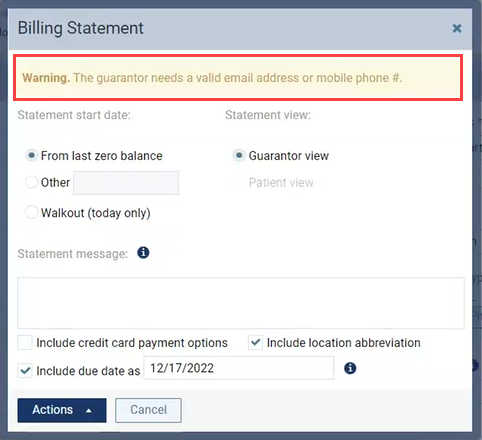
There are 2 (new) warning messages that display when users attempt to send billing statement to a guarantor that has missing billing information. Once the billing information is updated on the patient's Patient Information page (Patient > General > Patient Information), the warning messages will no longer display.
The warning messages only display on the Billing Statement window (Patient > Financial > Billing Statement) and the Statement tab on the Patient Walkout window (Patient > Financial > Ledger). There are 2 new warning messages:
-
If a guarantor's address, city, state, or zip code is incomplete or missing, an incomplete address warning message display.

-
If a guarantor's e-mail address or mobile phone number is incomplete or missing, an incomplete contact information warning message display.
New ability to add a note on a patient's recare record
Ascend Academic now comes with a (new) recare note feature that allows users to add and manage a note on a patient's recare record. It's a helpful tool that you can use to record important information, progress, and your thoughts to improve your communication with your patients. You can even record information that will be helpful in a patient's follow-up.
You can add and manage recare notes in 3 areas of the system:
-
A patient's Recare page (Patient > General > Recare)
To add a recare note on this page, select a recare type.

Add the desired note(s) in the (new) Note field.
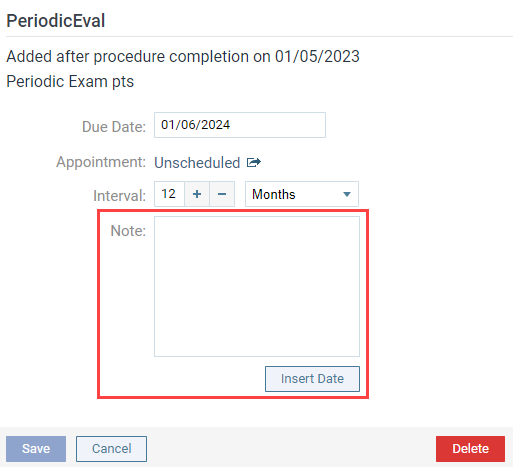
Tip: ClickTap the (new) Insert Date button to add the current date to the note.
When ready, clicktap Save.
-
A patient's Overview page (Patient > General > Overview)
On the Recare widget, clicktap a recare type's (new) note icon located in the (new) Note column.

Note: Recare types that don't have recare notes display with the
 icon, and recare types that have recare notes display with the
  icon.
icon.The Recare Note window displays.

Enter the desired note. You can also add the current date to the note by clickingtapping the Insert Date button. When ready, clicktap Save to add the note to the recare type.
-
Recare Management Report (Home > Reports > Ongoing Patient Care)
On the generated Recare Management report, clicktap a recare type's (new) note icon.
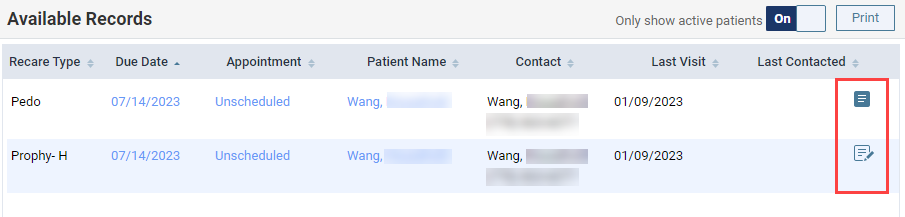
Note: Recare types that don't have recare notes display with the
icon, and the recare types that have recare notes display with the icon.The Recare Note window displays.
Enter the desired note. You can also add the current date to the note by clickingtapping the Insert Date button. When ready, clicktap Save to add the note to the recare type.
If you're working on a recare note and another user updates it, a warning notification displays.
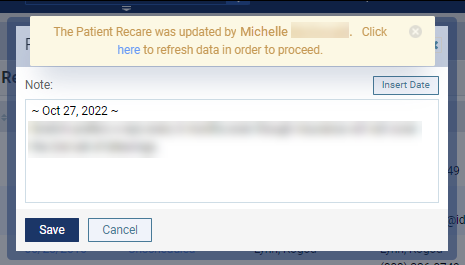
To refresh the note, clicktap the here link on the notification.
New ability to define a user group's purpose
There's a (new) Group Purpose field on the User Groups page (Settings > Location > User Groups).

Users can use the field to define the purpose of the user group: academic, scheduling, all, or none. You can use the field to differentiate user groups that are intended for academic performance, scheduling, both, or none. To define a group, select the field to generate a drop-down menu.
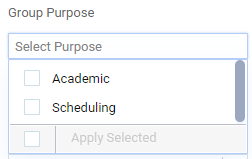
Note: You can select multiple options or leave it blank.
Select the desired option(s), and then clicktap Save on the page to save the changes.
Improvements to Imaging
Several improvements have been made to Imaging (Patient > Clinical > Imaging):
-
We've enhanced the template and mount loading function to make it easier and faster to load images. When users select the Display All Images in the Template/Mount button, it now takes seconds for images to load.

Also, cache stores the full template when you use the button. That way, when you close and re-open the mode, the full template can be re-opened immediately. The imaging exam remains in cache while you have the imaging exam loaded.
-
Previously, when users tried to create a custom template for a full mouth series of 20 images, there wasn't enough room for all 20 images. Sometimes, the images would overlap. Hence, all vertical and horizontal custom template place holders have been reduced by 33%, so that there's enough room for all 20 images.
-
For intraoral images, we've enhanced the full screen display to 125%. The enhancement is because many older intraoral images couldn't be increased, which made it difficult to view.
New message on the evaluation dashboard
The Competency Progress report and the Procedure Counts table of the evaluation dashboard (Academic > Student Progress) now comes with the (new) "Select a group from dropdown" message when you first navigate to it.

This is to make it clear that you need to select a user group to generate data.
New mandatory tags for insurance credit card payments
On a patient's Ledger (Patient > Financial > Ledger), the Insurance Payment - Credit Card payment method will now require you to select a tag like the Credit Card Payment method.

Important: For existing organizations, the tags will be turned off by default. To use the tags, users need to turn them on. Only organizations that are created after this release will have the mandatory tags automatically turned on.
New reports
We've added the following new reports:
-
UDS 6B 2022 Dental Sealants Health Metric (Home > Reports > Power Reporting)
There's a (new) clinical power report called UDS 6B Section M - Dental Sealants for Children between 6-9 Years that users can use to analyze community health organizations.

You can use the report to acquire the numbers you need for the UDS 6B section M Line 22a reports. The report also includes the following:
-
Procedure codes for dental sealants
-
Total number of patients that meet the criteria
-
Number of patients that received sealants
-
-
Clinical Note Tasks report
Administrators can use the (new) Clinical Note Tasks report to see outstanding clinical note tasks for all providers per location. This is so administrators can ensure compliance with dental licensing regulations.
To access the report, you need the (new) Clinical Note Tasks Report user role permission set.

Important: With the deployment of 401-0, the user role permission will be set for administrators by default. If your role was granted the security rights to the clinical reports before this update, you will also have the new permission set automatically.
Once set, you can view the report by selecting the (new) Clinical Note Tasks option from the Home menu, under Reports.

Note: If you attempt to access the report without the new user role permission set, the "Access Denied" message will display.
The Clinical Note Tasks report displays.

Note: Currently, the report only has a Date Range filter, which is set to Last 30 Days by default. More filters will be added in a later release.
To generate data, select the desired date range using the report's filter. If you set to a date range that's longer than 90 days, a message displays to let you know that it might take several minutes to generate the data.

When ready, clicktap Search.

The report counts all clinical notes that have the associated patient's preferred location set as the location you're currently logged into and are in Unsigned and/or In Progress status. The data is organized into the following columns:
-
Provider - Displays the full name of a provider and their username.
-
Unsigned - Displays a provider's total number of clinical note(s) in Unsigned status.
-
In Progress - Displays a provider's total number of clinical note(s) in In Progress status.
-
All - Displays a provider's total number of clinical note(s) in Unsigned and/or In Progress status.
By default, the report displays in alphabetical order by the providers' first name. If desired, you can sort the data by any of the columns.
-
New report filter that excludes SIM patient data in reports
The following reports now come with the ability to filter out simulation (sim) patient data from the report:
-
The Day Sheet report (Home > Reports > Day Sheet)
There's a (new) Exclude simulation patients check box that users can use to filter out data on sim patients.

When selected, all data on sim patients will be excluded from the report. If deselected, sim patient data will be included in the report. To help differentiate between sim and regular patients, the sim patients on the Location Details table will now display with the SIM label.
Note: Data on deleted sim patients won't be included in the report, regardless of the check box's status.
-
The billing statement (Home > Location > Billing Statements)
There's a (new) Exclude Simulation patient guarantors check box on the Generate Billing Statements window.

When selected, all data on sim patients will be excluded from the report. If deselected, sim patient data will be included in the report. To help differentiate between sim and regular patients, the sim patients on the List of Generated Statements will now display with the SIM label.
Note: Data on deleted sim patients won't be included in the report, regardless of the check box's status.
Enlargement of patient form windows
The window size of all patient forms (Patient > General > Patient Information) has been increased to minimize scrolling through the form, allowing users to review more information at once.
Completed evaluations opened from the evaluation dashboard don't display with the Delete button
Issue: When faculty providers open a completed evaluation from the evaluation dashboard > Progress Summary report, the evaluation doesn't display with a Delete button.
Solution: Fixed so it displays with a Delete button as expected.
Comments
0 comments
Please sign in to leave a comment.