
You can specify which types of payments and adjustments you want to have available when users post transactions. Only the selected types will be available for selection when payments, credit adjustments, and charge adjustments are being posted in the Ledger. You can also determine whether transaction types should have tagging capabilities and whether an adjustment should affect collections or production.
Note: If you have multiple locations in your organization, the selected transaction types apply to all your locations.
To customize transaction types
How to get there
-
From the Settings menu, clicktap Ledger Options.
The Ledger Options page opens with the Transaction types tab selected.
-
On the Transaction Types tab of the Ledger Options page, the available payment and adjustment types display. Select or clear the check box for each payment, charge adjustment, and credit adjustment types you do or do not want to use. Any changes made will affect all the locations of your organization.
Tip: You can also clicktap a transaction type's Edit button
 to open the Edit [Transaction Type] window, and set the Active toggle switch to On or Off.
Note: You cannot clear the check boxes or deactivate the default transaction types that are required by Ascend Academic.
-
(Optional) Under the Charge Adjustment and Credit Adjustment columns, next to a item line, clicktap the drop-down field and select Production or Collection to whether that type counts toward production or collections on reports.
-
Set the tagging rules for any of the transaction types as needed:
-
ClickTap the transaction's Edit button
to open the Edit [Transaction Type] window.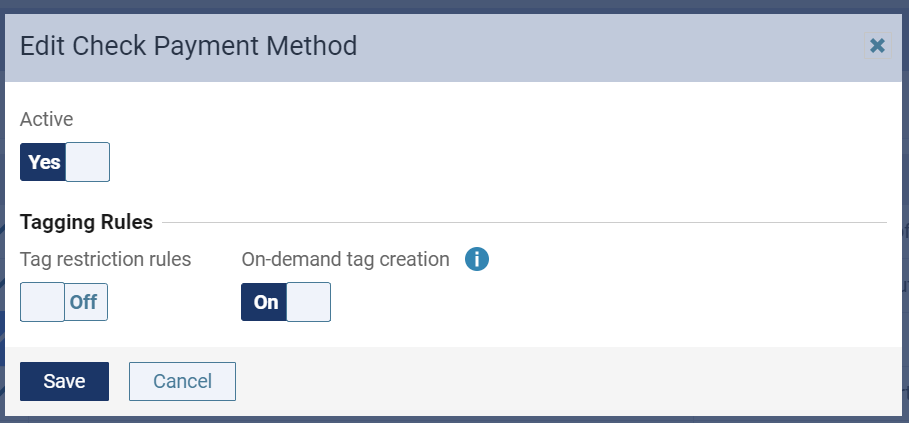
-
Under Tagging Rules, set any of the following options:
-
Tag restriction rules - With this toggle switch set to On, you can disable tagging completely for this transaction type or define a set of mandatory and optional tags for use when posting this transaction type. With this toggle switch set to Off, there are no restrictions on which defined tags you can use.
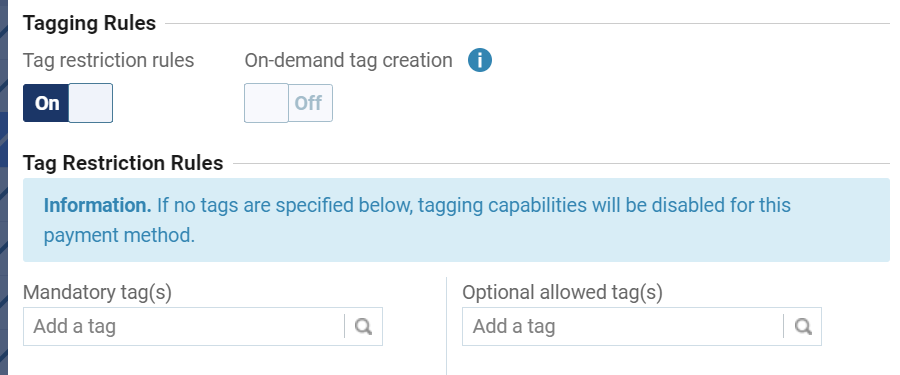
With the switch set to On, the following tagging restrictions are available for you to define:
-
Mandatory tag(s) - To make certain tags required when posting this transaction type, select or create mandatory tags:
-
Enter a tag name in the Add a tag search field and continue as needed to narrow the results list.
-
If the tag displays in the list, select it.
-
If the tag is not found when you finish the tag name, select + Create [tag name]
-
-
(Optional) To not allow any other tags to be selected, do not define any Optional allowed tag(s).
Note: You can have up to 20 mandatory tags.
-
-
Optional allowed tag(s) - To allow certain tags to be selected when posting this transaction type, select or create optional tags:
-
Enter a tag name in the Add a tag search field and continue as needed to narrow the results list.
-
If the tag displays in the list, select it.
-
If the tag is not found when you finish the tag name, select + Create [tag name]
-
-
(Optional) To not require any tags to be selected, do not define any Mandatory tag(s).
Note: You can have up to 50 optional tags.
-
-
-
On-demand tag creation - With this toggle switch set to On, any existing tags can be selected, and tags can be created, when posting this transaction type. With this toggle switch set to Off, any existing tags can be selected, but no tags can be created, when posting this transaction type.
Note: This toggle switch is not available and is set to Off if the Tag restriction rules toggle switch is set to On because no tags or only the defined tags are allowed.
Tip: To remove a tag, clicktap the X next to the tag.
Important: To disable tagging for this adjustment type, do not define any Mandatory tag(s) or Optional allowed tag(s).
-
-
ClickTap Save.
-
-
ClickTap Save.
Comments
0 comments
Please sign in to leave a comment.