
Several new feature enhancements are included in the product update released in late June 2022. The major enhancements in this release are new patient list note function on students' patients lists, new ability to apply an insurance plan's predetermination settings to other plans, and implementation of Ascend Academic's case status system on power reports for consistency.
Important: Enhancements from this release will be available on PROD on June 24th, 2022.
New note function on students' patients lists
We added a (new) patient list note function to Ongoing Patient Care page > My Patients List tab (Home > Reports > Ongoing Patient Care) that allows student providers to document notes on the next steps of their patients' patient care. These notes are primarily designed as a communication tool between a student and front desk that will relay information that can be used to complete their bookings.
A student provider can document a note by clickingtapping a (new)  icon in the (new) Note column.

The [Full name of the patient] - Patient Care Note window displays.

Note: There is a maximum limit of 500 characters.
Enter a note and clicktap Save. Once saved, the note can be edited by the student whenever as desired, but they can't delete it.
These notes can be accessed and viewed by faculty if they're set as a group leader, and they can only view notes that belong to the members of the group. To view a patient list note, select a group member on the Ongoing Patient Care page > My Patients List tab and then select a icon to view the corresponding patient's note.
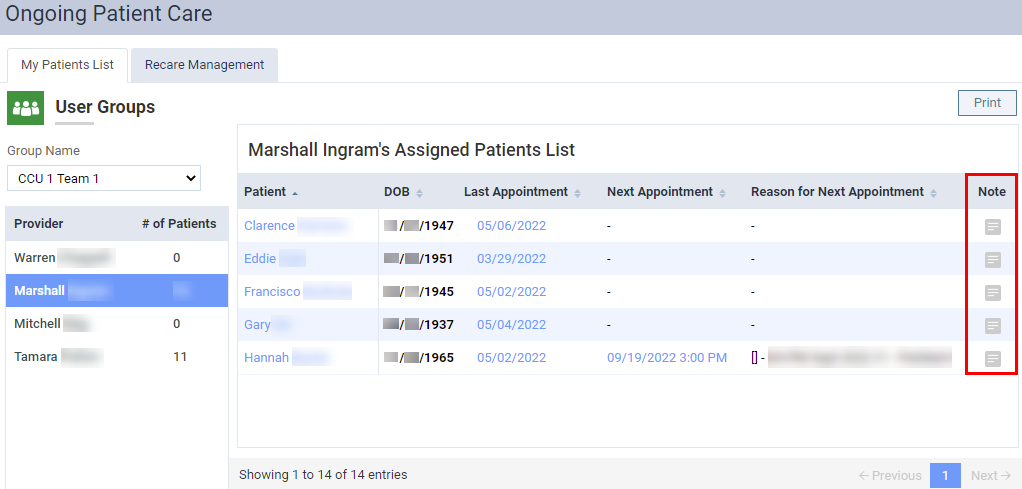
Faculty can view the note's content on the [Full name of the patient] - Patient Care Note window, which displays in view-only mode. If faculty has the Update patient information user role permission set, they have the ability to edit the patient care notes.
Important: The patient list note function isn't associated or part of the patient note function on the patient's Overview page (Patient > General > Overview) and the Patient Information page (Patient > General > Patient Information).
New ability to apply an insurance plan's predetermination settings to other plans
Users can now apply the predetermination settings (Home > Insurance > Carriers) of one insurance plan to other insurance plans from the same carrier by distributing the configuration and saving it. The distribution also includes the status of the financial threshold set by the Require predetermination for procedures over check box. To distribute a predetermination configuration, open the Manage Predeterminations window from the insurance plan that has the desired configuration. ClickTap the Distribute Settings button, which is now enabled with this release.

The (new) Distribute Predetermination Settings window display.
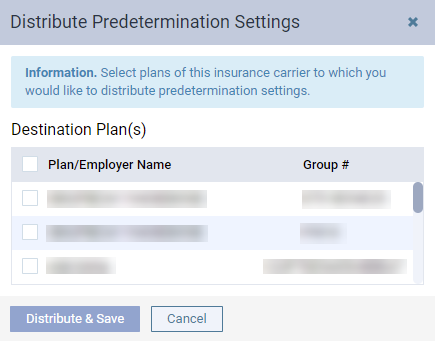
A list of insurance plans that belongs to the same carrier displays with their plan/employer name and group number. Select the check box(es) of the plan(s) that will receive the configuration. When ready, clicktap Distribute & Save button.
Implementation of Ascend Academic's case status system on power reports for consistency
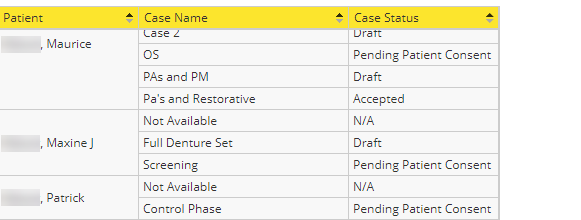
For consistency, the Ascend Academic's case status system has been applied to power reporting.
Comments
0 comments
Please sign in to leave a comment.