
Several new feature enhancements are included in the product update released in late April 2022. The major enhancements in this release include new Ongoing Patient Care page, new ability to add a copy of a patient letter to the patient's document manager, new ability to limit patient access, and removal of time zones that aren't US or Canada.
Important: Enhancements from this release will be available on PROD on April 22nd, 2022.
New Ongoing Patient Care page
We've replaced the Recare Management page with a (new) Ongoing Patient Care page (Home > Reports > Ongoing Patient Care), and the old Recare Management page now displays as a tab on the new page. We've also made the following structural changes:
-
The Recare Management option under the Home menu > Reports has been replaced with Ongoing Patient Care.
-
When users select the Assigned Patients widget on the Provider Overview page (Home > Locations > Overview), the Ongoing Patient Care page displays.
The Ongoing Patient Care page also comes with a (new) My Patients list tab that displays a list of patients that have you set as their primary provider.

The tab displays the following patient information:
-
Patient - Displays the first and last name of a patient as a link to the patient's Overview page (Patient > General > Overview).
-
Date of Birth - Displays the patient's date of birth in MM/DD/YYYY format.
-
Last Appointment - Displays the date and time of the patient's most recent appointment in the MM/DD/YYYY HH:MM [AM or PM] format. The date and time displays as a link to the Recare tab of the patient's Appointments page (Patient > General > Appointments).
-
Next Appointment - Displays the date and time of the patient's nearest future appointment in the MM/DD/YYYY HH:MM [AM or PM] format. The date and time also displays as a link to the Recare tab of the patient's Appointments page (Patient > General > Appointments). If the patient doesn't have any scheduled future appointment, the "No future appointments to show" message displays.
-
Reason for Next Appointment - Displays a list of procedure(s) attached to the patient's next appointment. You can clicktap the listed procedure(s) to navigate to the patient's progress notes (Patient > Clinical > Progress Notes).
If you're not a provider or doesn't have any patients that have you set as their primary provider, the "You are not assigned any patients at this time" message displays.

Important: The My Patients list tab is meant to help student providers review and manage their patients. We'll be releasing an extension of this feature that will allow faculty to view students' patients at a later date.
Note: If you don't have the Schedule/Recare Reports user role permission set, the Recare Management tab won't display.
New ability to add a copy of a patient letter to the patient's document manager
We have added a (new) Save to Document Manager toggle switch to all letter templates on the Letter to Patient window (Patient > General > Letter to Patient).

Note: The toggle switch only displays if users have the Upload a file into Document Manager user role permission set. Also, the toggle switch is set to Yes by default.
If set to Yes, axiUm Ascend saves a copy of the letter to the patient's document manager (Patient > General > Document Manager) when users print it. Once saved, a copy of the printed letter displays on the patient's document manager (Patient > General > Document Manager) with a (new) Letter to Patient tag.

You can also filter the document manager to only display patient letters by selecting the (new) Letter to Patient check box in the following areas of the document manager:
-
Choose More link > Tags window

-
Tags section located below the Upload button

Reminder: If you don't have the Review/Generate Letters user role permission set, you can't access the Letter to Patient window as the option won't display in the navigation bar.
New ability to limit patient access
To fully comply with HIPPA, we added a (new) Only view my patients user role permission that limits users' access to only their assigned patients.

Once set, you can only view data on patients that are assigned to you. A patient is considered to be assigned to you if you're assigned as any of the following:
-
Assigned as a patient's primary provider
-
Assigned as any provider on a patient's appointment, including past and future appointment
-
Assigned as any provider on a patient's procedure
Any patients that doesn't meet any of the listed conditions are not considered your patients, and you can't view any of their following information:
-
Patient Information page (Patient > General > Patient Information)
-
Appointment details (Patient > General > Appointments)
-
Treatment plan data (Patient > Clinical > Treatment Planner)
-
Chart (Patient > Clinical > Chart)
-
Progress Notes (Patient > Clinical > Progress Notes)
-
Ledger (Patient > Financial > Ledger)
If you attempt to access data on patients that aren't assigned to you, a (new) error message displays to explain why you can't access them.

These patients still display in the following areas of axiUm Ascend:
-
Patient Search field - Patients that aren't assigned to you still display in the search results to show you that they exist in the system. If you select them in an attempt to view their patient data, an error message displays.
-
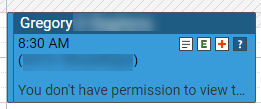
Calendar (Schedule > Calendar) - Appointments of patients that aren't assigned to you still display in the calendar to show that those time slots are already booked and unavailable. These appointments only display with the patient's name, appointment time, name of the appointment provider, and a short message that you don't have permission to view the information.
Removal of time zones that aren't US or Canada
To prevent users from accidentally assigning a wrong time zone to their location information (Settings > Location > Location Information), we've removed all time zones outside of US and Canada from the Local timezone drop-down list.
Comments
0 comments
Please sign in to leave a comment.