
Several new feature enhancements are included in the product update released in late March 2022. The major enhancements in this release include new ability to create simulation patients in bulk and new search fields on the schedule view settings.
Important: Enhancements from this release will be available on PROD on April 1st, 2022.
New ability to create simulation patients in bulk
Important: Currently, simulation (sim) patient data are included in many Ascend Academic's reports. To make sure you have accurate report data, we recommend you do not use simulation patients. For any temporary solutions to this problem, please contact Support at 1-888-808-6223 option 3, or enter a ticket in our Ascend Academic Help Center.
Users can now create multiple simulation (sim) patients (Settings > Patient Care > Simulation Patients) at once by copying a simulation patient template and assigning a copy to a provider. To copy a template, clicktap the (new) Copy and Assign button on a template.

Note: The button is only enabled if you have the Create simulation patient user role permission set.
On the generated Select primary provider window, you can assign the cop(ies) to specific provider(s) or to user group(s).
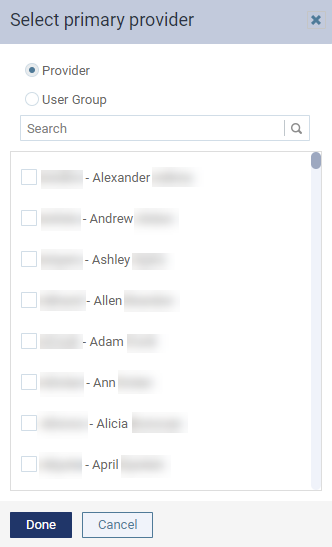
Note: The window displays the list in alphabetical order. For providers, the order is based on the provider's short name.
The selected provider(s) or user group(s)' members only receive one copy of the template. If you selected multiple user groups and there's a provider that belongs to more than 1 selected group, the provider will still only receive one copy of the template.
Example: You select 3 user groups, and there's a provider that belongs to all 3 of them. That provider will only receive 1 copy of the sim patient record, not 3.
When ready, clicktap Done to complete the process. Once completed, the copies will display on the template with the last name of its assigned provider as its own.

When you create copies of a sim patient template, it also copies the following patient data:
-
Patient forms
Note: Only the patient forms are copied to the copies. Any answers on the forms won't be copied to the copies.
-
Treatment Plan and existing procedures
-
Conditions
-
Medical alerts
-
Perio exams
-
Prescription
There are also certain data that won't be copied from the template:
-
Confidential status
-
Preferred appointment date and time
-
Patient notes
-
Recare
-
Documents
-
Treatment plan cases
-
Completed procedures
-
Appointments
-
Ledger items
-
ePrescription
These copies behave like a regular sim patient record, and can be individually edited as desired. Also, the action of creating multiple sim patient records by copying a template is audited in the audit log, 1 log per copy.
Tip: If you want a provider or a user group to have multiple copies of a sim patient template, you can by copying and assigning the copies multiple times.
New search fields on the schedule view settings
Previously, the schedule view settings (Schedule > Calendar) only came with search field for the Columns by > Provider option. This allowed users to locate specific providers faster and easier.

We've added the same search field to the other options of Columns by. Now, when you set the schedule view settings to display columns by operatory, operatory group, or user group, you can use the new search field to locate a operatory, operatory group, or user group.
The Attach Recare window doesn't display as expected
Issue: When users book an appointment for a recare that's already linked to an existing appointment, the Attach Recare window doesn't display. However, according to the patient's progress notes, the procedure is already attached to the new appointment.
Solution: Fixed so the window displays as expected.
Certain postal codes not recognized as valid in Canadian organizations
Issue: When users attempt to create new patients in a Canadian organization, axiUm Ascend can't identify postal codes as valid if the last 2 characters are the letters W or Z. As the system identifies the postal code as invalid, the users can't save the new patient.
Solution: Fixed so the letter W and Z are only invalid for the 1st character position of the Canadian postal codes.
Comments
0 comments
Please sign in to leave a comment.