
Several new feature enhancements are included in the product update released in mid-December 2021. The major enhancements in this release include new simulation patients and improvements to patient complexity.
New simulation patients
Important: Currently, simulation (sim) patient data are included in many Ascend Academic's reports. To make sure you have accurate report data, we recommend you do not use simulation patients. For any temporary solutions to this problem, please contact Support at 1-888-808-6223 option 3, or enter a ticket in our Ascend Academic Help Center.
We have added a (new) Simulation Patient function that allows users to create a dummy patient, which can be used to train new students and practice enhancements.
As an administrator or faculty provider, you can create a simulation patient on the (new) Simulation Patients page (Settings > Patient Care > (new) Simulation Patients).

ClickTap the New SIM Patient button to open Patient Information for a new simulation patient.
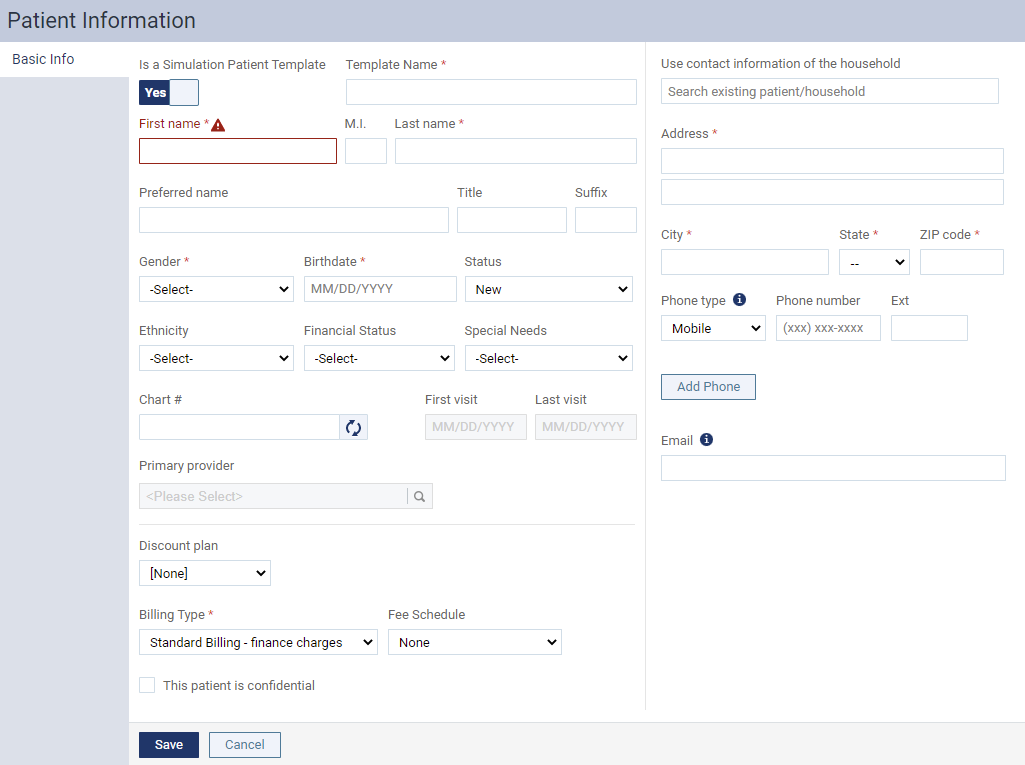
Patient Information displays like a regular Patient Information page, except that the Primary Provider field is disabled, and it comes with a (new) Template Name field and Is a Simulation Patient Template toggle switch, which is set to Yes by default. If you're creating an individual simulation patient, set the toggle switch to No and fill in the fields as usual.
Note: When the toggle switch is set to No, the Template Name field is disabled.
Tip: As you're creating a dummy patient, it's recommended you create them with billing type and fee schedule set to 0 amount to avoid billing the account.
If you're creating a simulation patient that will be used as a template to create multiple simulation patients by duplicating it, leave the toggle switch as is and fill in the fields accordingly. For the Template Name field, it is recommended to use an appropriate name, as this patient record will be listed on the Simulation Patients page by the template name. There is a limit of maximum 45 characters for the template name. If you exceed the limit, the field displays with a  icon.
icon.

When ready, clicktap Save to create the patient and return to the Simulation Patients page. If you created a single simulation patient, the patient displays under the Simulation Patients without Templates section. You can find the patient on this page by clickingtapping All Simulation Patients without Templates under Simulation Patients without Templates to open a list of simulation patients at your current location.

Note: You can use the Search field on the upper-right corner to locate a specific simulation patient. You can search by the patient's first or last name.
If you created a simulation patient template, the template displays under the Simulation Patients with Templates section by the template name in alphabetical order.

Note: Currently, axiUm Ascend doesn't have the ability to create simulation patients from templates. So when you select a template to display a list of simulation patients that were created using the template, there won't be any.
You can edit a template by clickingtapping the  to navigate to the Patient Information page of the patient (Patient > General > Patient Information).
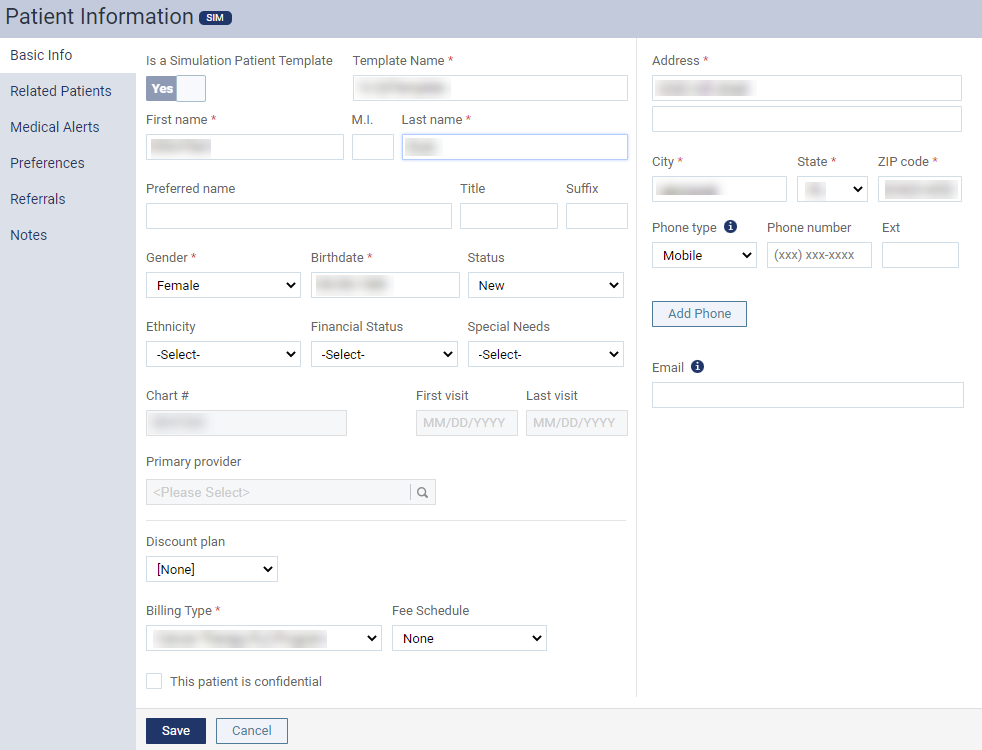
Tip: You can return to the Simulation Patients page by clickingtapping Cancel, even after you saved your changes.
Simulation patients display and behave like real patients in axiUm Ascend, except that they display with a (new) SIM label.
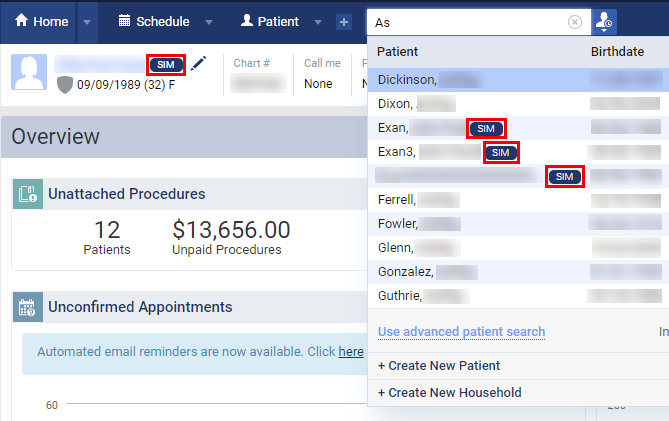
The label is coupled with the simulation patients' name, and displays throughout axiUm Ascend. We also added a (new) warning message on simulation patient's Ledger page (Patient > Financial > Ledger), which indicates that the ledger belongs to a simulation patient.

Important: You can only create simulation patients and access the Simulation Patients page if you have the (new) Create simulation patients user role permission set. The new permission is linked to the Create Patient user role permission. If you don't have the new user role permission set, you can still use simulation patients like a real patient, but you won't be able to create them or access the page. If you attempt to access the Simulation Patients page, an error message will display, indicating your access was denied and you need to contact your office administrator.
Tip: When you use a simulation patient template to create multiple patients by duplicating it, it also duplicates any clinical information in the template's patient record. Hence, it is recommended you add any clinical information to the template that you want to be added to the duplicated patients.
Improvements to Patient Complexity
Several changes have been made to patient complexity on evaluation forms (Settings > Evaluation > Evaluation Forms):
-
Previously, patient complexity was an optional feature that was added or removed from evaluation forms by using the Include Patient Complexity check box.

We've changed the check box into a drop-down list that allows faculty providers to decide if they want to add it as a mandatory part of the evaluation, add it as an optional part of the evaluation, or to not add it in the evaluation.

Note: By default, the drop-down list is set to Include and required.
-
The Patient Complexity field has been moved from the bottom of the General section to below Grading Scheme Type.

Update on CDT
The Code on Dental Procedures and Nomenclature (CDT) has been updated to the ADA's 2022 CDT codes.
| New | Updated | Inactivated | |
| D0606 | D5227 | D6051 | D4320 |
| D1701 | D5228 | D6100 | D4321 |
| D1702 | D5725 | D9613 | D8050 |
| D1703 | D5765 | D8060 | |
| D1704 | D6198 | D8690 | |
| D1705 | D7298 | ||
| D1706 | D7299 | ||
| D1707 | D7300 | ||
| D3911 | D9912 | ||
| D3921 | D9947 | ||
| D4322 | D9948 | ||
| D4323 | D9949 | ||
The new codes deal with the following: patient screenings, sleep apnea appliance fabrication and repair, immediate partial dentures, intra- and extra-coronal splits, rebasing hybrid protheses, removal of temporary anchorage devices, and various Covid-19 vaccination options (specifically, the codes D1701-D1707). There are also new procedure codes that will be added to existing fee schedules and fee schedule templates.
Tip: If you import fee schedules from a spreadsheet, it's recommended you update your spreadsheet template to include the new codes.
Comments
0 comments
Please sign in to leave a comment.