
Several new feature enhancements are included in the product update released in late November 2021. The major enhancements in this release includes improvements to reports, improvements to appointments, improvements to imaging, and improvements to the discount plan expiration feature.
Improvements to reports
Several changes have been made to reports:
-
There is a (new) Statement Submission Report (Home > Reports > Statement Submission Report) that users can use to view their billing activities. It displays data on patient statements you've sent electronically or printed during a given time frame. The report summarizes data into 3 statement types: Electronic Statements, Printed in office, and Printed and Mailed for Me.
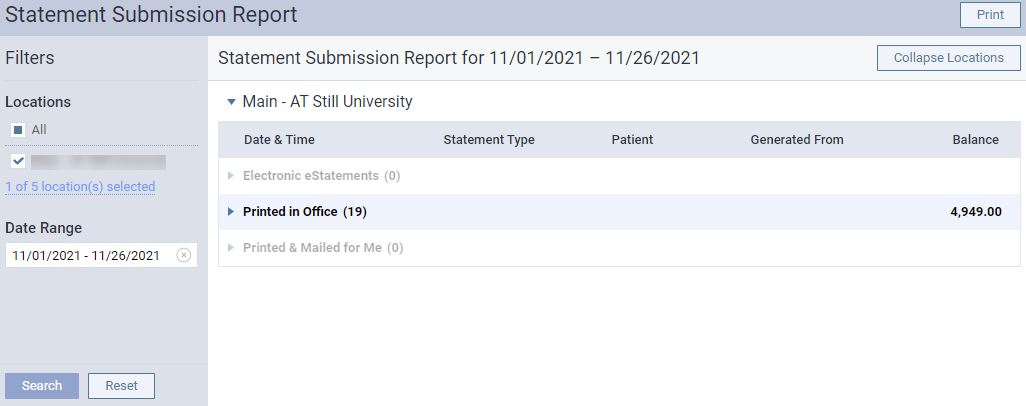
Important: Electronic Statements and Printed and Mailed for Me are not available at the moment, and will remain inactive until we add it to the system on a later release.
Each statement type comes with parentheses that displays the total number of billing statements you've generated/printed during the set time frame. To view information on individual billing statements, you need to expand a statement type.
The Balance column displays the total sum of the "Please Pay This Amount" value in all billing statements. The Generated From column displays the area of axiUm Ascend that you generated the statement from, whether it was from the billing statement generator, the patient walkout, or a patient's individual statement.
If there are more than 100 statements in statement type, axiUm Ascend only displays 100 statements and then stops with a Show More link. You need to clicktap the link to view the rest of the list.
When you print the report, the report is printed as it displays, with the statement types expanded or collapsed.
-
Patient names now display on the Deposit Slip Report (Home > Reports > Deposit Slip Report).

Before this release, axiUm Ascend assumed payments that share the same check number, carrier, and transaction date are part of the same bulk insurance payment, which may not be true. Also, bulk insurance payments displayed as non-expandable list items. This enhancement allows you to see the breakdown of bulk insurance payment by patients, and actually see how much insurance paid for specific patients.
You can print the report as it displays, with sections expanded or collapsed.
Note: If insurance carrier pays for multiple claims with one check, the payments applied to each claim displays as individual line items in the report's expanded view.
-
On the Day Sheet Report (Home > Reports > Day Sheet), we added a (new) Include in Estimated Net Prod. filter that allows users to include charge adjustments and/or unapplied credit adjustments in the report's calculation of estimated net production.

We've also added tooth and surface information of deleted procedures in the deleted records.

-
The Analysis Treatment Plan Report Builder and the Interactive Treatment Report Builder now comes with a (new) Current Status filter, which filters data by current status.

You can define the value(s) of the filter to decide which current status to filter by.

Important: These values have nothing to do with the Status field on the Treatment Planner page, which also has the same values as the Current Status filter. You can’t use this filter to generate a list of completed treatment plans.
-
For scheduled procedures, the Contracted Fee field is now available on the Analysis Schedule Report Builder > Measure section and on the Interactive Schedule Report Builder > Procedure section. For these reports, the field extracts the contracted fees from the primary insurance plan. The field is also important because it allows you to see the amount the billing provider should be getting for a scheduled procedure as a provider contracted with a primary insurance plan.
For posted procedures, the Contracted Fee field already exists in the Analysis Ledger Report Builder and the Interactive Ledger Report Builder. However, the field was dependent on the existence of an insurance claim. We modified the field so when a procedure is posted, these reports will calculate the contracted fee that the billing provider should be getting for a posted procedure, and isn't dependent on the existence of an insurance claim.
-
We added a (new) Analysis Procedure Tracking Report Builder to power reporting (Home > Reports > Power Reporting). You can use the report builder to create custom reports that track your predeterminations from the treatment-planning phase to procedure completion. Unlike a regular report builder, this one comes with a set of predetermination fields.

-
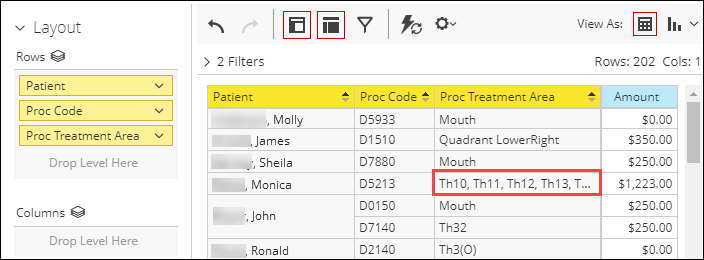
If a procedure has a tooth range as a treatment area, the Proc Treatment Area field in all Ledger-based power reports now display a list of teeth within that range.
Improvements to appointments
Several changes have been made to appointments throughout axiUm Ascend:
-
Previously, when users removed procedure(s) from an appointment, axiUm Ascend would automatically delete the appointment when there were no scheduled procedures. This led to confusion as patients still showed up for their appointments, and the appointments weren't in the system. To prevent further confusion, we've updated the system to keep the empty appointments and add a new note in the Other field as followed: "The procedure(s) scheduled initially were moved to another appointment dated [MM/DD/YYYY]".

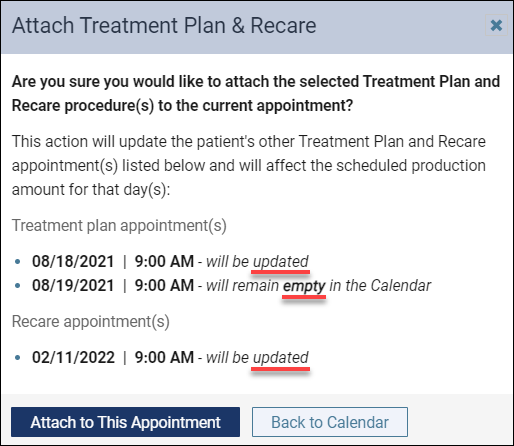
Now, this note only applies to treatment-planned procedures that were scheduled to a new appointment through the Appointment Information panel > Add Tx Planner link. When you clicktap the link and select procedure(s) already scheduled to existing appointment(s), a (new) Attach Treatment Plan window displays for confirmation.

The window lists the affected appointment(s) by its appointment date, appointment time, and the effect. If you create a new appointment with procedure(s) from an appointment, and the original appointment still has at least one procedure, the original appointment displays as being updated. If you create a new appointment with procedure(s) from an appointment, and the original appointment no longer has any procedures, the original appointment displays as remaining empty in the calendar.
Depending on the procedure type, other windows display instead of the Attach Treatment Plan window, but with the same content. If you're scheduling a recare procedure, the Attach Recare window displays.

Important: Currently, this window doesn't display due to a bug. We're working quickly to resolve this issue in the next release, which will be in December 2021.
If you're scheduling both recare and treatment-planned procedures, the Attach Treatment Plan & Recare window displays.
Also, if you delete a procedure from a patient's treatment planner (Patient > Clinical > Treatment Planner) or progress notes (Patient > Clinical > Progress Notes), and the procedure was associated with an appointment that only had that appointment, a (new) Delete Procedure window displays.

The window displays information on the appointment that will be left empty when you delete the procedure.
-
During an appointment, users can now use the (new) Provider field to assign the provider that performed the procedures on the Patient Routing panel.

Note: To make room for the new field, we've removed the Th and Surface columns, and these information now display in the Description column.
If you change the provider for an appointment procedure, a Change & Save Provider tooltip display.

If you change the provider for a treatment-planned procedure, the tooltip doesn't display.
Important: You need the Edit Patient Procedure user role permission set to use the new field.
Notes:
-
The field also displays in any other windows that deal with the completion of procedures.
-
For treatment-planned procedures, any changes to the providers in a patient's progress notes will be applied to the Patient Routing panel, and vice versa
-
If an appointment has multiple procedures, you can only change providers one procedure at a time.
-
You can't change providers on completed procedures through the Patient Routing panel.
-
Improvements to imaging
Several changes have been made to imaging (Patient > Clinical > Imaging):
-
Many insurance companies want to know the tooth number and exam date for images submitted with claims. If necessary, users can now save images with tooth numbers and exam dates for images that include a template mount, such as bitewings and full-mouth series. To add them, you need to select an exam in the Image Navigator, and then clicktap the Display All Images icon.

axiUm Ascend now generates a list of images that automatically have tooth number(s) and exam dates as a banner on top of the images.

Note: You can hide the banned by clickingtapping the (new)
 icon.
icon.To save the image with the banner, right-clicktap it and select Save image as. The image is saved as a PNG file, and will include the tooth numbers and exam dates.

-
You can now rename exams in the Image Navigator. To rename an exam, clicktap an exam's ellipsis in the exam list, and then select the (new) Rename exam option.

In the (new) Rename Exam window, enter the new name in the provided field and then clicktap Rename Exam.

The exam now displays with the new name in the system.
Improvements to the discount plan expiration feature
In Release-377-0, we added a Discount plan expiration field on the Patient Information page (Patient > General > Patient Information) that allows users to set an expiration date to a basic uninsured discount plan and fee schedule combination. However, it was an incomplete feature that only served as a reference, and didn't have any effect in the system. Several changes have been made to to make it a functional and complete feature:
-
The Discount plan expiration field now comes with a new warning tool that displays when a patient's basic (uninsured) discount plan for non-covered procedure is expiring or is expired. The purpose of this tool is to inform users that the patient has an expiring or expired discount plan, and needs to be informed. The warning starts to display 30 days before the set expiration date until the patient updates their plan. Depending on the status of the discount plan, it displays one of the 2 messages:
-
Expiring - Discount plan will expire on MM/DD/YYYY and may need to be renewed soon
-
Expired - Discount plan has expired and may need to be reviewed
The warning displays differently based on the following areas of axiUm Ascend:
-
The Patient Routing panel - Displays as a (new)
 icon besides the patient's name.
When clickedtapped, the Warning tooltip displays with more information on the expiration.
-
Patient's treatment planner, progress notes, or the Ledger - Displays as a (new) warning message when you navigate to any one of the 3 areas.
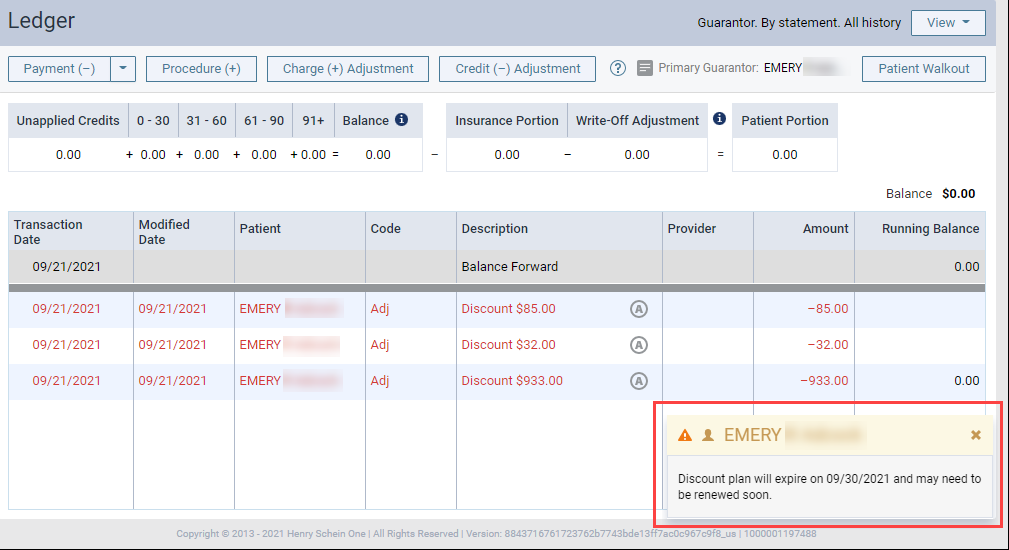
Important: If the Discount plan expiration field is blank, the warning messages don't display.
-
-
By default, the Discount plan expiration field is an optional field. You can now update it into a required field by setting the (new) Require expiration date for discount plans toggle switch on the Ledger Options page (Settings > Production > Ledger Options) > Ledger Rules tab to Yes.
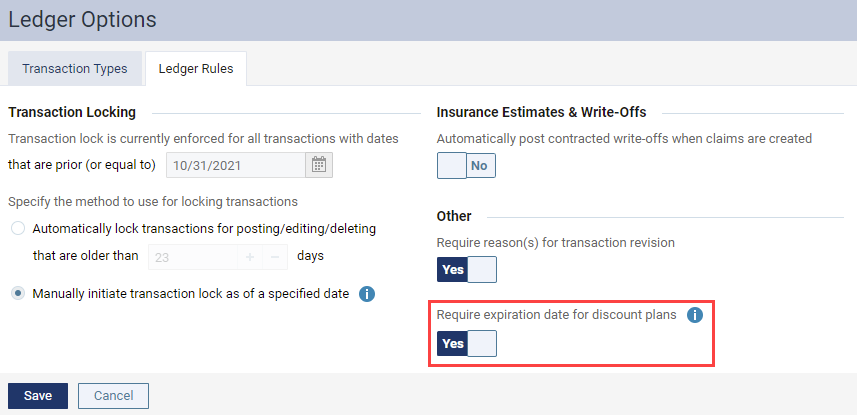
Note: By default, the toggle switch is set to No.
Once set to Yes, the Discount plan expiration field on the Patient Information page (Patient > General > Patient Information) become a mandatory field.
Improvements to the Ledger
Several changes have been made to a patient's Ledger page (Patient > Financial > Ledger):
-
We added a (new) Auto-scroll to recent transactions toggle switch to the View menu.
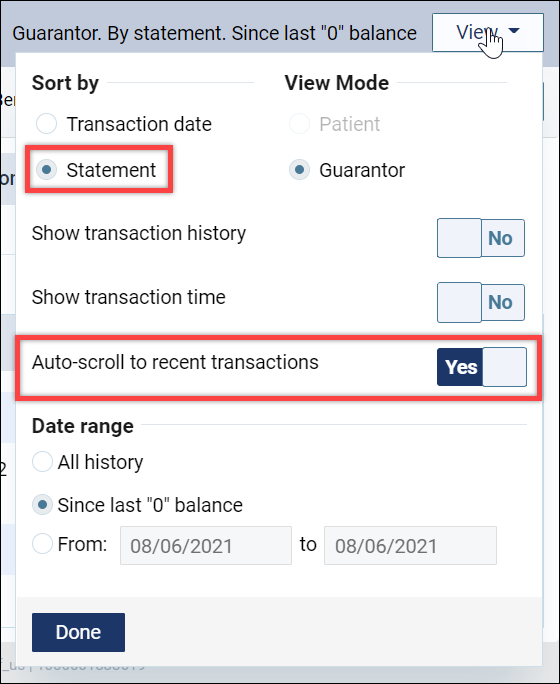
When set to Yes, axiUm Ascend will always automatically scroll to the most recent transaction every time users open the Ledger. It is enabled by default, and is only available for Statement view, not Transaction date.
-
Previously, if you changed the sorting order of the Transaction Date column, axiUm Ascend didn't remember it after you navigate away from the Ledger. Now, the system remembers your previous sorting order, so you don't need to sort it every time you view the Ledger.
New way to print billing statements
In the following areas of axiUm Ascend, we've replaced the button that deals with printing with a (new) Action menu button:
-
The Billing Statements page (Home > Location > Billing Statements)

-
The Billing Statement window (Patient > Financial > Billing Statements)

To print, you now need to clicktap Action, clicktap Print, and then clicktap the Print button.

You can also add the statement to Patient Connection page (Patient > General > Patient Connection) by selecting the Add to Patient Connection check box.
We've added the Action menu button to prepare for the (new) Send eStatement only feature, which will be added in a later release. When available, you'll be able to send electronic statement from this button.
New charting symbol priority
Previously on patient's chart (Patient > Clinical > Chart), charting symbols displayed based on importance, which lead the symbols of newer conditions and procedures hiding behind charting symbols for older conditions and procedures. To make sure users view the latest, most completed procedures now overlay existing procedures. Exceptions to this update are pins, posts, sealants, and apicoectomies.
Example: A patient has an existing occlusal amalgam restoration on Tooth 1 on their chart. The patient has a procedure that removes the amalgam restoration and replaces it with a MOD composite restoration. The patient's chart updates to display the completed procedure, the MOD composite restoration, on top of the existing procedure, the occlusal amalgam restoration.

If multiple procedures and conditions are charted on a same tooth, the following rules apply:
-
Treatment-planned procedures always overlay conditions, regardless of the posted dates.
-
Conditions always overlay existing procedures. For completed procedures, conditions only overlay if they're more recent.
-
If a procedure and condition have the same date, the procedure always overlay the condition.
Improvements to Create Procedure Code window
Several changes have been made to the Create Procedure Code window (Settings > Production > Procedure Codes Conditions):
-
Before this release, users weren't able to create a custom procedure with a range as a treatment area. The Range option was available in the Treatment area drop-down list, but it wasn't a selectable option. Now, you can select Range to create a procedure with a range as a treatment area.

Once saved, you can use it like a standard ADA procedure with range as a treatment area.
-
When users attempt to create an alias code by entering an existing procedure code on the Code field, the field now turns orange to prompt you to enter a suffix.

-
The Treatment area drop-down list has been updated to list options from the largest area of the mouth to the smallest.
Upcoming appointments now display on walkout statements
To help patients plan their visits ahead of time, we have added a (new) Upcoming Appointments section to print views of billing statements (Patient > Financial > Billing Statement) in both guarantor and patient view.

The section displays a list of upcoming appointments for the patient, patients that have the same guarantor as the selected patient, and patients from the same household. The appointments displays in ascending chronological order.
Note: The Upcoming Appointments section also displays for billing statements generated from a patient's Ledger (Patient > Financial > Ledger) and the Billing Statements page (Home > Location > Billing Statements).
Delete and edit functions available to clinical note templates in progress
Previously, users couldn't delete or edit clinical note templates (Settings > Patient Care > Clinical Note Templates) that were in progress. If you tried, an error would occur. To prevent providers from using invalid or outdated templates, you can now delete and edit templates that have clinical notes in progress. If edited successfully, the changes are only applied to clinical notes created after the update. Also, the action is audited in the audit log.

If deleted successfully, the template no longer displays throughout axiUm Ascend. Also, the action is audited in the audit log.

Edit procedures from the Treatment Planner page and the Unattached Procedures page
Users can now edit procedures in the following areas:
-
The Treatment Planner page (Patient > Clinical > Treatment Planner)

-
The Unattached Procedures page (Home > Location > Overview)

Codes now display as linked items, which can be used to open the Edit Procedure window by clickingtapping it.
New colored status icons on the Patient Connection page
In preparation for the (new) Send eStatement only feature, which will be added in a later release, we've added a (new) colored status icon system to the Patient Connection page (Patient > General > Patient Connection)

The icons can be used to see which statements are in the process of being delivered, failed to deliver, or delivered successfully. Currently, only green icons display.
Electronic statements grouped into visits to make it easier to read
To make it easier to read electronic statements, the statements are now grouped into visits.

E-mails no longer sent to inactive users
Before this release, inactive users still received account update e-mails when there were any changes to their user account information or to the security rights associated with their user role. We've updated the system to no longer send e-mails to inactive users.
Unable to create new households for existing patients
Issue: When users attempt to create a new household with existing patient information and save, an error occurs.
Solution: Fixed so axiUm Ascend can save properly and update existing patients' information.
May be unable to create a treatment plan case
Issue: When users attempt to create a treatment plan case for a patient that is also being updated by a different user by adding or removing a procedure, an error may occur.
Solution: Fixed so errors don't occur when you create a treatment plan case.
May be unable to change a treatment plan case's status
Issue: When users attempt to change a treatment plan case's status by using the Status drop-down list, an error may occur.
Solution: Fixed so it updates as expected.
Comments
0 comments
Please sign in to leave a comment.