
Several new feature enhancements are included in the product update released in late January 2021. The major enhancements in this release include improvements to the text messaging feature, improvements to power reporting, improvements on insurance carriers' exceptions, and enhancements to imaging procedure reassignments.
Improvements to the text messaging feature
Several changes have been made to axiUm Ascend's text messaging feature:
-
The Show messages link throughout axiUm Ascend has been renamed to Text messages. Specifically, in the following areas:
-
The Inbox page (Home > Location > Inbox)
-
An appointment's Appointment Information panel (Schedule > Calendar)
-
The Patient Routing panel
-
-
Previously, users could only communicate with patients' primary contacts by sending them automated text messages through the axiUm Ascend's Patient Communications module. This behavior is not ideal, as you can't directly respond to the primary contacts' replies or send custom messages. Now, we have a (new) 2-way texting feature that allows you and a patient's primary contact to communicate directly through texts.
You can now send messages by using the (new) text message entry box and the (new) send button on the Text messages link > Messages for [patient's name] window.

Once sent, a (new) green message displays to inform you the message was sent successfully. If there was an issue communicating with the primary contact's mobile carrier, a (new) Not delivered error message displays with the sent text block.

If you attempt to close the Messages for [patient's name] window with an unsent message in the text message entry box, the (new) Unsaved Changes window displays.

From the window, you can send the unsent message, continue writing your message, or discard it to continue.
Important: The text message entry box only displays if you have the Manage inbox messages user role permission set, the patient is subscribed to receive text messages, and the patient's primary contact number on the patient's record is valid. If either one of the listed conditions are not met, a warning message displays instead of the text message entry box. If necessary, you can use the hyperlink on the last 2 words of the message to navigate to the Basic Info tab of a patient's Patient Information page (Patient > General > Patient Information) to update the contact information. Also, you can confirm if the mobile number is valid by confirming the Text messages: Yes status is on the primary contact's record, underneath the Patient Information page > Phone Info section. If the status doesn't display, the mobile number isn't valid.
-
To make it easier to locate the latest conversations, we have added the (new) Yesterday and Today tabs on the Messages for [patient's name] window and the Text Messages tab of the Patient Connection page (Patient > General > Patient Connection).

Also, we have added a (new) message counter alert button that displays when you receive a new message while scrolling through a text message history.

You can clicktap the button to quickly navigate to the unread message(s).
-
Text message history has been updated to now include the name of the user above their text messages, beside the time stamp. However, names does not display for auto-generated messages from the Patient Communication module and your messages, as you already know the sender.

-
When a patient's primary contact has been updated to a different person, a (new) notification displays on the text message history to inform you of the change, and the thread is no longer useable.

To continue communication, you need to start a new tread with the new primary contact by clickingtapping their hyperlinked name on the notification.
-
The Inbox page has gone through the following layout changes:
-
The page now displays as 2 panels: the left panel displays the list of read and unread messages by date, and the right panel displays the complete text message history of the patient selected from the left panel. Also, the View drop-down menu and the search field has been relocated to the left panel.

-
The View drop-down menu now displays as a solid button, and no longer displays the set view settings on the button.
-
-
We have added a (new)
 icon on the Patient Information ribbon. When clickedtapped, the Messages for [patient's name] window displays.
The icon only displays if the primary contact's number is set as a Mobile type and has been recognized by the system as a valid phone number. If the patient unsubscribes from receiving text messages, the icon no longer displays.
-
The Preferences tab > Automated Reminder section on the Patient Information page (Patient > General > Patient Information) has been renamed to Text Messages. Also, its
 icon now includes the location's phone number that is used for the 2-way text messaging feature.
 -
The audit log (Home > Reports > Audit Log) now records any messages sent to patients as a (new) Messaging type.
Improvements on Power Reporting
Several changes have been made to power reports (Home > Reports > Power Reporting):
-
We have added a (new) Claim Sent Date filter to the Analysis Ledger Report Builder power report > Insurance Claim that allows users to generate a more accurate insurance report.
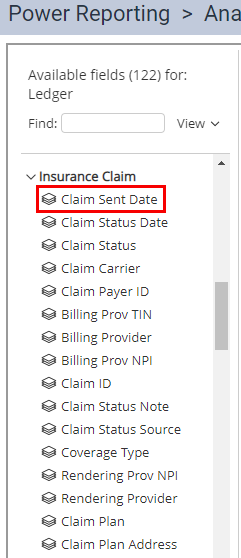
The filter is available for both analysis and interactive reports. It can be used to categorize and filter by claims' sent date to calculate how long it takes insurance companies to process your claims. axiUm Ascend identifies the sent date as either the date the claim was sent electronically or when it was printed.
-
We have added a new power report called the Deposit Report that displays cash, check, credit card payments from patients, electronic funds transfers (EFTs), and check payments from insurance carriers.
Basically, it's a Deposit Slip Report that:
-
Has more filter options based on the your security rights
-
Can't be filtered by cash box, as cash box filter doesn't exist in power reporting
Tip: To add separate columns for each location, open the Available Fields tab and then move Transaction Location under Layout > Columns.

-
Improvements on insurance carriers' exceptions
We have made several changes to exceptions on insurance carriers throughout axiUm Ascend:
-
In axiUm Ascend, any procedures that aren't covered by a dental plan must be added individually as exceptions to the dental plan's coverage table. To enhance performance experience, we have added a (new) Add Bulk Procedures button on the New Exception for [insurance's name] window that allows you to add multiple procedures at once.

Important: The button only works for procedures that are Not covered exception type.
-
We have added a (new)
 icon on the Exceptions for [insurance's name] window that allows you to remove procedures that are set as exceptions from a dental plan's coverage table.
Enhancements to imaging procedure reassignments
When users reassign a patient's imaging procedure(s) to a different patient, axiUm Ascend now deletes the imaging procedure(s) from the original patient and reattaches it to the new patient. Also, a (new) message displays to inform you the reassignment was done successfully. If the procedure(s) were attached to an original patient's appointment, the message also contains information on the appointment.

Also, a message regarding the reassignment is added to the appointment's Appointment Information panel (Schedule > Calendar) > Appointment tab > Note field.

Improvements to the imaging module
We have made the following improvements to the imaging module (Patient > Clinical > Imaging):
-
We have added the following new features:
-
Custom templates for color intraoral and color extraoral images
-
Imaging Conversions - Curve
-
Support 3D Models in Import and Recovery Modes
-
-
It now provides direct integration with the J Morita Pan device for both Panoramic and Cephalometric Images.
-
Narrowing down the search results automatically opens the first image that meets the criteria rather than just opening the exam.
-
Once users have finished zooming in and out of an image, the Pan control screen automatically hides to display the entire image, and no longer needs to be manually closed.
-
When you open the measurements tab, axiUm Ascend automatically hides all annotations.
-
For 3D Models, we have added the option to adjust the zoom factor while setting the initial model orientation.
New ability to delete completed evaluations from a student's Progress Summary report
Users can now delete a completed evaluation from a student's Progress Summary report (Academic > Student Progress) to remove it from the student's final grade. The removal also affects the overall number of attempts calculated on the Progress Summary report, specifically the Proc. Counts (Done/Required) and the Evaluations columns. You can delete it by selecting a passed or failed evaluation and clickingtapping the (new) Delete button on the generated Evaluations window.

Important: The button only displays if you have the (new) Delete a Completed Evaluation Request user role permission set.
As deletion is irreversible, a Delete Evaluation window displays to confirm you want to delete the completed evaluation.
Once deleted, the evaluation form on the Faculty Evaluations page (Academic > Faculty Evaluations) updates to the Canceled status.

New Results row on completed evaluations
We have added a (new) Results row on completed evaluations (Academic > Faculty Evaluations or Student Evaluations). The row indicates if individual contributors passed or failed their evaluations with the Pass and Fail marks.
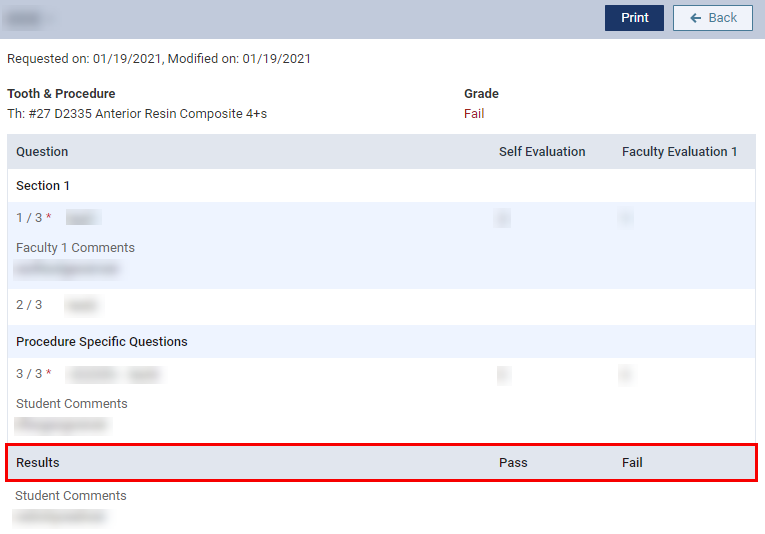
Note: The row displays as long as there's a submited evaluation, even if the evaluation is still in progress. However, along with the assigned faculty provider's answers, the row doesn't display for student providers until the evaluation request is completed by all contibutors.
The row only displays the Pass and Fail marks for submitted evaluations, including a partial on a multi-part evaluation form. If a contributor didn't submit their evaluation, the row displays no mark for that contributor.
New insurance summaries on the Insights dashboard
The Insurance widget > Outstanding Claims link on the Insights Dashboard (Home > Reports > Insights) has been updated to include the following summaries:
-
Outstanding Claims - The total number of aged claims.
-
Total Billed - The total production amount associated with the outstanding claims. It reflects the amount users would get if the Outstanding Claims report was generated today with all filters set to All.
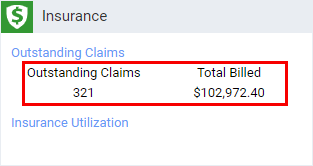
Note: axiUm Ascend determines whether a claim is outstanding and the aged totals by the service date of the claim's procedure(s).
Student evaluations no longer included in evaluation's grade
Student provider's self-evaluations are no longer included in their evaluation's final grade (Academic > Faculty Evaluations or Student Evaluations). If a student provider gives themselves a failing grade but the faculty provider gives them a passing grade, the student provider still passes the evaluation.
This change in calculation only applies to new evaluations after the implementation of this release on January 22, 2021. This doesn't apply to any evaluations completed before the date.
New page behavior on the Unsent Claims page
When users work with an unsent claim by using the Unsent Claims widget on their location's Overview page (Home > Location > Overview), the Unsent Claims page no longer automatically refreshes. Also, the page keeps your place on the Patient List. If necessary, you can manually refresh the page by using the (new) Refresh button located on the right-corner of the page, beside the Close button.
Incorrect display of appointment providers on appointment cards
Issue: When users set their schedule view settings to display columns by user group and select to display a user group that contains a student provider, appointment cards display the appointment provider's name instead of the operatory name. If the Show All Groups check box is deselected on the view settings, the appointment provider's name only displays for missed appointments.
Solution: Fixed so appointment cards display operatory names as expected.
Incorrect display of confidential guarantor's information
Issue: When users without the View confidential patient user role permission view an unconfirmed appointment or insurance eligibility of a patient with a confidential guarantor, the guarantor's birthdate and age display as "0".
Solution: Fixed so it displays as "(confidential)" as expected.
Issues accessing the Access Confidential Patient window
Issue: When students view a confidential patient after given access by an administrator, logs out, logs back in, and then attempts to view a confidential patient by using the Patient Search field, the Access Confidential Patient window doesn't display. Also, an error occurs.
Solution: Fixed so the window displays as expected.
Referrals from doctors doesn't display
Issue: When students without the Review referral sources user role permission attempt to view a patient's referral on the Patient Information page, their referral doesn't display if it was configured in Referral Sources as a doctor.
Solution: Fixed so referrals display as expected.
Unable to update patient information when viewed by multiple users
Issue: When multiple users view the same patient and one user edits the patient's billing type and/or preferred billing method, axiUm Ascend doesn't update the information for the other users.
Solution: Fixed so it updates as expected.
axiUm Ascend freezes when the Calendar is displayed
Issue: When users delete or create a user group and then navigate to the Calendar, axiUm Ascend freezes if the schedule's view settings is set to display by User Group mode.
Solution: Fixed so it doesn't freeze as expected.
Windows doesn't close automatically after expiration of a medical alert
Issue: When users expire a non-permanent medical alert by clickingtapping Delete on the Edit Medical Alert window and then the Expire option on the generated window, the windows remain open. As the windows remain open, the medical alert can't be expired.
Solution: Fixed so the windows automatically close as expected.
Cannot add non-patient referrals
Issue: When users attempt to add a non-patient referral, an error occurs.
Solution: Fixed so users can add as expected.
Comments
0 comments
Please sign in to leave a comment.