
Several new feature enhancements are included in the product update released in late October 2020. The major enhancements in this release include new notifications for new and updated appointments scheduled within the next 2 hour, new interactive message on the Lab Cases page, new Print button on completed evaluations, and removal of Not Entered label from clinical notes.
New notifications for new and updated appointments scheduled within the next 2 hours
When users create or edit an appointment that is scheduled within the next 2 hours, axiUm Ascend displays (new) notifications to the appointment provider, informing them of the change in their schedule. There are 4 new notifications:
-
Appointment Reminder - Displays when you create an appointment that is scheduled within the next 2 hours, modify an appointment that is outside the 2-hour time frame to within the next 2 hours, or modify an appointment within the 2-hour time frame to another time within the time frame.
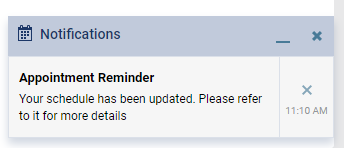
-
Re-scheduled Appointment - Displays when you edit the date and/or time of an appointment that is originally scheduled within the next 2 hours outside the 2-hour time frame.

-
Operatory Change - Displays when you edit the operatory of an appointment scheduled within the next 2 hours.

-
Provider Change - Displays when you edit the appointment provider of an appointment scheduled within the next 2 hours.

Note: This notification only displays for the new appointment provider.
Notes:
-
If you update an appointment's date and/or time and the operatory or provider, depending on the scenario, only the Appointment Reminder or the Re-scheduled Appointment notification display.
-
The notifications only display for appointments and approved appointment requests. It doesn't display for appointment requests pending for approval.
-
The notifications do not display when you create or edit your own appointments. It only displays when other users do it.
Important: If a notification haven't been closed and still displays on the screen, axiUm Ascend will not display any future notification(s) for the associated appointment.
Enhancements for clarity on required self-evaluations
Several changes have been made to evaluations (Academic > Student Evaluations and Faculty Evaluations) to enhance clarity on required self-evaluations:
-
We have added a (new)
 column on the displayed list of evaluation request(s) that indicates if a request requires a self-evaluation.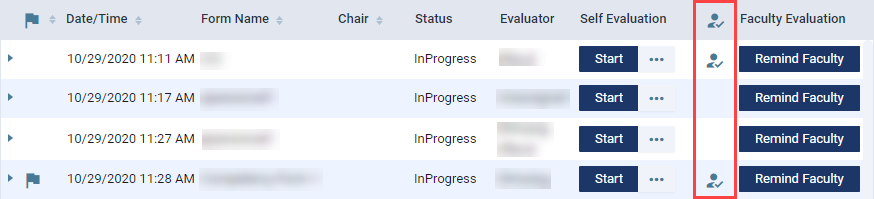
If it requires a self-evaluation, the icon displays in the column.
Note: If you hover over the icon, a tooltip displays as a reminder of the meaning behind the icon.

-
On the Create Sessional Evaluation and Create Competency Evaluation windows, a (new) Self Evaluation is Required status displays if the selected evaluation form requires a self-evaluation from a provider.

New interactive message on the Lab Cases page
When there are no outstanding or received lab cases, the Lab Cases page (Schedule > Lab Cases) displays a (new) message that states there are none based on the current view settings.

If desired, users can clicktap the last sentence of the message to expand the View drop-down menu and change the current view settings.
New Print button on completed evaluations
When viewing an evaluation (Academic > Faculty Evaluations and Student Evaluations) completed by all assigned parties, users can clicktap the (new) Print button to view the print version of the form in a new window tab. If desired, you can also print or save the print version from the tab.

New Print button on a student's Progress Summary report
We have added a (new) Print button on a student's Progress Summary report (Academic > Student Progress) that only displays on faculty view.
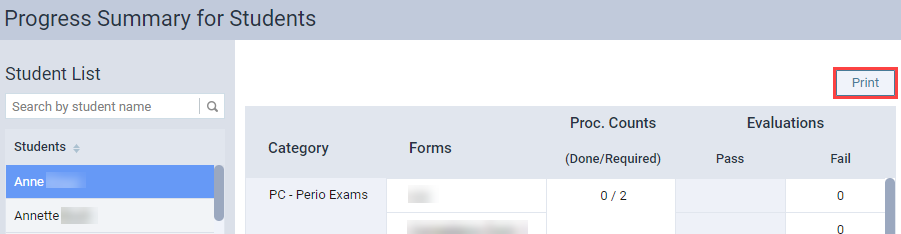
When clickedtapped, axiUm Ascend displays a print version of the report on a new window tab. If desired, you can print or save the print version from the tab.
Removal of Not Entered label from clinical notes
Previously, axiUm Ascend automatically counted any patients that completed a procedure but did not have a clinical note entered into the system on that date. These data were displayed in multiple areas of axiUm Ascend as Not Entered. After consideration, this system was deemed unsuitable, as there may be nothing to note or didn't require creating a note on the same date. Hence, axiUm Ascend no longer counts those patients and we've removed the following:
-
The Not Entered column from the Clinical Notes Tasks widget on the Provider Overview page (Home > Location > Overview)
-
The Not Entered tab from the Provider Overview page > Unsigned Clinical Notes widget > Clinical Notes Tasks page
Signed treatment cases on patient's Document Manager
Whenever a patient accepts or rejects a treatment case with an e-signature, it is now saved on their Document Manager (Patient > General > Document Manager). It is saved in the following format:
-
Document name - "[Location] - [Name of Tx Case] - [Signed date as MM/DD/YYYY]"
-
Format - PDF file
-
Tag - (new) Tx Consent
If the accepted or rejected treatment case goes through a modification that would require re-approval, a (new) Invalid Tx Case tag is added to the original document. Once the modified treatment plan is accepted or rejected with an e-signature, the new document is saved on the Document Manager.
User role permissions dependent on other user role permissions do not disable properly
Issue: When users update a user role by disabling a user role permission that have other permissions dependent on it, the other permissions are not disabled automatically as expected.
Solution: Fixed so it disables automatically as expected.
Users without proper security rights may be able to edit procedure amounts
Issue: When users without the proper security rights attempt to edit the amount of a procedure with a $0 amount on a patient's ledger, axiUm Ascend allows the edition but denies the ability to save.
Solution: Fixed so users cannot edit without proper security rights.
Comments
0 comments
Please sign in to leave a comment.