
Several new feature enhancements are included in the product update released in late September 2020. The major enhancements in this release include new bulk user import workflow, events on the Schedule widget, removal of indistinguishable characters and numbers from charts, and new patient forms.
New bulk user import workflow
We have added new bulk user import workflow to axiUm Ascend, which allows users to create multiple user accounts at once by importing their data from a file no larger than 15k. This allows you to quickly and efficiently create a large amount of user accounts in a single workflow.
To support this new workflow, the New User button on the User Accounts page (Settings > Location > User Accounts) have been updated to a drop-down menu with the following new options:
-
Create New User - Initiates the traditional workflow that allows you to create one user account.
-
Import Users from File - Initiates the new workflow that allows you to create multiple user accounts.
Note: Like the traditional workflow, you need to have the Create New User user role permission set to access this workflow.
To initiate the workflow, you need to select the Import Users from File option to open the Import Users from File window.

At this step, you have an option to either upload a file or clicktap the blue link to download a csv template, enter the necessary information of the users, and then upload it to the window. When uploaded successfully, the window will automatically move to the Default Role and Location step. At this step, you can set the user accounts' user role and their location by setting the Select Role and Select Location drop-down lists. If the user accounts have access to multiple locations, you can clicktap the Add New Role button and set the generated drop-down lists.

If desired, you can also set their provider working hours based on one of their locations by setting the Select Location drop-down list located at the bottom of the window. If not, you can leave this field blank.
When ready, you need to clicktap the Next button to move to the Review Users to be imported step.
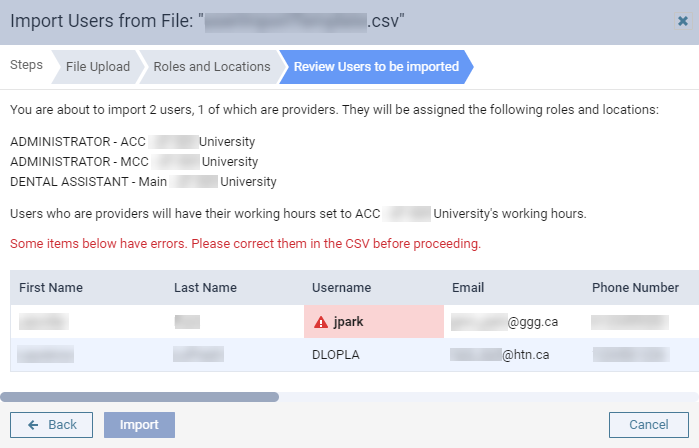
At this step, the window displays the following:
-
The total number of imported users with total number of those that are providers
-
List of their user role(s) at their location(s)
-
If any, which location's working hours will be set for the providers
-
List of user accounts based on the file's data
If there are any errors in the data, the Import button is disabled, a warning message displays above the list of user accounts, and the list's data with the error is highlighted in red. A data is identified as an error if it doesn't meet the following requirements:
-
Phone - 10 digits without any dashes, brackets, or spaces.
-
Provider - Can only contain Yes or a No.
-
Shortname - Maximum 6 characters.
-
Address - Maximum 50 characters.
-
State - Must use state abbreviations that are used in axiUm Ascend.
-
ZIP CODE - 9 digits without spaces.
-
DEA - 2 characters followed by 7 numbers.
Duplicates against an existing account or within the csv file is also considered an error, and will be highlighted in red. This includes duplicates in username.
Note: If unsure of the reason of the error, you can clicktap the error icon of a highlighted field to view the reason of the error.

For errors, it is recommended you address it in the file and re-do the workflow. When ready, you can clicktap Import to import the data into axiUm Ascend. If imported successfully, the  icon displays with a View User Accounts button, which can be used to navigate to the User Accounts page.
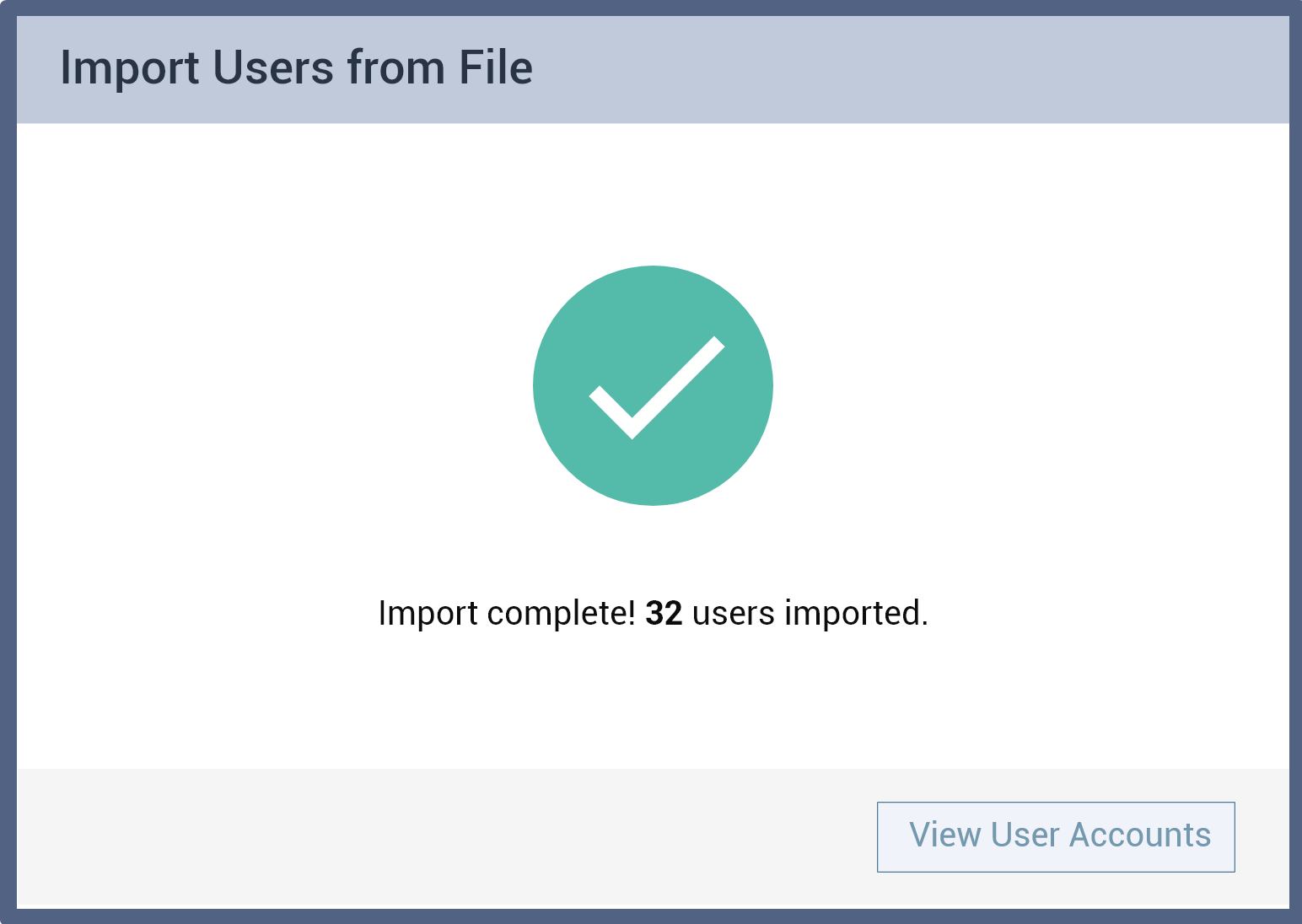
If the import failed, the the  icon displays instead.
Once imported successfully, axiUm Ascend will send emails to the users, requesting them to reset their password.
Important:
-
Attempts to import, failed imports, and successful imports are audited in the audit log.
-
Emails are sent to the email addresses from the imported data. The emails also include information on any changes that were made to their account.
Events on the Schedule widget
The Schedule widget on the Provider Overview page (Home > Location > Overview) has been updated to now include events that has the logged in user as the provider or part of the provider group that will attend the event.
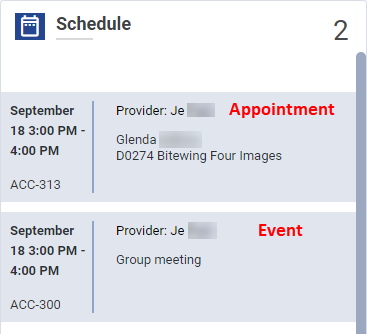
For events, the item only displays the provider or provider group and the title of the event.
Important: Recurring events only display on the widget once per recurrence. For example, if it's an everyday event, it displays once per day. If it's a weekly event, it displays once per week.
Removal of indistinguishable characters and numbers from chart
axiUm Ascend no longer uses the following indistinguishable characters and numbers when it automatically generates a chart number: 1,0, I, l, O.
The characters and numbers were removed due to difficulty distinguishing them from one another due to their similarity. However, users can sill use them when they manually create a chart number.
Important: When axiUm Ascend automatically generates a chart number for a patient that has I, L, and/or O may as initials of their first and last name, these characters will display as the first 2 characters of the chart number.
New patient forms
The Patient Form feature of axiUm Ascend has been updated to now include (new) consent forms. Patients can use them to provider consent before they start their treatment.
Unable to create patients when only using keyboard
Issue: When users attempt to create a patient by entering information and navigating to different fields by only using their keyboard, the Save button may be disabled, and users cannot create the patient.
Solution: Fixed so the Save button is enabled as expected.
Error may display when selecting a patient
Issue: When users attempt to search and select a patient, an error may display.
Solution: Fixed so users can search and select a patient as expected.
Comments
0 comments
Please sign in to leave a comment.