
Several new feature enhancements are included in the product update released in early September 2020. The major enhancements in this release include improvements to New Faculty View, new ability to import copayment coverage table from CSV file, improvements to Insights Dashboard, and new claim fields in Power Reporting.
Improvements to New Faculty View
Several changes have been made to the Faculty Dashboard Overview page (Home > Location > Overview):
-
The dashboard is now available to student providers, and we have made several functionality changes that only apply to student providers:
-
The Unapproved Items widget has been updated to now display their own approval requests for procedures and treatment plans.
Important: Currently, the Pending Approvals page is not available to student providers. The page will be available on a later release.
-
The Evaluations widget has been updated to only count their new and in-progress evaluation requests that has them set as the student. Also, the widget displays the Student Evaluations page when they clicktap it.
-
The dashboard has been updated to now identify providers with Requires Evaluation, Requires Approval to post, and/or Requires approval for Treatment Plan cases user role permissions set as student providers.
-
-
The Today's Appointment's widget has been renamed to Schedule, and it now displays your appointments within the next seven days. Each list item now also displays the date of the appointment.

-
The New Faculty View toggle switch and the Faculty Dashboard Overview page has been renamed to Provider Overview. It is now available for all providers, regardless of their security rights. Previously, the feature was only available to users that had the Approve patient procedures, Approve Treatment Plans, and/or Evaluate Other Users' Evaluation Requests user role permissions set.
Important: If you are a non-provider user, the toggle switch does not display after this release, even if you had access to the feature before the release. To access this feature, you must be set as a provider.
New ability to import copayment coverage table from CSV file
We have added a (new) Import from File button on the Coverage Table Setup page (Settings > Production > Coverage Tables) that allows users to create or edit a Patient Copayment, $ coverage table template type by importing it from a CSV file.
Creating a coverage table template

Editing a coverage table template

Once clickedtapped, the Import Table from File window displays, which you use to upload the data from a CSV file, set the code, copayment, and deductible type columns on the imported tabled, and then import the coverage table to axiUm Ascend.

Improvements to Insights Dashboard
We have made several changes to the Insights report (Home > Reports > Insights):
-
The Recare widget now includes a (new) bar chart that displays data on active patients in and not in recare within the last 18 months.

The dark blue bar represents active patients in recare, and the light blue bar represents patients not in recare.
To view the total number and percentage of active patients in and not in recare, hover over the respective color bars.

Note: The bar chart does not include patients assigned to perio.
-
The Daily Huddle Dashboard - New Patients and the Daily Huddle Dashboard - Production, Collections are now part of the Insights report, and displays in the Schedule Optimization widget.

Also, the Daily Huddle Dashboard - Production, Collections > Scheduled Production - Today and Schedules Production - Remaining Month reports has been updated to sorely measure gross estimated production. Currently, data on net production is not included in these reports.
New claim fields in Power Reporting
We have added (new) claim fields to the Interactive Ledger Report Builder (Home > Reports > Power Reporting), which can be used to:
-
Enhance identification of claims and providers
-
Create Ledger reports on transactions associated to unique claims
-
Create Ledger reports on claims by rendering providers with their NPI scores
-
Create Ledger report on claims by its' billing providers and their TINS
You can find these new claim fields under Data tab > Insurance Claim.
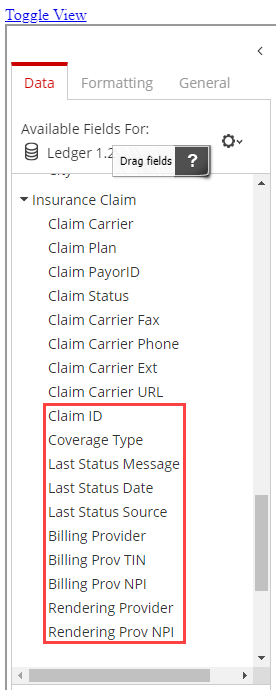
Notes:
-
The Claim ID is a large number that is used internally in the database, and doesn't displays on the report. However, it can be used as a unique identifier when creating claim histories.
-
The Coverage Type refers to primary, secondary, and so forth up to 10 levels.
-
The Last Status displays the user that accessed the record last with the date of access and any new notes from the user.
Perio exams on Progress Notes
Progress notes throughout axiUm Ascend has been enhanced to now include period exams.
We have also made the following changes to the Progress Notes tab of a patient's clinical record (Patient > Clinical > Progress Notes):
-
Incomplete perio exams display with a (new) Resume button that you can use to complete the exam.

Once clickedtapped, a New Perio Exam window displays, which can be used to resume the exam or discard the incomplete exam and start a new one.
-
There is a (new) Perio Exam filter option that you can use to display a list of perio exams.
New gender option
Patients now have an option to identify their gender as Unspecified if they do not identity as a female or male. Once set as Unspecified, the following occurs through axiUm Ascend:
-
The patient's avatar displays a non-gender specific icon.

-
The patient's gender displays as U or Unspecified.
Important: The online demographics from displays a Neither option instead of Unspecified.
Procedure's provider incorrectly set to primary provider
Issue: When a non-provider user adds a procedure to a patient by selecting a provider that is not the patient's primary provider, axiUm Ascend may incorrectly set the primary provider as the procedure's provider, not the user that added the procedure.
Solution: Fixed so it correctly sets the provider that added the procedure as the procedure's provider.
Comments
0 comments
Please sign in to leave a comment.