
Several new feature enhancements are included in the product update released in late July 2020. The major enhancements in this release include new SMS feature and update to default eRx behavior.
New SMS Inbox feature
We have added a (new) Manage Inbox Messages and a (new) Review inbox messages user role permissions that allows users to access the new SMS feature of axiUm Ascend. You can use the new feature to view text messages from your location's patients, which can be used to take appropriate actions towards their appointment, file, and so forth.
Note: Currently, you cannot respond to patients by texting through this page. The two-way SMS capabilities will be added in a later release. If you do not want to use this feature at this point, please remove the associated permissions from your security rights.
When both user role permissions are set, the red circle with a total number of unread messages in your inbox displays on your user name menu on the navigation bar. If there are none. the red circle does not display any number.
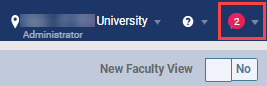
Note: If you have unread messages and unread eRx notifications, two red circles with total numbers for each may display instead of one red circle.
To view your messages, you can navigate to the (new) Inbox page by using one of the following methods:
-
Home menu > Location > (new) Inbox option
-
User name menu > (new) Inbox option
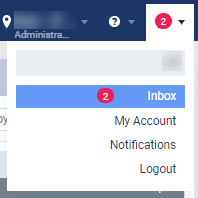
The Inbox page displays your read and unread messages by date. Unread messages display in bold text, while read messages do not.

Each message displays the following:
-
Time - Displays the time stamp of the last message from the patient.
-
Primary Contact - Displays the patient's primary contact information.
Important: If the primary contact changes their phone number, their phone number display as blank.
-
Next Appointment - If any, displays a link to the patient and the patient's upcoming appointment. When you clicktap the patient's name, it navigate you to the patient's Patient Information page. When you clicktap the appointment's date and time, it navigates you to the Calendar page with the appointment's Appointment Information panel open.
-
Last Message - Displays the last message sent by the patient.
-
Actions - Displays the following options you can do to the message.
-
Show message - Displays the entire message history between your clinic and the patient in the Messages window.
-
Mark as Read/Unread - ClickTap to mark an unread message as read or a read message as unread. For unread message, the button displays as Mark as Read. For read messages, it displays as Mark as Unread.
-
Hide icon - ClickTap
 to hide the message.
-
To display a specific list of messages, you can use the filters located on the upper-right corner of the page:
-
View drop-down menu - ClickTap to display a specific list of read or unread messages that are visible or hidden.
-
Search field - Use to locate messages by the primary contact's name, phone number, or by a specific message.
Important: If a primary contact changes their phone number, you cannot search by their phone number as it displays as blank on the page.
You can also view the patient's entire message history between themselves and the clinic on the following locations:
-
The Patient Connection page (Patient > General > Patient Connection) - ClickTap Text Messages tab to view the patient's entire message history by date.

Note: You can clicktap the Statements tab to view the patient's billing statements.
-
The appointment's Appointment Information panel - ClickTap the (new) Show messages button to display the Messages window.

-
Their appointment on the Patient Routing panel - ClickTap the (new) Show messages link to display the Messages window.

Update to default eRx behaviour
When users are enabled for eRx, they now need approval for electronic prescriptions (Patient > Prescriptions > Patient Prescriptions) by default.
View drop-down menu on the Calendar page does not display properly
Issue: When users double-clickdouble-tap on the Calendar page > View drop-down menu, it displays a blank window.
Solution: Fixed so it displays properly.
Appointment requests displays incorrectly on Faculty View
Issue: When the Overview page is set to Faculty View, the appointment requests displays on the Unapproved Item widget as a Treatment Plan type, but does not display on the Pending Approval page.
Solution: Fixed so it does not display on the Unapproved Item widget as expected.
Print drop-down menu on the Calendar page does not display properly.
Issue: When users clicktap the Calendar page > Print drop-down menu, the print orientation options does not display properly.
Solution: Fixed so it displays properly.
Procedures does not display on appointment when scheduled through Recare Management
Issue: When users schedule an appointment for a mouth procedure from the Recare Management page, the procedure does not display on the appointment's Appointment Information panel.
Solution: Fixed so it displays properly.
Toggle switch on the Calendar's view settings menu may not display properly
Issue: When users set the Calendar's view settings to display columns by provider, the Show only working providers toggle switch on the view settings menu does not display properly.
Solution: Fixed so it displays properly.
Incorrect filter options on the Appointment Requests page
Issue: The Date/Time filter on the Appointment Requests page displayed options that allowed users to view appointment requests for past appointments.
Solution: Fixed so the filter no longer displays the Yesterday and the Last Month options.
Slow login
Issue: When users attempt to login to axiUm Ascend, it takes longer than usual to login.
Solution: Fixed so users can login promptly.
Comments
0 comments
Please sign in to leave a comment.