
Several new feature enhancements are included in the product update released in late June 2020. The major enhancements in this release include improvements to Claim Detail window, new Progress Summary feature, updates to Prescriptions, and a new Copayment Coverage Tables feature.
Improvements to Claim Detail window
Several changes have been made to the Claim Detail window (Patient > Insurance > Insurance Claims):
-
We have added new warning and error notifications to the following areas of the General tab that displays when changes have been made to an outstanding claim:
-
The General tab - A
 icon displays when an insurance information has been changed.
-
The Subscriber and/or the Payer section - A
icon displays beside the section that has been changed, the edited field is highlighted in orange, and a  button displays.
For more information on the changes, you can clicktap the
icon.
To update the claim with the new subscriber or payer information, you can clicktap the
button.Important: Changes to these sections are not automatically applied to the associated claims. To update the claims with the new information, you must manually update them by clickingtapping the
button.
-
-
For a faster and an easier resubmission process for unpaid primary or pre-authorization claims, we have added the following to the Procedures tab:
-
Add Procedures button - Allows you to add unattached procedures to the claim.
-
Service Date check boxes and Remove Selected button - Allows you to select and remove procedures from the claim.
Important: Changes to a claim's procedure(s) or provider are automatically applied to pre-post write-offs.
-
-
We have added a (new) Create contracted write-off when claim is saved toggle switch that only displays when you change the General tab > billing provider or rendering provider from a non-contracted to a contracted provider.
To create a contracted write-off, set the toggle switch to Yes.
-
The Status/Notes tab > Original Ref Number field has been renamed to Payer Claim Reference # field.
New Progress Summary feature
We have added a (new) Progress Summary feature for evaluations that displays students' progress in completing their evaluations. It is a 2-part process that involves the configuration of the feature and the display of the students' progress.
Important: Currently, only configuration is available in axiUm Ascend. The display of the progress will be available on a later date.
To configure, users need to navigate to the Evaluation Setup page > (new) Progress Summary tab by selecting the (new) Progress Summary option under the Settings menu > Evaluation.

Important: You can only access the tab if you have the Manage Academic Evaluations user role permission set.
If there is no configuration, the tab displays a blank screen. If there is a previously saved configuration, the tab displays a list of requirements for the Progress Summary report.

Each requirement displays the following:
-
Category - Category associated with the requirement.
-
Forms - Form(s) that must be completed for the set category.
-
Required - Required number of completed procedure(s) for the set category.
Note: If set to a number greater than zero, you must specify at least one procedure in the Procedures column.
-
Procedures - Code(s) of procedure(s) that must be completed for the set category.
Updates to Prescriptions
Several changes have been made to prescriptions (Patient > General > Prescriptions):
-
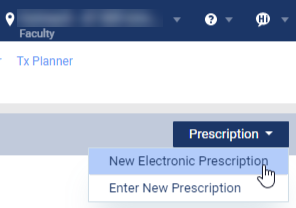
We have combined the New Electronic Prescription button and the Enter New Prescription button into a (new) Prescription drop-down menu.
-
The Prescription drop-down menu > New Electronic Prescription > Patient Details page now displays patient's information, their drug allergy information, and their preferred pharmacy information.

We have also added a (new) Edit Patient Info button that you can use to edit patient's information.
-
The paper prescription's Provider field has been updated to only display providers that have valid NPI numbers and are active at the current location. Also, the default behavior has been updated to do one of the following:
-
If you're a provider and have a valid NPI number, you're set as the provider.
-
If you're a provider but doesn't have a valid NPI number, the patient's primary provider is set as provider if they have a valid NPI number and is activate at the current location. Otherwise, the field is blank.
-
New Copayment Coverage Tables feature
Previously, axiUm Ascend listed all coverage table templates on the Coverage Table Setup page (Schedule > Production > Coverage Tables). Now, due to the addition of the (new) Copayment Coverage Tables feature that supports fixed patient copay coverage tables, they are categorized into one of two template types: Insurance Coverage, % and Patient Copayment, $.

The Insurance Coverage, % type displays templates that are based on insurance coverage percentages, and Patient Copayment, $ type displays templates that are based on fixed patient copayments.
Also, the creation and modification of coverage tables have been adjusted accordingly:
-
The Type drop-down list only displays the two default types.
-
The column that contains the procedure codes' coverage displays based on the selected template type.

New shareable set for clinical note templates
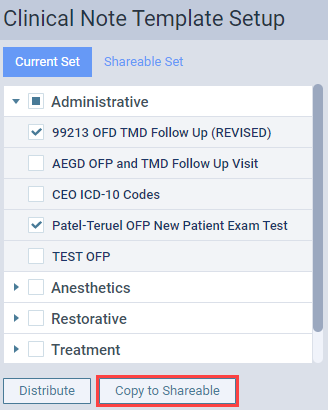
We have added a (new) Shareable Set tab on the Clinical Note Template Setup page (Settings > Patient Care > Clinical Note Templates) that displays a list of clinical note templates that has been deemed shareable to any location(s) in your organization.

To copy a template to the shareable set, you need to select template(s) from the current set and then clicktap the (new) Copy to Shareable button generated at the bottom of the list.
Important: To create, edit, or delete clinical note templates in the shareable set, you need the (new) Manage Shareable Set user role permission set. To view and select templates from the shareable set for distribution, you need the Distribute clinical note templates user role permission set.
New ability to update fee schedules in bulk
On the Fee Schedules page (Schedule > Production > Fee Schedules), we have added a (new) Update Fees from File button on existing fee schedules, which can be used to update fee schedules in bulk by importing a .csv file.

To import, you need to clicktap the button and use the displayed (new) Update Fee Schedule from File window.

After importing successfully, you can manually update procedure code amounts before you save.
New Coordination of Benefits (COB) feature
We have added a (new) Coordination of Benefits button on new and existing insurance carriers (Home > Insurance > Carriers).

Users can use the button to configure an insurance's method of payment in relation to COB, which will only be applied to patients that has the insurance carrier as their secondary insurance plan.
Important: The button only applies to patients who have primary and secondary insurance plans.
When you clicktap the button, the (new) Coordination of Benefits window displays.

On the window, you can define its method of COB as a secondary insurance plan by setting the drop-down list associated with the patient's primary insurance plan's method of payment.
Example: If a patient's primary insurance method of payment is Champus, you need to set the Method for Coordination of Benefits drop-down list associated with Champus.

Improvements to schedule view that are set to display columns by provider
When the Calendar page's (Schedule > Calendar) view settings are set to display columns by provider, the following occurs:
-
Provider names now display as a link.

Users can clicktap the link to change a provider's availability on the calendar:
-
If the provider is currently unavailable, the Make Provider Available for a day option displays.

If you clicktap the option, the provider is set as currently available.
-
If the provider is currently available, the Make Provider Unavailable for a day option displays.
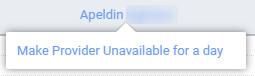
If you clicktap the option, the provider is set as currently unavailable.
-
-
A (new) Show only working providers toggle switch displays under the View menu.

You can use the toggle switch to only display available providers.
New Create Claim alerts
We have added two (new) condition tag-related alerts to the Create Claim page (Home > Insurance > Create Claims) and the Patient Walkout window > Create Claim tab (Patient > Financial > Ledger).

The alerts display at the top and at the claim(s) that has more than four condition codes.
Display of user role's assigned users
All existing user roles (Settings > Location > User Roles) now display with a (new) Assigned to ___ user(s) link that displays the total number of users assigned to the user role.

For more information, you can clicktap the link to display the complete list of assigned users.

Improvements to bulk insurance payments
Several changes have been made to bulk insurance payments (Home > Insurance > Bulk Insurance Payments):
-
The Create New Bulk Payment button > Create New Bulk Payment window > Select Claims tab now contains a (new) search field that can be used to search for a specific claim by its patient name, subscriber name, insurance plan, or billed amount.
-
You can now sort the list of claims on the Create New Bulk Payment button > Create New Bulk Payment window > Select Claims and the Summary tab by any of its columns.
-
The maximum number of claims you can upload to a bulk insurance payment has been increased from 500 to 1000.
Updates to the default behavior of appointment providers
If a logged in user books an appointment (Schedule > Calendar), they are now set as the appointment provider except in the following scenarios:
-
When the user is not a provider.
-
When the schedule view is set to display columns by providers, and the user selected a specific provider's time slot.
-
When using the Actions menu > Search for Openings to book an appointment.
-
When creating an appointment from a treatment planner.
Note: In the scenarios listed above, the patient's primary provider is set as the appointment provider. If the patient doesn't have a primary provider, the field is left blank.
New Patient Health report
We have added a (new) Patient Health Insight report (Home > Reports > Insights) that displays the oral health of your current location. You can access and view the report under Insights page > Patients.

New option for appointment colors
Previously, users could customize the Calendar page (Schedule > Calendar) to display appointments with its' provider's provider colors. Now, you have an option to customize appointment colors by its provider, procedure, or both on the (new) Appointment Colors page (Settings > Location > Appointment Colors).

Note: If you decide to display appointment colors by its procedures, you can set the procedure colors to display based on the procedures that are present on the appointment.
You can also set the color layout.
New sextant option throughout axiUm Ascend
Users can now work with sextants in the following areas of axiUm Ascend:
-
As sextant selector buttons in every graphical representation of a tooth chart throughout axiUm Ascend.
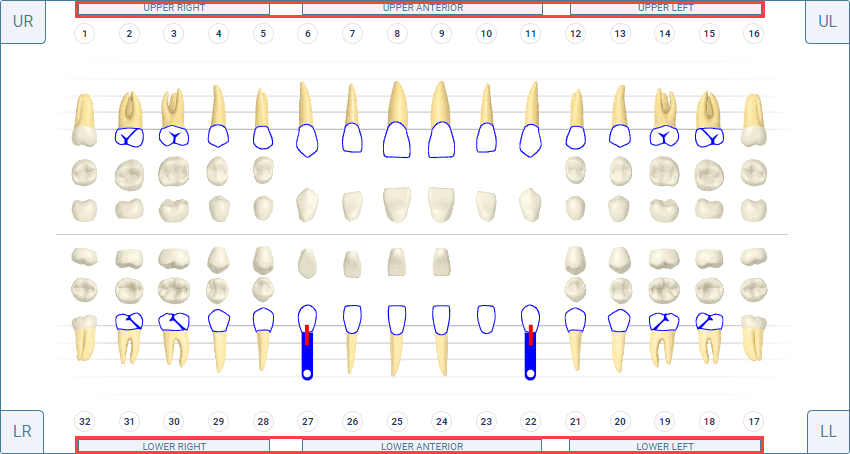
Important: The sextant selector buttons only display if the View menu > (new) Sextant selectors check box from the Chart tab of a patient's clinical record (Patient > Clinical > Chart) has been selected.
-
As a treatment area option in the Chart, Perio Exam, and Quick Exam tabs of a patient's clinical record (Patient > Clinical > Chart, Perio Exam, and Quick Exam).
-
As a treatment area option for new and existing procedure codes (Settings > Production > Procedure Codes & Conditions).
-
As a clinical note template quick-pick throughout axiUm Ascend.
We have also added (new) superscript stx or q to all sextant area abbreviations.
Changes to Deposit Slip report columns
The Bank and Check # columns on a Deposit Slip report (Home > Reports > Deposit Slip Report) now only displays for check payments, and the (new) Reference # column displays for electronic and financing payments.

Improvements to the Daily Huddle (DH) Collections reports
All Daily Huddle (DH) Collections reports (Home > Reports > Power Reporting) now display with two (new) layout enhancements:
-
A Category column that displays the collection types.
-
A Grand Total field that displays the total amount of the collections.
Improvements to quick exams
When users select a condition, existing work, or a treatment plan in the Quick Exam tab of a patient's clinical record (Patient > Clinical > Quick Exam), a (new) animation and a (new) emphasis of the column header displays to confirm it has been selected properly.
New Patient Form for COVID-19 Screening
We have added a (new) COVID-19 Patient Screening patient form (Settings > Location > Patient Forms). This feature is only available to organizations that have access to Patient Forms.
New sorting order for Location menu
The Location menu now displays locations in alphabetical order with its abbreviations.
Appointment's time does not display properly on the Faculty Dashboard Overview page
Issue: On the Faculty Dashboard Overview page, appointment's time on the Today's Appointments widget display an hour earlier than the actual time.
Solution: Fixed so it displays correctly.
Cannot reorder evaluation form's questions and headers
Issue: On the Evaluation Setup page, users cannot reorder an evaluation form's questions and headers.
Solution: Fixed so users can reorder them.
Save button incorrectly enabled when creating or editing a grading scheme that failed the name validation.
Issue: When users create or edit a grading scheme to have the same name as an existing grading scheme, the Save button is incorrectly enabled.
Solution: Fixed so the Save button is disabled as expected.
Cannot edit and save a clinic's start time
Issue: When users change a clinic's start time on the Location Hours page, axiUm Ascend cannot save and displays an error message.
Solution: axiUm Ascend saves as expected when users change the start time and the end time.
Comments
0 comments
Please sign in to leave a comment.