
Several new features and enhancements are included in the product update released in late April 2020. They affect the following types of users:
-
Front Desk
-
Clinical / Provider
-
Insurance Specialists
-
Finance Team
-
Imaging Technicians
-
IT Administrators
There are also a set of general changes that may affect multiple user roles or don’t necessarily have a role where it is most applicable.
Front Desk
Scheduler / Appointment Changes
There are several new features and enhancements on the Calendar page (Schedule > Calendar):
-
We have added a (new) Pinboard button.

You can use the button to easily reschedule an appointment by pinning an appointment to the new rescheduling pinboard and searching for an open time slot on the calendar.
-
When you print a schedule, it now prints in landscape to include up to seven columns.
We have added a (new) Lab Cases functionality that allows you to attach and manage lab work associated with an appointment. If a lab is involved, this allows you to schedule appointments more appropriately. If your organization is using the functionality and you schedule an appointment, scheduler now warns you if you are booking an appointment prior to the expected due date of the lab case.
You can attach and manage lab cases on the Calendar page (Schedule > Calendar) and the (new) Lab Cases page (Schedule > Lab Cases).
We have also added a (new) Outstanding Lab Cases widget on the Overview page (Home > Location > Overview) that you can use to access the Lab Cases page.

For more information, please read the following articles:
Patient-based Changes
There are several patient-based changes:
-
If requested by a patient, you can now provide detailed explanations of the costs and guarantor portions of a treatment when you preview their treatment plan case (Patient > Clinical > Treatment Planner).
-
Throughout axiUm Ascend, the Tag functionality has been enhanced to allow you to apply payment tags to charge adjustments, implement tagging rules on payments and adjustments, and apply (new) mandatory tags to credit card payments.
-
The Patient Connection functionality has been enhanced to also display past statements that were generated for a patient. We have also added a link so new patient connection entries will link themselves to the associated statement which was sent to the guarantor
-
You can now scan documents directly onto a patient’s Document Manager page (Patient > Clinical > Treatment Planner).
-
Throughout axiUm Ascend, the term Print Statement has been renamed to Billing Statements.
For more information, please read the following articles:
Clinical / Provider
Workflow
There are several workflow changes:
-
We have added a (new) Available Procedures button that displays when you edit an insurance carrier on the Insurance Carriers page (Home > Insurance > Carriers).

For patients that have insurance, this is a new mechanism that only displays procedures that are known to be covered by the patient's insurance provider. This allows you to plan treatments with these restrictions in place.
To apply, you need to manually configure a list of procedures covered by the insurance for each supported insurance carrier.
-
The Clinical Note Tasks widget on the Overview page (Home > Location > Overview) has been updated to group clinical notes into three different categories: Unsigned, In Progress, and Not Entered.
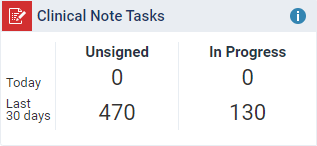
Ready notes now display as Unsigned, and Draft notes now display as In Progress. Visibility for attending providers has not been changed.
-
We have added (new) perio hotkeys that you can use to move easily between teeth during a perio exam (Patient > Clinical > Perio).

-
If an appointment's status is Chair, Checkout, or Complete, you can now add a clinical note from the Patient Routing panel (Schedule > Calendar) by using the (new) Add Clinical Note button.

-
We have added a (new) Chairside Dashboard toggle switch on patient's clinical record > Chart tab (Patient > Clinical > Chart).

If enabled, it allows you to view progress notes, the patient chart, any associated images, and the most recent perio exam simultaneously. Entering clinical notes can now also be done in parallel as reviewing the patient chart or images.
-
You can now mark conditions as completed in different areas of axiUm Ascend using variety of methods. If you mark a condition that is linked to procedure(s) as complete, you will be prompted to mark the linked procedure(s) as complete and vice versa. However, this update does not apply to users who require approval to complete procedures.
-
Throughout axiUm Ascend, you can now pause and resume the process of filling out a clinical note template. If paused, the clinical note template will be marked as In Progress.
For more information, please read the following articles:
Configuration
There are several new features and enhancements on the User Accounts page (Settings > Location > User Accounts):
-
When you create or enable a user to be a provider, their specialty now automatically updates to Dentist.
-
We have added a new functionality that allows you to manage providers' work schedule. This allows you to schedule new work schedule patterns instead of adjusting their schedule every time it changes.
-
On the User Account Information page > User Roles & Locations tab, we have added a (new) Default Operatory drop-down list that you can use to set a provider's default operatory. If set and with the correct view settings, providers can schedule appointments faster.
We have added a (new) Charting symbol field on the Edit Procedure Code window (Settings > Production > Procedure Codes & Conditions).

You can use the field to customize charting symbols.
For more information, please read the following articles:
Insurance Specialists
Workflow
There are several workflow changes:
-
You can now view all guarantor account members on the Related Patients tab of a patient's Patient Information (Patient > General > Patient Information).
-
On the Outstanding Claims page (Home > Insurance > Outstanding Claims), the report now displays subscribers' and patients' names as hyperlinks. You can now use the hyperlinks to access the patient and the subscriber's Ledger.
-
When you post an ortho procedure from the Ledger and open the ortho claim in axiUm Ascend, the Claim Detail window > Claims Info tab > Total Months field automatically populates data if there is any.
-
Billing providers that are not contracted with a specified carrier will now display a warning when accessing patients with primary insurance plans associated with the carrier.
-
During patient walkout, axiUm Ascend now provides more information when you create a claim.
-
On the Enter Payment and the Edit Payment windows, the Insurance Adjustments drop-down list has been renamed for clarity.
For more information, please read the following articles:
Configuration
There are several configuration changes:
-
On the Basic Info tab of a location's Location Information page (Settings > Location > Location Information), we have added a (new) Batch Job for Insurance Eligibility toggle switch.
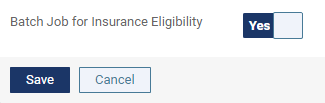
You can now use the toggle switch to decide whether or not axiUm Ascend should automatically run patients' insurance eligibility verification checks nightly. By default, the toggle switch is set to Yes.
-
Insurance defaults (Settings > Production > Insurance Defaults) now allow a patient’s primary provider to be defaulted as their claim rendering Provider. The list of potential providers to select from are also now limited to those that have access to the specified location.
Also, there are new user role permissions that control whether or not a user can update a location's insurance defaults.
-
On the Ledger Rules tab of the Ledger Options page (Settings > Production > Ledger Options), we have added a (new) Prepopulate & lock insurance estimate overrides toggle switch. You can now use the toggle switch to pre-populate and lock insurance estimate overrides on a procedure in the Ledger.
-
On the Insurance Carriers page (Home > Insurance > Carriers), the address field has been renamed to Claim Mailing Address. Also, when adding carriers, you can now search for a carrier by their carrier ID and their name.
For more information, please read the following articles:
-
Enabling or disabling batch insurance eligibility verifications
-
Activating and inactivating automatic insurance estimate overrides
Finance Team
Workflow
There are several workflow changes:
-
Unapplied credits on Provider A/R Totals reports is now an option that is controlled by the (new) Include Unapplied Credits check box on the Provider A/R Totals page (Home > Reports > Provider A/R Totals).
If applied, unapplied credits now display based on the last day of the report's date range. For example, a patient pays for tomorrow's procedure. If you run the report today, the payment displays as unapplied credits. If you run the report tomorrow, the payment does not display as unapplied credits. However, if you run the report to contain data from today and tomorrow, the payment does not display as unapplied credits.
-
Day Sheet and Payment Analysis reports (Home > Reports > Day Sheet or Payment Analysis) have been updated to only display payment and adjustment tags that are associated with the transactions from the report's set date range.
-
The unapplied credits report has been updated in Power Reporting (Home > Reports > Power Reporting).
-
The Generate Billing Statements window (Home > Reports > Billing Statements) has been reorganized for more clarity.
Configuration
There are several new features and enhancements on the Ledger Options page (Settings > Production > Ledger Options):
-
the Transaction Locking functionality has been updated to give organizations the option to lock transactions by date or by the age of the transaction.

You can also lock transactions by using the (new) Lock Transactions (Organization-Wide) window (Settings > Production > Lock Transactions).

Record locking workflow has also been updated slightly, and we have added a set of new user role permissions that allows users to move transaction lock date forward and backward.
-
We have added two new ledger options to payment methods: Patient Financing Payment and Electronic Transfer Payment.
-
We have added a (new) Tag Restriction Rules functionality that if enabled, allows you to create mandatory and optional tags that can be applied to specific transaction types.
We have also added other configuration changes:
-
We have added a (new) Set End Date button to fee schedules (Settings > Production > Fee Schedules).

You can now use the button to adjust fees for the future by setting a start and end date for current and future fee schedules. For example, your team has decided to increase rates for the next year. Instead of immediately adjusting it next year, you can schedule the increase today by setting the current fee schedule's end date and the new fee schedule's start date.
-
We have added a (new) Discount Fee Scale functionality (Settings > Production > Discount Options) that you can use to apply discounts. It either supports a per visit cost, a per procedure cost, or a percentage per procedure mechanism. Any relevant discounts can be posted on a patient's ledger as automatic adjustments.
If necessary, you can exclude specific procedures from the functionality.
-
We have added new user role permissions that allows you to control whether or not providers can view financial reports for all providers. We have also added new user role permissions that allows you to control the ability to create transaction tags.
For more information, please read the following articles:
Imaging Technicians
Workflow
There are several new features and enhancements on imaging (Patient > Clinical > Imaging):
-
Users can now view the recaptured images in a series or see the original to decide which one is current for the exam.
-
Custom intraoral acquisition templates (procedures) are now available.
-
axiUm Ascend now supports iPad-based image acquisitions. Also, recaptured images now display the number of recaptures and when they were done.
-
When you share images through the print option, the generated PDF file now includes tooth number(s).
-
When you view an image, a (new) More button displays. You can use the button to delete a single image from an exam.
-
Still pin support for intraoral cameras has been introduced (Acquisition Agent).
-
Text annotation tools are now available in the Image Navigator > Tools tab.
For more information, please read the following articles:
Configuration
There are several new features and enhancements on imaging (Patient > Clinical > Imaging):
-
We have added a (new) Favorites tab on Imaging Procedures that display a list of favorite imaging procedures for the entire organization.

The list of favorites apply to all users within the organization. If you have the ability to captures images, you can add or remove imaging procedures from the list of favorites.
-
There are new preferences that can be used to tune the images when you capture images (Acquisition Agent).
For more information, please read the following articles:
IT Administrators
Configuration
There are several configuration changes:
-
Power Reporting (Home > Reports > Power Reporting) has been updated to only display financial data from locations you have financial reports rights. Also, a date filter used to default to a date in 1901 has been updated to ‘today’.
-
We have added a (new) Insights report (Home > Reports > Insights) that displays a collection of reports that are important for monitoring the financial health of your practice.
-
We have added a (new) Practice Profile button on the Patient Communications page (Settings > Patient Care > Patient Communications) that you can you use to add social media links to your organization's profile.
-
You can now generate a Workflow Compliance report (Home > Reports > Workflow Compliance) without enabling the Exit Workflow functionality.
-
You can now delete an operatory (Settings > Location > Operatories) if it only has events attached to it.
-
We have added a (new) Location Abbreviations functionality that allows you to configure prefixes for location names that will display from the Location menu, Patient Walkout window, and the Generate Billing Statements window.
-
The Manage Reports user role permission has been updated to only refer to power reports.
-
If your organization has multiple locations, you can now distribute a clinical note template from one location to other locations in your organization.
-
You can use the (new) Default appointment length (min) field (Settings > Location > Location Hours) to change the default length of an appointment for each location.

For more information, please read the following articles:
General
There are several general changes:
-
We have added a new Collapse All button and a Select operatory drop-down list to the Patient Routing panel.
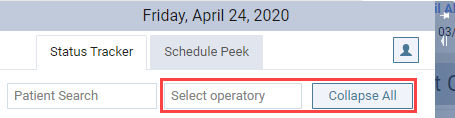
Users can now use the button to collapse all open appointment statuses and/or use the Select operatory drop-down list to only display appointments associated with specific operatories.
-
Green notification messages now display at the bottom of the screen with an option to close it by clickingtapping X. This update was implemented so the notification messages no longer hinder your experience with axiUm Ascend by blocking the navigation bar.
-
Power Reporting (Home > Reports > Power Reporting) has been updated to now include new Lab Cases reports and Daily Huddle dashboards.
-
A set of reports are now scope limited to the locations where the user has permissions to access the location:
-
Day Sheet
-
Payment Analysis
-
Aged Receivables
-
Provider A/R Totals
-
Recare Management
-
Workflow Compliance
-
Audit Log
-
For more information, please read the following articles:
Comments
0 comments
Please sign in to leave a comment.