
Several new feature enhancements are included in the product update released in early February 2020. The major enhancements in this release include improvements to the Overview page, updated login on unsigned clinical notes, and new name and logic for the Created on section on evaluation requests.
Improvements to the Overview page
We have added a (new) New Faculty View toggle switch on the Overview page (Home > Location > Overview) that is only available when you have the Approve patient procedures, Approve Treatment Plans, and/or Evaluation Other User's Evaluation Requests user role permission set.
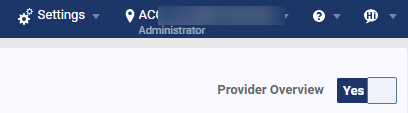
You can use the toggle switch to switch between the Overview page and the (new) Faculty Dashboard Overview page, which is a single location that displays all the items and tasks you need to complete as a faculty provider.

To view the Overview page, set the toggle switch to No. To view the Faculty Dashboard Overview page, set the toggle switch to Yes. Once set, axiUm Ascend will remember your preferred setting.
Note: If you set the toggle switch to Yes and then no longer have any of the required user role permission set, axiUm Ascend automatically switches to the Overview page.
The Faculty Dashboard Overview page displays the following widgets:
-
Today's Appointments
-
Unapproved Items
-
Unsigned Clinical Notes
-
Evaluations
The Today's Appointments widget displays a list of appointments for today that you are assigned to as an appointment or attending provider. You can clicktap an appointment to display the Calendar page with the selected appointment's Appointment Information panel open.
The Unapproved Items widget displays the following:
-
The total number of today's approval requests that you are assigned to as an attending provider and requests without an attending provider, and are from procedure and treatment plans that are currently on the floor as outstanding.
-
A list of requestor's short name, chair location (if available), and the approval request type.
You can clicktap the widget to display the (new) Pending Approvals page.

Note: To display the page, you need to have the Approve patient procedures or the Approve Treatment Plans user role permission set.
The Pending Approvals page displays a list of approval requests counted by the Unapproved Items widget, and the list is sorted to display from oldest to latest. If necessary, you can use the filters to display a different list of pending approvals.
The Unsigned Clinical Notes widget displays the total number of unsigned clinical notes. You can clicktap the widget to display the Unsigned Clinical Notes page.
The Evaluations widget displays the total number of new and in-progress evaluation requests based on the logged in user's view settings for the Faculty Evaluations page. You can clicktap the widget to display the Faculty Evaluations page.
Updated logic on unsigned clinical notes
The Unsigned Clinical Note widget on the Overview page (Home > Location > Overview) has been updated to to be clearer by categorizing the unsigned clinical notes in the the (new) Ready and Draft columns.

Now, the total number of unsigned clinical notes that are set as ready to sign display under Ready, and those that are set as not ready to sign display under Draft. Additionally, the widget now displays clinical notes that has you set as the provider or the attending provider until it is completely signed by all required user(s).
The behavior of the signing workflow has also been updated to reflect this update. The Sign as check box on the Unsigned Clinical Notes page has been updated to display the name of the user that needs to sign the note, not the name of the logged in user.
New name and logic for the Created on section on evaluation requests
The Created on section on evaluation requests has been updated to display as Requested on, and it now displays the date and time the evaluation was requested on.

The note section on unsigned Clinical Note window displays incorrectly
Issue: When users select a clinical note on the Unsigned Clinical Notes page, the note displays under Patient note.
Solution: Fixed so the section displays as Clinical Note, not Patient note.
Time tab on the Unsigned Clinical Notes page does not display properly
Issue: When the Unsigned Clinical Notes page is set to the Today tab, the Time column does not display properly.
Solution: Fixed so time displays properly in accordance to your organization's time zone.
Comments
0 comments
Please sign in to leave a comment.