
Several new feature enhancements are included in the product update released in late January 2020. The major enhancements in this release include improvements to unsigned clinical notes, new logs on the Audit Log page, new link on the Patient Information ribbon, and and update on sessional evaluation requests.
Improvements to unsigned clinical notes
Several changes have been made to unsigned clinical notes (Patient > Clinical > Progress Notes):
-
We have added a (new) Ready to sign toggle switch on Clinical Note and Add Clinical Note windows.

The toggle switch can be used to label clinical notes that are ready to be signed by the associated faculty provider(s).
If the clinical note is set as ready to sign, the Sign as [provider's name] check box displays. If it's set as not ready, the Sign as [provider's name] check box does not display.
Note: If a clinical note is locked due to the deactivation of a provider or an attending provider, the clinical note is automatically set as ready to sign.
Important: On January 31st, all existing clinical notes that are not locked and in draft will be updated to be set as ready to sign. If it's not ready to sign, you can open it and set the toggle switch on the Clinical Note window to No.
-
We have added (new) indicators on clinical notes that are selected and displayed on the Unsigned Clinical Notes. If you clicktap a clinical note that is ready to sign, a green indicator displays.

If you clicktap a clinical note that is not ready to sign, a red indicator displays.
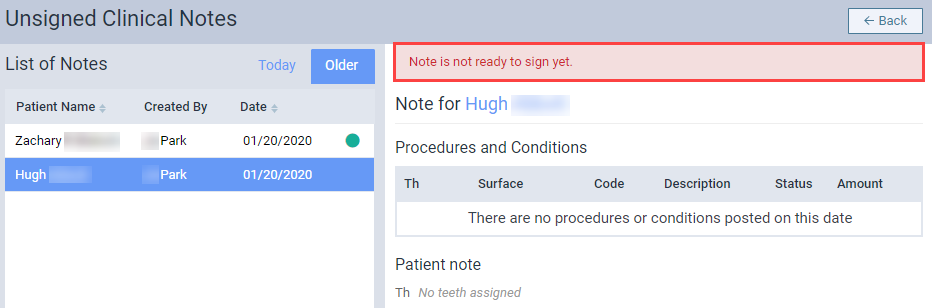
-
We have added a (new) column in the Unsigned Clinical Note page > List of Notes. The new column displays a green circle for clinical notes that are set as ready to sign.
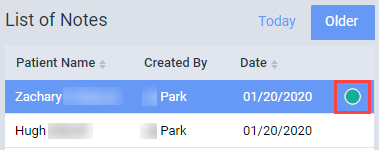
We have also updated the list to sort by the new column first, displaying items that are set as ready to sign first, and then by the Date column, displaying from latest to oldest.
-
The Unsigned Clinical Note widget on the Overview page and the Faculty Dashboard Overview page have been updated to only display the total count of unsigned clinical notes that are set as ready to sign.
New logs on the Audit Log page
The Audit Log page (Home > Reports > Audit Log) has been updated to log additional activities. It now also logs the following actions:
-
When users access the Patient Prescriptions page or clickstaps a prescription on the page, the action is logged as a Prescription type with "Prescription reviewed" in Details.
Notes:
-
When you clicktap a prescription, the page reloads and creates another log, resulting in 2 logs.
-
When you create, refill, or void a prescription, the Prescription List reloads and creates another Prescription-type log with "Prescriptions reviewed" in Details.
-
-
When you clicktap a prescription on a patient's Progress Notes page, the action is logged as a Prescription type with information on the prescription in Details.
-
When you clicktap a patient-related document or attach a document from the document manager, the action is logged as a Patient type with "Document [filename] was viewed" in Details.
-
When you clicktap a clinical note and open the Clinical Note window, the action is logged as a Clinical Note type with information on the clinical note in Details.
-
When you update the Attending Provider field or the Ready to sign toggle switch on an existing clinical note, the action is logged as a Clinical Note type with "Update" in Action.
New link on Patient Information ribbon
We have added a (new) Tx Planner link on the Patient Information ribbon.

Users can now clicktap the link to display the Tx Planner tab of a patient's chart (Patient > Clinical > Treatment Planner).
Note: If a patient has a long name and there isn't enough room on the ribbon for the links, the links display below the name.

Update on sessional evaluation requests
We have updated the process of completing a sessional evaluation request (Academic > Student Evaluations or Faculty Evaluations) that is generated automatically when a faculty provider approves procedure(s). If your location only has one evaluation form for sessional evaluation requests and you start a new evaluation request, you no longer need to select an evaluation form. Ascend selects the evaluation form for you.
Note: If you restart a sessional evaluation request, even though your location only has one evaluation form, the Select a form window still displays.
Comments
0 comments
Please sign in to leave a comment.