
Several new feature enhancements are included in the product update released in late November 2019. The major enhancements in this release include improvements to competency evaluation requests, improvements to the View menu on the Calendar page, sessional evaluation requests that are no longer generated at Checkout, and clinical note windows that adjust its size accordingly.
Improvements to competency evaluation requests
Several changes have been made to competency evaluation requests generated from an appointment (Schedule > Calendar):
-
The Request Competency Evaluation window opened from an appointment has been enlarged and updated to display the same features as the window opened from the Faculty Evaluations and the Student Evaluations page.
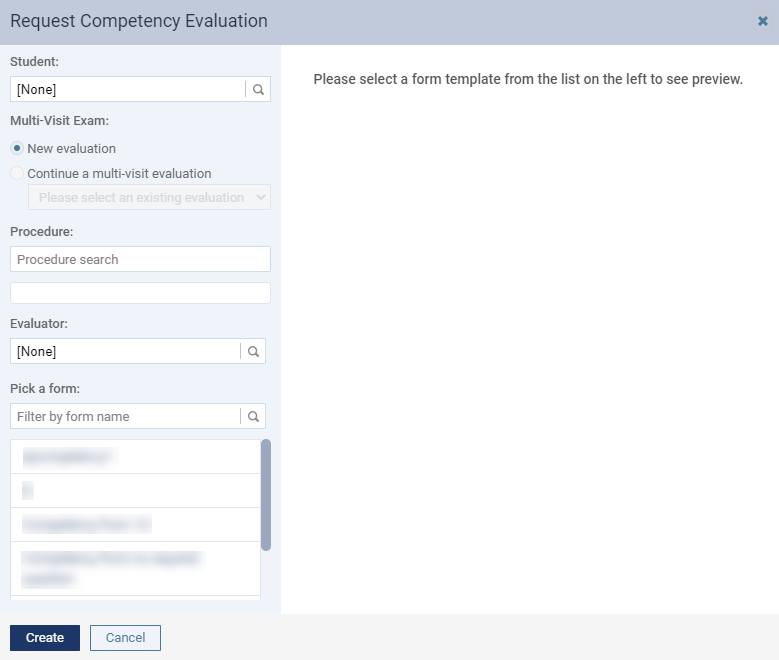
It displays the following new features:
-
Student - Displays the appointment provider associated with the appointment. If necessary, you can enter a different student provider.
-
Procedure - Displays a list of procedure(s) associated with the appointment. If necessary, you can deselect the check box(es) of procedure(s) you do not want in the request.
-
Evaluator - Displays the attending provider associated with the appointment. If there is no attending provider, the field displays [None]. The number of the fields are based on the selected evaluation form.
-
Pick a form - Sets the evaluation form. When selected, displays a preview of the form and the required number of evaluator(s).
-
Create - A new button that replaced the Request button. To create an evaluation request, you now clicktap Create.
-
-
New competency evaluation requests now display with InProgress status.
-
The Cancel Competency Evaluation button has been removed from appointments, and users can no longer cancel evaluation requests from an appointment. Evaluation requests can only be deleted from the Faculty Evaluations page and the Student Evaluations page.
-
The Request Competency Evaluation button always display on appointments, allowing you to create multiple evaluation requests.
-
The timestamp of the evaluation request is set to the date and time the evaluation was requested by a provider.
Improvements to the View menu on the Calendar page
Several improvements have been made to the View menu on the Calendar page (Schedule > Calendar):
-
We have added a (new) Appointment Card Color by section with two radio buttons: Appointment Provider and Attending Provider.

You can use the radio buttons to apply the providers' colors to their associated appointments on the Calendar page:
-
If you select the Appointment Provider radio button, appointments display its' appointment provider's provider color.
-
If you select the Attending Provider radio button, appointments display its' attending provider's provider color. If an appointment does not have a set attending provider, it displays in white.
Important:
-
As appointments display in white to indicate it is not associated with an attending provider, it is recommended all users set their provider color (Settings > Location > User Accounts) to a non-white color.
-
If an appointment is broken or is a no show, it still displays the appointment provider's provider color.
-
-
-
The last field on the drop-down list has been extended to shorten your experience using the scroll bar to search for an item.

Sessional evaluation requests no longer generated at Checkout
Sessional evaluation requests are no longer generated when an appointment (Schedule > Calendar) is in Checkout. Depending on the contents of the procedure(s), it is now automatically generated when a faculty provider approves a procedure.
Once generated, the evaluation request is set as followed:
-
The requester of the approval is set as the student provider and subject of the evaluation.
-
The faculty provider that approved the procedure is set as the evaluator.
Important: Unless they approved the procedure, the appointment's attending provider is not set as the evaluator.
-
The timestamp is set to the date and time the approval was requested by the requester.
Notes:
-
In order to generate a sessional evaluation request, student providers must have the Requires approval to post and the Requires evaluation user role permissions set.
-
If a student provider only has the Requires approval to post user role permission set, axiUm Ascend does not generate a sessional evaluation request when their requested procedure(s) are approved.
-
If a student provider only has the Requires evaluation user role permission set, they must manually create a sessional evaluation request.
Clinical note windows adjust its size accordingly
The Add Clinical Note and the Edit Clinical Note windows are now responsive and adjusts its size based on the device's screen resolution.
Users accidentally attempt to complete an unaccepted procedure
Issue: When users accidentally attempt to complete a procedure from a treatment plan that hasn't been accepted and an error occurs, the displayed error message is not clear about the cause of the error.
Solution: Fixed so the error message clearly notifies the user to accept the associated treatment plan before approving or completing the procedure.
Comments
0 comments
Please sign in to leave a comment.