
Several new feature enhancements are included in the product update released in late October 2019. The major enhancements in this release include improvements to evaluations, improvements to treatment plan cases pending for patient consent, new Information icon on the User Accounts page, and new ability to close notification messages.
Improvements to evaluations
Several changes have been made to evaluations (Academic > Student Evaluations or Faculty Evaluations):
-
The
 icon has been replaced with the (new) Evaluator column. Just like the icon, the column displays the short names of faculty provider(s) assigned to the evaluation and whether they have completed their copy of the evaluation.
Important: If a provider does not have the View Contributor Names user role permission set, masked names display instead of the short names.
Example: Faculty 1
Notes:
-
If a provider does not have a short name, their login name displays instead.
-
For student evaluations, faculty short names does not display. Instead, it displays masked names.
-
-
We have removed the check boxes and enabled the Start button for all new evaluations. Users no longer need to select a new evaluation's check box to enable its Start button.
Important: As check boxes have been removed, evaluations now include all of its associated procedures. You can no longer choose which specific procedure(s) to evaluate.
-
We have added a (new)
 column that displays the icon for competency evaluations.
If necessary, users can sort the evaluations by the
icons.Note: When your cursor hovers over a
icon, a tooltip that identifies it as a competency evaluation displays. -
We have added a (new) Form Name column that displays the names of the assigned evaluation forms. If there is none, the column displays blank.

-
Th, Surface, Code, and Description columns have been removed. Instead, the information on the procedure(s), th, surface, code, and description displays underneath an evaluation when you expand it.

Improvements to treatment plan cases pending for patient consent
The process of processing treatment plan cases (Patient > Clinical > Treatment Planner) pending for patient consent has been improved.
We have added a (new) Patient Selection window that displays when users clicktap the (new) Sign button.

Note: The Sign button only displays when the (new) Can Obtain Patient Consent user role permission is set, the Pending Patient Consent category on the Tx Planner page is selected, and the patient has at least one treatment plan case pending for their consent.
The Patient Selection window displays treatment plan cases that are pending for patient's consent and the cost of each procedure.
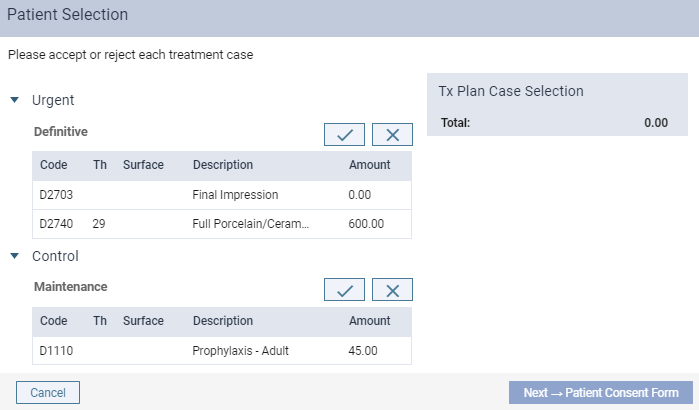
On behalf of the patient, you can accept or reject treatment plan cases by clickingtapping the associated  and
and  buttons as necessary. Once accepted, it displays under Tx Plan Case Selection with the total cost of the procedures.

When ready, you can clicktap the Next -> Patient Consent Form button to display the (new) Consent Form.
The patient can sign the window using the touchscreen and clicktap the Sign & Confirm button to submit their consent form with new versions of each individual treatment plans.
Once submitted, the following occurs:
-
A (new) notification message displays to indicate the consent form has been submitted successfully
-
All accepted treatment plan cases update to the Accepted status
-
All rejected treatment plan cases update to the Rejected status
-
All treatment plan cases that were not accepted or rejected remain in the Pending Patient Consent status
-
The patient's signature is saved to the patient consent history records
New Information icon on the User Accounts page
We have added a (new)  icon on the User Accounts page (Settings > Location > User Accounts) that informs users the Search field generates a maximum of 100 entries.
Closing notification messages
Users can now close the green notification messages by clickingtapping the (new) x button.

Improvements to Faculty Evaluations page
We have removed the Session and Competency tabs from the Faculty Evaluations page (Academic > Faculty Evaluations).
The column now indicates whether or not an evaluation is a competency evaluation.
Changes to user role permissions
When users manage faculty view settings (Settings > Evaluation > Faculty View Settings) for other users without the Review User user role permission set, the Faculty List now displays no data.
Improvements to eRx
Changes have been made to handle eRx errors more efficiently.
Save Changes window does not display properly when updating patient records
Issue: When users update a patient's record as a duplicate and save, the Save Changes window does not display the Specify original patient text properly.
Solution: Fixed so that the text displays properly.
Improved error handling when managing billing types
Issue: Users can create a billing type by entering empty spaces in the Billing Type and the Description fields. Also, when users create or edit a billing type incorrectly, the Description field does not display the warning tooltip properly.
Solution: Fixed so users need to fill in the necessary fields properly to create a new billing type. Also, the warning tooltip displays properly.
Cannot modify multiple appointments that require patient follow-up
Issue: When users modify multiple appointments that requires patient follow-up as complete, they do not update properly.
Solution: Fixed so that the appointments update properly.
Comments
0 comments
Please sign in to leave a comment.