
Several new feature enhancements are included in the product update released in late September 2019. The major enhancements in this release include improvements to evaluation requests, improvements to Treatment Plan cases, and updates to treatment planning.
Improvements to evaluation requests
We have made several changes to the evaluation requests:
-
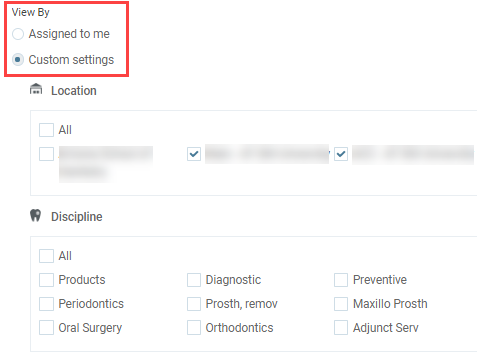
We have added a (new) View by filter in the Faculty View Settings page (Settings > Evaluation > Faculty View Settings) and the Faculty Evaluations page (Academic > Faculty Evaluations) that allows users to decide how they want to view evaluation(s).
-
If you select the (new) Assigned to me radio button, the list of evaluations filters to only display your assigned evaluations.
Note: If selected, the Location, Discipline, and the Group filters are disabled.
-
If you select the (new) Custom settings radio button, the list of evaluations filters by your set location, discipline, and/or group filters.
Note: If you already had these filters set, they default to your previous settings. If you did not have these filters set, you can configure them as necessary to filter the listed evaluations.
-
-
The evaluation request logic has been updated to assign users to evaluation requests. If an appointment has an attending provider, they are now assigned the evaluation request.
-
When you edit an appointment with an evaluation request, the evaluation's details update accordingly.
Note: This only applies if the evaluation's status is NEW. If the evaluation is in InProgress or Complete status, the details do not update.
Example: You update the operatory of an appointment with an evaluation request. If the evaluation's status is NEW, the evaluation updates and displays the new operatory. If the evaluation's status is InProgress or Complete, it does not update and displays the old operatory information.
Treatment Plan cases grouped by Phases during approvals
When users request approval for cases or approve request(s) in the Treatment Planner (Patient > Clinical > Treatment Planner), the Request Treatment Plan Approval and Approve Treatment Plans windows now group treatment plans according to the set Phase.
Additionally, the cases are listed in alphabetical order by case name under each Phase.

Updates to treatment planning
When working in the Treatment Planner (Patient > Clinical > Treatment Planner), we have made several changes:
-
The Create a case window has been renamed to Select phase.

-
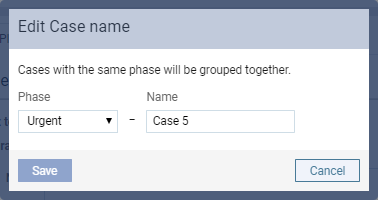
The Edit a case window has been renamed to Edit Case name.
-
The text in both window has been updated.
Operatory does not load after changing location
Issue: When users change their location while viewing an operatory, the page does not load properly.
Solution: FIxed so that if users view an operatory, then change their location, the Operatories page re-displays.
The Apply button on Faculty View Settings may displays incorrectly
Issue: When users open the Faculty View Settings and click the Restore Defaults button to reset the previous change(s) they made to student groups, the Apply to button displays instead of the Save Changes button, preventing the changes from being saved.
Solution: Fixed so the Save Changes button displays as expected.
Cannot edit appointments with same user set as attending and appointment providers
Issue: If users edit appointments that have the same user set as the attending provider and appointment provider, an error occurs.
Solution: Fixed so that users can edit and save the appointment as expected, regardless of which user is set as the attending provider and the appointment provider.
Apply Settings window does not display properly
Issue: When saving changes on the Faculty View Settings page, the Apply Settings window does not display correctly.
Solution: Fixed so the Apply Settings window displays correctly, allowing users to access all functionality as expected.
Cannot open cases in Treatment Planner
Issue: If users have a case named "Unassigned" and they attempt to open any cases in the Treatment Planner, an error displays.
Solution: Fixed so users can open currently existing cases that are named "unassigned", however, they can no longer name new cases as "Unassigned".
Recare type does not display correctly when you add new recare
Issue: When users add a new recare to a patient, the Type drop-down list is mis-aligned.
Solution: Fixed so that the Type drop-down list displays correctly.
Error displays when an attending provider is deactivated or replaced
Issue: When the attending provider of an appointment and/or procedure that is pending faculty approval is deactivated or modified to be a non-provider, the associated appointment does not display in the Calendar and, when approving the procedures, the Attending Provider field does not display.
Solution: Fixed so that if the user is deactivated or modified to be a non-provider user, the original attending provider still displays as the attending provider, but a "Provider has no roles in location" message displays beneath the Attending Provider field. However, if the user is changed to another active provider, the Attending Provider field is updated.
Comments
0 comments
Please sign in to leave a comment.