
Several new feature enhancements are included in the product update released in early September 2019. The major enhancements in this release include a new Attending Provider field in clinical notes, Attending Provider signature functionality to the Unsigned Clinical Notes widget, improvements to requesting and approving treatment plans, the ability to search user accounts by email address, and a new patient search field in the routing panel.
Improved clinical notes functionality
Clinical notes (Patient > Clinical > Progress Notes > Clinical Notes) have been improved. This includes several changes:
-
Clinical notes now display a (new) Attending Provider field at the top of the note. This allows users to identify which faculty member is associated with the note.
-
We have moved the Additional Provider field to the top of the note. You can clicktap the (new) Other Provider
 icon to display the Additional Provider field.
Tip: To remove the Additional Provider field, clicktap the
 icon.
icon. -
The Unsigned Clinical Notes widget now displays unsigned notes if you are the provider, attending provider, or the additional provider and you have not signed it.
Improvements to treatment plan approvals
The process of requesting approval for treatment plans has been improved.
-
We have removed the Pending Faculty Approval option from the Status drop-down list.
Important: The Pending Faculty Approval option is only removed from the Status drop-down list. It still displays in the category list on the left-hand side, and you can still use it to review treatment plan cases that are pending for faculty approval.

This forces students to use the Request Approval button because they can no longer set treatment plans to the Pending Faculty Approval status manually.
-
When students clicktap the Request Approval button, the Request Treatment Plan Approval window now only displays treatment plan cases that are set to Draft status and have not been requested for approval.
Important: If students move a treatment plan from Draft to Pending Patient Consent status, axiUm Ascend auto-creates and auto-approves the approval request, and prompts a faculty to enter their credentials. Once entered, the faculty member’s name is recorded in the treatment plan as the approving user.
The process of approving treatment plans has also been improved.
-
We have added a (new) Approve Treatment Plans window that displays when faculty clickstaps the Approve Request button. This displays treatment plan cases that have been submitted for approval.

When reviewing, faculty can delete the whole request or approve/reject the listed treatment plan(s) as necessary.
If faculty approves a treatment plan, it moves to Pending Patient Consent status. If faculty does not approve a treatment plan, it moves to Draft status. If faculty deletes the request, the treatment plan(s) moves to Draft status.
Note: If faculty approves from the student's workstation, they must enter their username and password in the displayed fields in this window. If faculty approves from their workstation, the fields do not display.

-
We have also added a (new) Approve Treatment Plans permission that controls whether users can or cannot approve treatment plans.
Notes:
-
To enable the Approve Treatment Plans permission, users must have the Manage Treatment Plan case permission set.
-
If faculty have the Approve Treatment Plans permission set, they can move treatment plans to Pending Patient Consent status without having the Change Treatment Plan case status permission set.
-
If faculty have the Change Treatment Plan case status permission set but do not have the Approve Treatment Plans permission set, they can manually move treatment plans to any status except Pending Faculty Approval. This also prevents them from manually moving treatment plans in that status.
-
Important: Any treatment plans that are set to Pending Faculty Approval status prior to this release do not have associated approval requests. However, the Approve Request button still displays for the faculty. If clickedtapped, nothing displays in the Approve Treatment Plans window. To create approval requests, students must return the case(s) to Draft status and then request approval.
Improved user account search
When searching for user accounts (Settings > Location > User Accounts), you can now search by the user email address. The listed results display any user accounts with the entered character string.
Example: You can search for a user account that has the email address of abd321@gmail.com by entering 321 in the search field.
New search field in routing panel
The Patient Routing panel now includes a (new) Patient Search field. You can use the search field to filter and locate a specific patient that has an appointment today.

Notes:
-
If the search returns multiple results, the status sections remain collapsed. If the search returns one result, the status section expands.
-
If the Patient Search field is active, the operatory drop-down list is disabled. If the operatory drop-down list is set to an option other than All, the Patient Search field is disabled.
Important: If you set the operatory drop-down list, axiUm Ascend maintains the selection when you next log in. This may cause the Patient Search field to be disabled by default if you previously selected an option other than All.
Odontogram does not display as expected
Issue: When users open a patient's odontogram, it does not display.
Solution: Fixed so that the patient's odontogram displays as expected.
Delay may occur when using the Show only business days toggle
Issue: If a location has no set business hours, and users try to use the Show only business days toggle in the Calendar, axiUm Ascend delays and does not load properly.
Solution: Fixed so that the Show only business days toggle is disabled for locations without set business hours.
API user displays incorrectly
Issue: When searching for a user, an API user displays in the list.
Solution: Fixed so an API user does not display in the list.
Cannot save new location hours if an error occurs
Issue: When adding location hours and an error occurs in the End field, axiUm Ascend cannot save.
Solution: Fixed so that users can clicktap Add Hours again and re-enter the correct hours.
Comments
2 comments
Is the Pending Faculty approval status suppose to remain as one of the options on the side menu?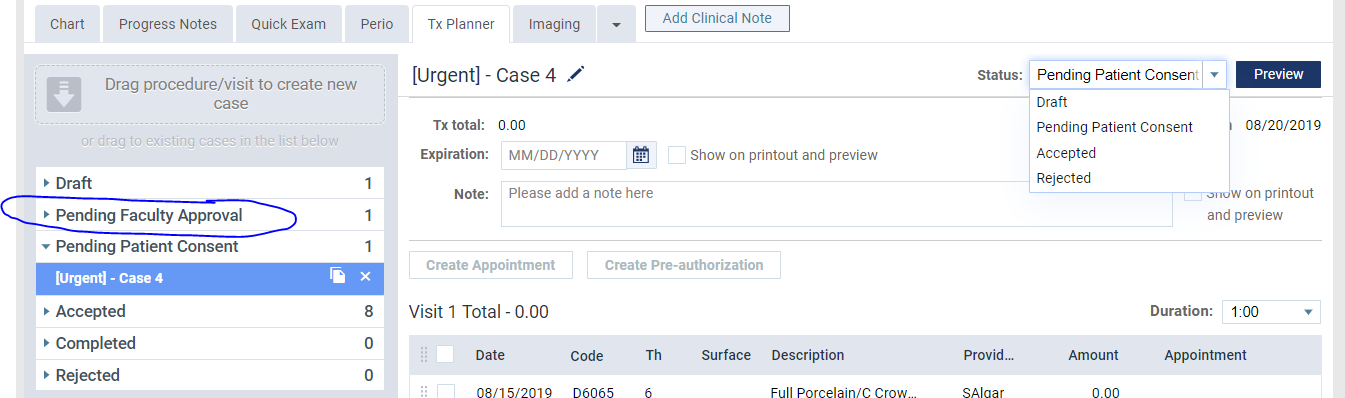
Hi Melissa,
Yes, the Pending Faculty Approval option still remains on the category list on the left-hand side, so users can review treatment plans that are pending for faculty approval.
We have removed the option from the Status drop-down list to encourage students to use the Request Approval button to submit approval requests.
I have updated the release notes to clarify this point.
Thank you for your feedback!
Please sign in to leave a comment.