
Several new feature enhancements are included in the product update released in mid-July 2019. The major enhancements in this release include a new Attending Provider field for appointments and approval requests, new Provider Specialties functionality for custom pick lists, updated logic for auto-allocated payments, the ability for all users to change treatment plan statues to Draft or Pending Faculty Approval, and an update to how the self evaluation reminder displays.
New Attending Provider field for appointments and requests
A (new) Attending Provider field now displays in several places in axiUm Ascend. This allows users to identify which faculty member is associated with and supervising an appointment or a procedure.
-
The field displays when users create or edit an appointment (Schedule > Calendar).
Note: Only faculty members that have rights to the current location are available for selection.
If the user wants to include a secondary provider, they can click the (new) Other Provider (
 ) icon to display the Other Provider field and set the secondary provider.
Tip: To remove the Other Provider field, click the (
 ) icon.
-
The field displays when users request approval for procedures (Patient > Clinical > Progress Notes > Request Approval button or Routing Panel > Chair > Request Approval button).
Important: This does not limit which faculty member can approve the procedure.

Notes:
-
If the procedure is associated with an appointment that has an attending provider, the field defaults to the appointment's attending provider.
-
Only faculty members that have rights to the current location are available for selection.
-
Provider Specialties added to custom pick lists
When working with custom pick lists (Settings > Custom Pick Lists ), a (new) Academic section is now available. You can now select the Academic drop-down arrow to work with Provider Specialties.
Provider specialties allow you to manage a list of specialties that are available for consultations.
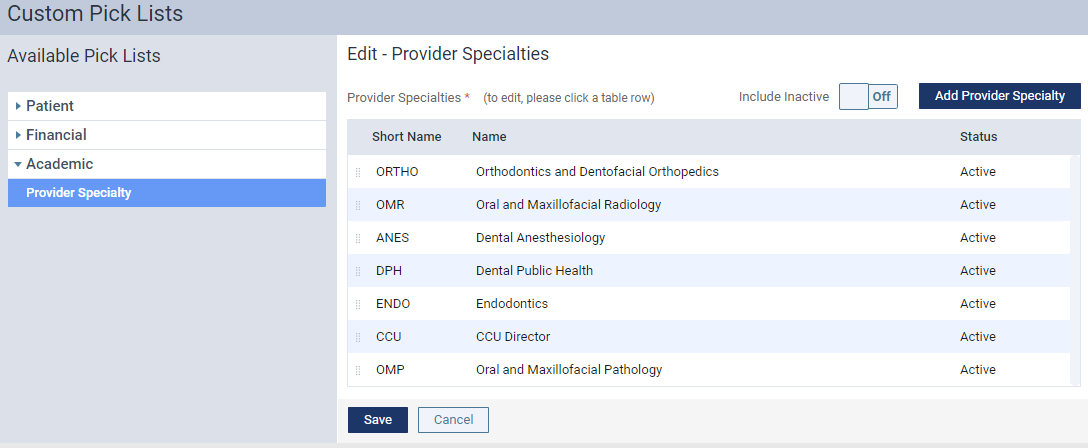
When working with provider specialties, you can complete any of the following:
-
Add a provider specialty.
-
Edit a provider specialty.
-
Deactivate a provider specialty.
-
Delete a provider specialty.
-
Drag listed provider specialties to re-order.
Updated logic when auto-allocating payments to procedures
When users enter payments for procedures (Patient > Financial > Ledger > Payment button), axiUm Ascend now auto-allocates the payment only to procedures that were performed in the user's current location. If other procedures are listed that were performed in other locations, 0.00 displays under the Applied column.
Notes:
-
This applies when users enter new payments or new credit adjustments. It does not affect apply credits functionality.
-
Users can still apply credit manually to transaction items entered from other locations.
Ability to change treatment plan statuses to Draft or Pending Faculty Approval
When users work with patient treatment plans (Patient > Clinical > Treatment Planner), all users can now change cases of any status back to Draft or Pending Faculty Approval, regardless of their permissions.
Update to self evaluation reminder message
When the patient is checked out and the user requires evaluation, the reminder message for the student to complete their self evaluation now displays as a notification. You can click the notification to open the Student Evaluations page. If the evaluation has not yet been started, the request is highlighted. If the evaluation has been started, the selected evaluation form displays.
Note: The notification displays only to the provider on the appointment.

Comments
0 comments
Please sign in to leave a comment.