
Several new feature enhancements are included in the product update released in mid-June 2019. The major enhancements in this release include new functionality to control how faculty filter evaluation requests, improvements for treatment planning workflow and case editing, an update to the Treatment Plan widget, and a new location filter for patient searches.
New Faculty View Settings to control faculty evaluations
From the (new) Faculty View Settings page (Settings > Evaluations > Faculty View Settings), administrators can now control which faculty members handle evaluations for different locations, disciplines, and student groups in the clinic. For each faculty member, you can set their evaluation request search criteria; this includes location(s), discipline(s), and student group(s) or operatory group(s).
If necessary, you can also restore a faculty member's view settings to the default settings.

Note: To access the new page, you must have the (new) Edit another user's View Settings user role permission set on the User Roles page (Settings > Location > User Roles), under the Academic Evaluations.
The Faculty List includes all faculty members that have the Evaluate Other Users' Evaluation Requests user role permission set on the User Roles page, under Academic Evaluations.
When you save your changes to a faculty member's view settings, an Apply Settings window displays, allowing you to apply your changes to other faculty members as necessary.

Note: When changes are made to a faculty member's view, they will see the changes when they next log in to Ascend or reopen the Faculty Evaluations page. If the user is currently working with evaluations when changes are made, an alert displays, informing them that their view settings have been updated and they should refresh the page.
Improvements to treatment planning workflow
When users work with patient treatment plans (Patient > Clinical > Treatment Planner), two improvements have been made to the workflow:
-
Cases that are set to Pending Faculty Approval status can now have procedures added to or removed from them.
For cases with a status other than Draft or Pending Faculty Approval, the X icon does not display next to procedures and the Move/Copy To button has now been removed.
If you attempt to add a procedure to a case with a status other than Draft or Pending Faculty Approval, an error message displays.
Note: You can still move procedures and modify visits within a case, regardless of the case status.
-
The Create Appointment button now displays if a case is set to Pending Patient Consent status.
Important: If you create an appointment from the Scheduler page and want to add a procedure from a treatment plan, you can now select from treatment plans that are set to Pending Patient Consent status as well as those set to Accepted status. All procedures that are not included in a treatment plan still display.
Update to treatment planning case names
When working with treatment planning (Patient > Clinical > Treatment Planner) and you open a case, an Edit  icon now displays next to the case name, allowing you to modify the case name. To save your changes, clicktap away from the field or press Enter.

Evaluation request timestamp now displays the original appointment time
When a user opens the Faculty Evaluations or Student Evaluations page (Academic > Faculty Evaluations or Student Evaluations) and searches for evaluation requests, the timestamp on a request now displays the original appointment date and time instead of the time the request was created.

New location filter for patient search
When searching for a patient in axiUm Ascend, a new Include all locations toggle now displays.
Note: The toggle defaults to Off.
If set to On, axiUm Ascend immediately searches again for the patient name.
If no patients are found, the message that displays has been updated. It now recommends you include inactive patients, search in all locations, or create a new patient or household.

Updates to Treatment Plan widget
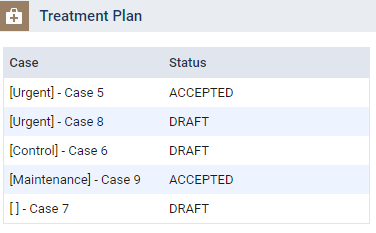
When users view a patient's Treatment Plan widget (Patient > General > Overview), each case now displays an updated status (Draft, Pending Faculty Approval, Pending Patient Consent, Accepted, or Rejected ), and when clickedtapped, opens the Treatment Planner page to the updated category.
Update to evaluation form configuration
When users work with evaluation forms (Settings > Evaluation > Evaluation Forms), any form that can be failed must contain a minimum of one required general question.
If the Failable check box is selected, but a required general question has not been added, a warning indicator  displays next to the General Questions section and the Save Changes button is disabled.
Tip: You can clicktap the warning indicator to view the full warning in a tooltip.
Day Sheet report Excel cells can be formatted
When users export the Day Sheet report to Excel, the cell format can now be changed as necessary.
Example: You can change cells to date or number types.
Ability to export Aged Receivables report to Excel
After users generate and view the Aged Receivables report (Home > Reports > Aged Receivables), you can now click the new Export button to export the data as an Excel .xlsx file. If the report includes one location, the report displays in Excel as the Location Aged Receivables. If the report includes multiple locations, the report displays the Location Aged Totals in Excel as well.
Note: The default file name is Aged Receivables Report as of mm.dd.yyyy.xlsx.
After users export the .xlsx file, they can open it from their default downloads folder and change the cell format as necessary.
Example: You can change cells to date or number types.
Updated Global Insurance Carriers list
The list of supported Global Insurance Carriers has been updated in axiUm Ascend as of May 2019.
Electronic billing statements may display alternate billing address
If a clinic location has an alternate billing address set up (Settings > Location > Location Information > Billing Statements tab), submitted electronic billing statements now display that address instead of the clinic address.
Broken/No Show appointments do not display Search Openings button
Issue: When users create an appointment for a patient, and set the status to Broken or No Show, the Search Openings button does not display.
Solution: Fixed so that when users set the status to Broken or No Show, the Search Openings button displays as expected.
Note: The Search Openings button does not display for all other appointment statuses, as expected.
Evaluation form preview displays faculty preview for all users
Issue: If students preview an evaluation form and they have the Requires Evaluation permission set, but do not have the Requires approval to post permission set, the faculty preview displays.
Solution: Fixed so that Ascend only checks whether the user has the Requires Evaluation permission set to display the correct form preview.
Tx Planner category counts do not align
Issue: When users modify cases in the Tx Planner, the number of cases in each category do not align on the right-hand side of the column.
Solution: Fixed so that the number of cases in each category align on the right-hand side of the column, as expected.
Error often displays incorrectly when checking for evaluations
Issue: When axiUm Ascend checks for an evaluation for a specific appointment but does not locate an evaluation, an error often displays.
Solution: Fixed so that the number of erroneous messages is reduced when checking for evaluations.
Comments
0 comments
Please sign in to leave a comment.