
Several new feature enhancements are included in the product update released in mid-May 2019. The major enhancements in this release include the ability to copy cases during treatment planning, a new reminder to complete self evaluations, and updates to the Assigned Patients and Unsigned Clinical Notes widgets.
Copy cases during treatment planning and changes to edit functionality
When users work with treatment plans (Patient > Clinical > Treatment Planner), the Edit  icon has been replaced with a Copy
  icon so that you can now copy entire cases.
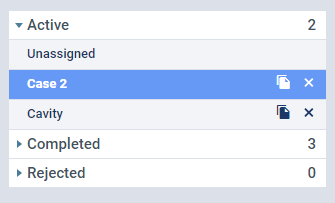
When a case is copied, all visits, procedures, expiration dates, and other information is duplicated and moved to the new case. The new case is assigned an auto-generated case name, such as Case 2 and the Status is set to New.
Notes:
-
Linked appointments and related appointments are not duplicated.
-
If you try to copy a case with procedures that are in-progress or completed, an error displays.
-
Because the Edit
icon has been replaced, a case name can now be edited in-line. When you select a case to display it, you can clicktap in the name field to edit the case name and name changes are auto-saved when you clicktap away from the field.
Reminder displays when providers need to complete a self evaluation
When a provider completes a procedure during an appointment, a reminder message to complete their self evaluation now displays at the top of the screen and includes a hyperlink to the Student Evaluations page.

Notes:
-
If the provider requires approval, the reminder message displays once the procedure is completed and approved.
-
The reminder message only displays if the logged in provider has the Requires Evaluation permission set and if the procedure is completed and/or approved on the student's workstation.
Assigned Patients widget displays Status
The Assigned Patients widget (Home > Location > Overview) now displays a Status column instead of a Birthdate column. This allows providers to see the status of all their assigned patients from one location.

Access to patient chart from Unsigned Clinical Notes page
When users open the Unsigned Clinical Note widget (Home > Location > Overview) to view the Unsigned Clinical Notes page, each unsigned note now displays the patient name as a hyperlink that allows you to access the patient's chart directly.

Text confirmation does not update appointment status
Issue: When users receive a text message with their appointment reminder, and reply to confirm the appointment, the appointment status remains as Unconfirmed.
Solution: Fixed so that when users reply to the text message, the appointment status changes to Confirmed as expected.
Comments
0 comments
Please sign in to leave a comment.