
Completing appointments is a good way to ensure that all the necessary tasks have been done for that appointment, such as posting procedures, scheduling the next recare appointment, gathering contact information, and collecting a payment. On the calendar, you can see at a glance which appointments are complete because those appointment tiles will be a gray color.
To complete an appointment
How to get there
-
On the Schedule menu, select Calendar.
The Calendar page displays.
-
Complete one of the following:
-
On the Patient Routing panel, clicktap the Complete status button.

-
On the Calendar page, clicktap an appointment. On the Appointment Information panel, change the appointment's status to Complete, then clicktap Save.

If any of the appointment's procedures have not been posted (either from the routing panel or from the progress notes), the Post Procedures Complete window displays.

-
-
Perform one of the following:
-
Complete procedures one at a time.
-
Next to each applicable procedure, clicktap Complete to post the recare procedures and any other procedures.
-
When ready, clicktap Complete Appt.

If you posted the recare, the Schedule Appointment window displays.
If you did not post the recare, the Update Patient Recare window displays.
-
-
Complete all procedures at once.
-
ClickTap Complete All.
If any of the procedures need to have the required tooth number or surface information specified before posting the procedures, the Bulk Edit Procedure (+) window displays.

Each tab displays a single procedure's information.
-
(Optional) ClickTap a tab to navigate to the procedure.
Tip: You can also use the <- Back and the Next -> buttons to navigate to previous and next procedures.
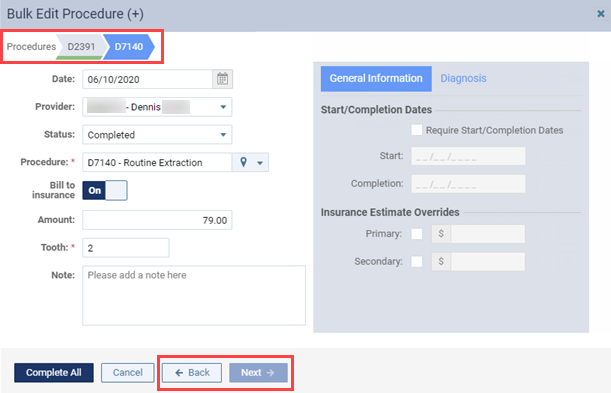
Note: Each tab displays a green line when it is no longer missing any necessary information.
-
Enter the necessary information in the Tooth and/or Surfaces sections.
Note: The Surfaces section only displays for procedures that require the information.
If necessary, you can edit other information.
-
(Optional) Repeat Steps b-c to edit multiple procedures.
-
ClickTap Complete All.
-
Note: Complete procedures are posted on the Ledger automatically.
-
-
Complete one of the following:
-
If you posted the recare, clicktap Schedule Appointment to schedule the patient's next recare appointment.

-
If you did not post the recare, clicktap Proceed to Recare to attach the correct recare to the patient's record. You will also need to schedule the next appointment for the newly attached recare type using an Unscheduled link.
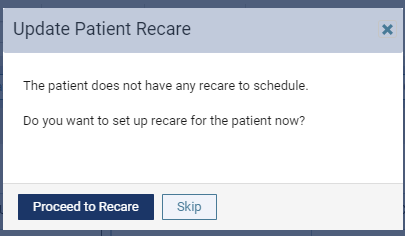
Important: If you complete an appointment without posting the recare procedure and without scheduling the next recare appointment, the due date of the corresponding recare type attached to the patient does not get updated, and that recare type becomes unscheduled for that patient.
The corresponding patient now displays under Complete on the Patient Routing panel.

-
Comments
0 comments
Please sign in to leave a comment.