
New features and feature enhancements are included in the product update released at the beginning of August 2018. This release includes several usability enhancements, along with enhancements to Quick Exam and Imaging. The release also includes enhancements for Federally Qualified Health Center (FQHC) facilities.
Usability Improvements
Several enhancements have been made to the Quick Exam to make it a more intuitive tool.
-
The Multi-select switcher has been removed, because with this release multi-select mode is always on, including the ability to select quadrants.
-
A Clear Selected button has been added, and it behaves just like the button of the same name in the Chart.
-
Existing Work and Treatment Plan procedures are now sorted alphabetically by procedure description.
-
Eight conditions and one surface condition have been added to the list when the selected area is an arch. Note that mandibular and maxillary conditions are not included.
-
A new color guide shows you today’s activity; colored squares corresponding to conditions (green), existing work (blue), and treatment planned procedures (red) appear next to teeth as you post during the exam.

Several changes have been made to the interface to make it even more user-friendly.
-
Quick links have been added to the patient information bar. Six of the most common destinations now appear as hyperlinks, removing the need to first open the Patient drop-down menu.
Note: The list will shrink if the browser window is too small.

-
The Location reference is now easier to read. The location name has more space for readability, plus you can see the role assigned to your login. If your practice has multiple locations, the location dropdown highlights which of the locations you are logged in Your current location is in blue.

Insurance - Wrap around claims reporting
Federally Qualified Health Center (FQHC) facilities petitioning Medicaid for supplemental payments now have a Power Report built just for this purpose. The report is titled Wrap Around Claims and is located in Reports > Power Reporting > Insurance > Wrap Around Claims. It is important to know the PPS rate for the time frame and location. By default, the previous quarter is selected as the time frame, but can be changed as required.

Insurance - Bill custom procedure codes to insurance
axiUm Ascend contains the current ADA Procedure Codes, which are updated automatically as needed, as well as any custom procedure codes configured by your organization. Now, you can use the Bill to insurance switcher on custom procedure codes.
To include a custom procedure code in a claim, you must go into ledger or the Edit Procedure Code dialog box and set Bill to Insurance to On. You will see a warning message when you do this.

Note: This feature does not guarantee that insurance will accept custom procedure codes. This enhancement was expressly created to help FQHCs include an encounter code with their Wrap Around claims.
Imaging - Block imaging in second browser tab
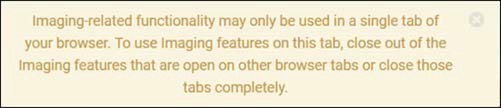
Some users find it useful to have two axiUm Ascend tabs open in their browser. However, working with different patients and using the Imaging module has caused several problems, including interrupted workflow and data corruption. To avoid these problems, users are now prevented from using multiple tabs when working in Imaging-related modules. If a user attempts to open a second tab, a warning message displays:
Imaging - New templates
The following templates have been added to the selections for Imaging Procedures.
-
Periapical Three Images
-
4 bitewing + 3 Periapical Images
-
4 bitewing + 6 Periapical Images
-
7 vertical bitewing + 3 Periapical Images
Imaging - Additional updates and improvements
-
Added additional keystroke values (Page Up/Page Down) for intraoral camera Capture and Save keystrokes.
-
Improved acquisition template spacing.
-
Added multi-select drag and drop to Intraoral/Extraoral color camera acquisition.
-
Improved the size when displaying single intraoral and extraoral color images.
-
For sensors of a known pixel size, you may now take preliminary measurements without first running a calibration.
Scheduling - Operatory group view not displaying provider information
Issue: When a user selects to view the schedule by operatory group (Calendar > View > By Operatory Group > select operatories) the operatory is displaying in the appointment instead of the Provider.
Solution: Fixed to display the provider instead of the operatory in the appointment.
Scheduling - Changing operatory view not displaying all selected operatories
Issue: When a user changes the calendar view and selects different operatories to display, those newly selected operatories are not being displayed when the view changes.
Solution: Fixed so that when switching between the operatory and operatory group view, the newly selected operatories will display as expected.
Comments
0 comments
Please sign in to leave a comment.