
New feature enhancements are included in the product update released in late March 2018. The major enhancements in this release include new functionality when you enter patient payments, the ability to manage a custom Cash Box Pick List, and updates to the Deposit Slip report.
New field in the Enter Payment window
When entering or updating patient payments, a Cashbox field now displays so you can select which cash register you are using.
During cash-out, this allows you to group payments easily by the cash register used.
Note: After you save a payment with a selected cashbox, that cashbox entry is auto-selected when you enter another payment. However, if you have just logged in for a new session, the Cashbox field is empty.

New filter in the Deposit Slip report
The Deposit Slip Filter page now includes a Cash Box field that allows you to select a single cash box or All cash boxes to view in the report. This field allows you to preview and/or print all the payments from a specific cash box location or all cash boxes locations as needed.

Note: When previewed or printed, the cash box(es) selected display with the location in the report header.
Pick List functionality added
Your institution's administrator(s) can now create a custom Pick List that controls which Cash Boxes are available to users. Once a Cash Box pick list has been configured, staff may only select a cash box on the list when entering patient payments.
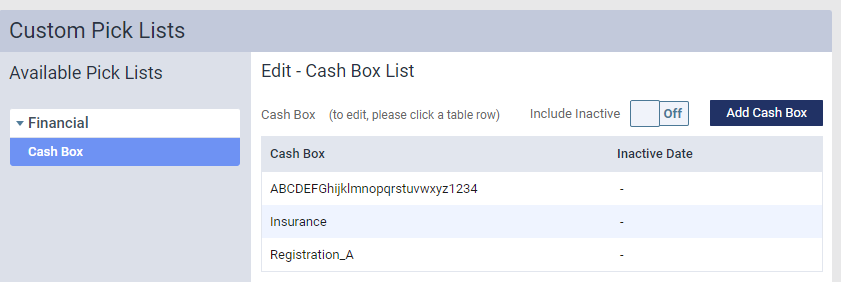
From the Custom Pick Lists page, you can:
-
Edit the Pick List
-
Add Cash Boxes
-
Delete Cash Boxes
-
Inactivate Cash Boxes
Note: A new user permission called Manage Custom Pick Lists controls who has access to the Custom Pick List page. User permissions are set from Settings > Locations > User Roles.
Improved payment plan functionality
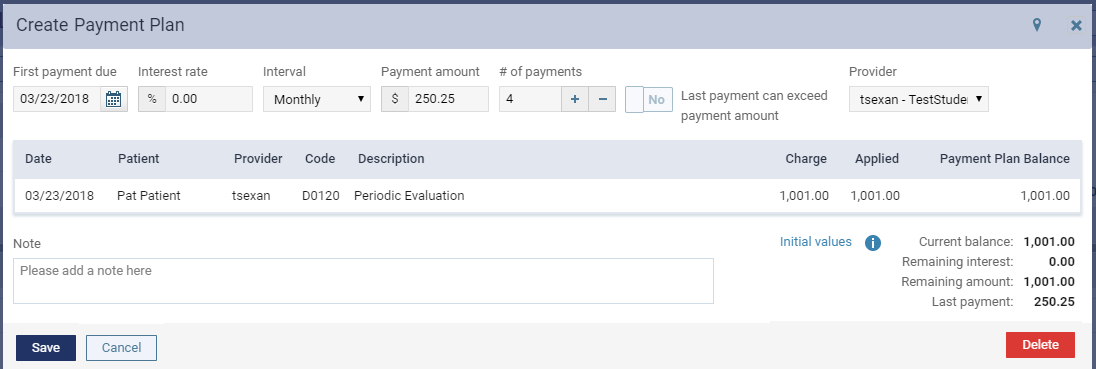
When you create or update a payment plan, the Start Date field now reads as First payment due and when you click Print to view the print out, the Date field now reads as Created On. These changes reduce the number of calculations users must perform to determine the correct payment dates.
Some day notes have multiple records in the database and do not display properly
Issue: Day notes with multiple records in the database for the same day and location do not display properly.
Solution: Fixed so that the date attached to a day note saves in database table as "yyyy-mm-dd 00:00:00.000", regardless of the selected time zone.
Comments
0 comments
Please sign in to leave a comment.