
Several new feature enhancements and bug fixes are included in the product update released in mid-July 2023. The major enhancements in this release include the following:
-
Users
-
Finances
-
Technology
Important: Enhancements from this release will be available in PROD on July 15, 2023.
Users
Ability to set working hours for user groups
Users can now view and define working hours schedules for specific user groups from a (new) Group Working Hours page (Settings > Location > Group Working Hours).
Note: Access to the page is controlled according to the Edit Working Hours security right.

Group working hours allow users to easily control the working schedule for entire groups of providers. Once defined, the working schedule is applied to the Calendar page when a user works with a provider in the group.
When viewing the (new) Group Working Hours page, each user group includes a default <xxx> Group Hours schedule and lists the providers in the group that users can configure as necessary.
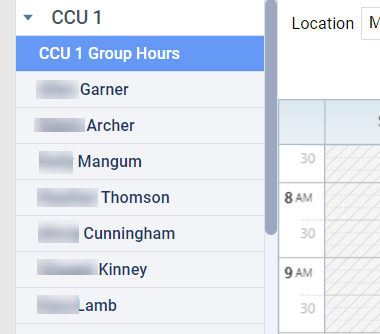
To configure a default <xxx> Group Hours schedule, users can select the <xxx> Group Hours option and use the Manage menu to configure specific working hours for each week in a 1-4-week cycle.
Tip: They can also choose to use the location’s default hours.

Once saved, the default group hours apply to all providers in the group that follow the group hours. When an individual provider is selected, their group schedule displays as an indicator in the top-right corner of the page.

Note: Not all group members may follow the group hours. If necessary, users can clicktap the Manage menu and select Apply to Group to apply their changes to all group members.
If necessary, users can select an individual provider and modify their specific working hours or remove a group schedule from the provider so that they stay in the group but revert to the last working hours schedule defined in their user account. If the group schedule is removed, the group schedule indicator is also removed from the top-right corner of the page.
Important: Changes can be made to an individual’s working hours from their user account or their entry in the group hours. Once saved, the changes are reflected in both places.
To configure an individual group member’s working hours schedule, users can select a name from the list and use the Manage menu to configure specific working hours for each week in a 1-4-week cycle as well as the start and end days.
Tip: They can also choose to use the location’s default hours.
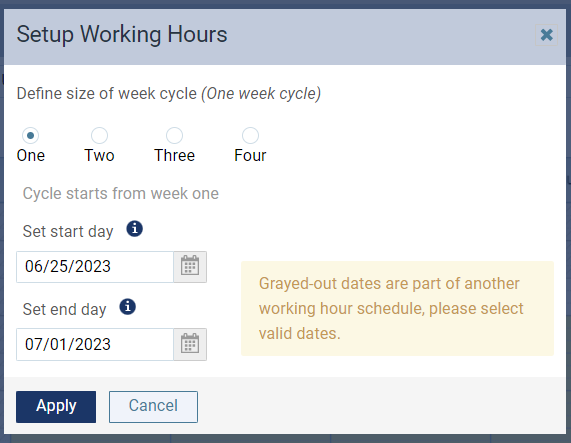
Once saved, a user’s working hours schedule can be viewed and edited from the Schedule drop-down list.

Notes:
-
Working hours only apply to a single location. If there are several locations, you must create working hours for groups in each applicable location.
-
Only user groups that have their Group Purpose set to Scheduling display on the Group Working Hours page.
Finances
Ability to update procedure fees to new fee schedule
In some scenarios, it is necessary to update the fees for procedures after they have been added to a treatment plan.
Examples: A patient is changed to a different fee schedule, the procedure fee within a schedule changes, or the care provider's fee schedule changes.
We have added a (new) security right that allows users to update the fee schedule for all procedures on a treatment plan. When setting or modifying user security rights (Settings > Location > User Roles), the (new) Update plan total fee security right is now listed under the Tx Planning security category.

Once set, users that are working with treatment plans (Patient > Clinical > Treatment Planner) can now clicktap a (new) Update to: <xxx.xx> link to update the fee schedule for all procedures on a treatment plan at once.

Important: The link only displays if procedures on the treatment plan require fee updates and only procedures that require fee updates are modified.
Example: A treatment plan contains three procedures that have fees set at $50, $70, and $80 to total $200. The fee schedule is updated so that the $50 fee is now $60 and the $80 fee is now $100. A link to update the plan total to $230 displays. Once clickedtapped, the fees for the individual procedures will be updated.
Notes:
-
Users must have a role that has the (new) Update plan total fee security right to display the link.
-
The link can display for treatment plans set to Draft, Pending Faculty Approval, Pending Patient Consent, and Accepted status.
-
Approved treatment plans will require approval again if users make fee changes to the procedures.
-
If a treatment plan is in Accepted status when fee changes are made to procedures, the plan will move back to Pending Patient Consent status.
Tip: The treatment plan history displays all procedure fee changes made to procedures on a treatment plan. This includes the user, date/time the total fee was updated, as well as the before amount and new amount.
Technology
Support for signature pads
Electronic signature pads are now supported for use with patient treatment plans in Ascend Academic. This allows patients to consent to a treatment plan using an eSignature while remaining chairside during their appointment.
Note: eSignatures are limited to patient treatment plans at this time.
When successfully installed, an icon displays on the Consent Form window when a patient is signing a treatment plan, and indicates that the pad is ready for use.

Depending on the size of the installed signature pad, Clear and Done buttons may also be present on the pad. If present, patients can easily clear a signature they are unhappy with and indicate when the signature is complete.
Notes:
-
Signature pads are encrypted and compliant with HIPAA regulations.
-
Currently, only Topaz SigLite LCD pads and Topaz SignatureGem LCD pads are fully compatible with Ascend Academic. Topaz SigLite Standard pads and Topaz SignatureGem Standard pads are also considered compatible, but may diminish the patient experience. Each supported signature pad may come in a variety of sizes including 1x5, 4x3, and 4x5. For more information on compatible pads, see https://www.topazsystems.com/signaturepads.html. For installation information, please contact Topaz or your Topaz reseller.
-
Ascend Academic is compatible with SigPlusExLite Chrome Extensions 3.0.
Important: We recommend using a Topaz SigLite LCD pad or Topaz SignatureGem LCD pad to improve the patient experience.
Support for Windows 11
Windows 11 is now supported for use with Ascend Academic.
Bug Fixes
User Accounts > Use Location Hours displays working hours incorrectly
Issue: If location hours are used to set working hours for user accounts, the working hours display as one hour earlier than the location hours.
Solution: Fixed so that the working hours are the same as the location hours.
Comments
0 comments
Please sign in to leave a comment.