
Several new feature enhancements and bug fixes are included in the product update released in late-April 2023. The major enhancements in this release include the following:
-
Perio
-
Evaluations
-
Finances
-
Reporting
Important: Enhancements from this release will be available in PROD on April 28, 2023.
Perio
Ability to complete perio exams over multiple visits
When performing a perio exam (Patient > Clinical > Perio), users that cannot complete the full mouth exam in one visit can now save the in-progress exam as a draft, allowing them to return to work on the draft during future visits until the full mouth exam is complete.
Note: Drafted perio exam records are tied to the original exam start date.
There have been several enhancements to allow users to complete an exam over multiple visits:
-
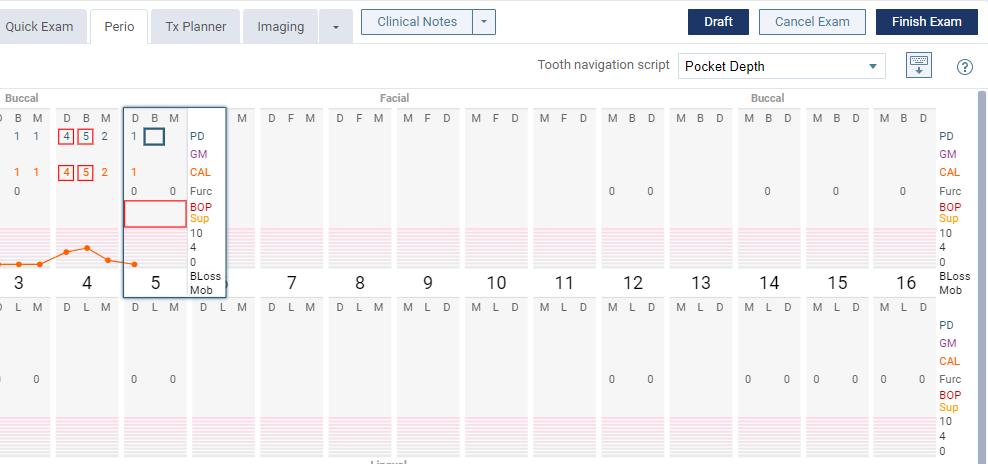
Users can now clicktap a (new) Draft button to save the in-progress exam as a draft.
Note: Users must have the Review Perio exams and Create and edit Perio exam security rights to save exams as drafts.
-
Once an exam is saved as a draft, it displays in the patient chart > Perio tab > list of exams with a (new) Draft label.
Note: Users must have the Review Perio exams security right to view draft exams.

-
When continuing to work on a draft, users must clicktap the (new) Draft button again to save their changes. If ready to complete the exam without further edits, they can then clicktap the Finish Exam button.
-
The way that perio exams are recorded in the Audit Log has also been improved. Each time a perio exam is saved as a draft, the audit record will display with a draft status. This includes when a draft perio exam is edited and saved again.
Note: Existing behavior already lists audit records with started and finished statuses when a perio exam is created and completed.
-
Users can now display a (new) Perio Exam History window to view the modification history of a perio exam record. This includes the date(s) the exam was modified, as well as the user, and the perio exam status (started, draft, finished). The window is available via a (new)
 link on the patient chart > Perio tab.
Important: For perio exam records created prior to this update, no records will display.
-
When necessary, users can delete perio exam drafts.
Note: Users must have the Review Perio exams and Delete perio exam security rights to delete draft perio exams.
Evaluations
Improvements to evaluation dashboard
We have made several changes to the evaluation dashboard:
-
Display a (new) Overview tab on the evaluation dashboard.
When using the evaluation dashboard (Academic > Student Progress), a (new) Overview tab now displays.
The (new) Overview tab provides several widgets that summarize the student progress for the faculty members at a glance:
-
Procedure Counts Completion Rate % Group Comparison: Shows a percentage generated by the number of students that have completed the required amount of procedures in that category over the total number of students for each user group.
-
Procedure Counts by Category: Indicates a group's completion rates across a variety of categories.
-
Proficiency Progress Summary by Student: Indicates overall completion rates for individual students and the number of passes and fails so far in the program.
Note: The Completion Rate column reflects a student's overall progress through the course, while the Pass/Fail columns indicate how a student scored during specific evaluations.
-
# of Fails by Student: Indicates how many failed evaluations individual students in a selected group have according to the type of evaluation and type of category.
If more information is necessary for each widget, faculty can easily access the applicable tab and review in more depth.

-
-
Remember groups across the evaluation dashboard.
When faculty select a group from the Proficiency Progress or Procedure Counts tab > Group Name field, the entry is now remembered.
-
Display procedure descriptions in tooltips.
When faculty access the evaluation dashboard and clicktap a linked procedure, the tooltip now includes a description of the procedure code.

Ability to modify total points for demerit-based evaluations
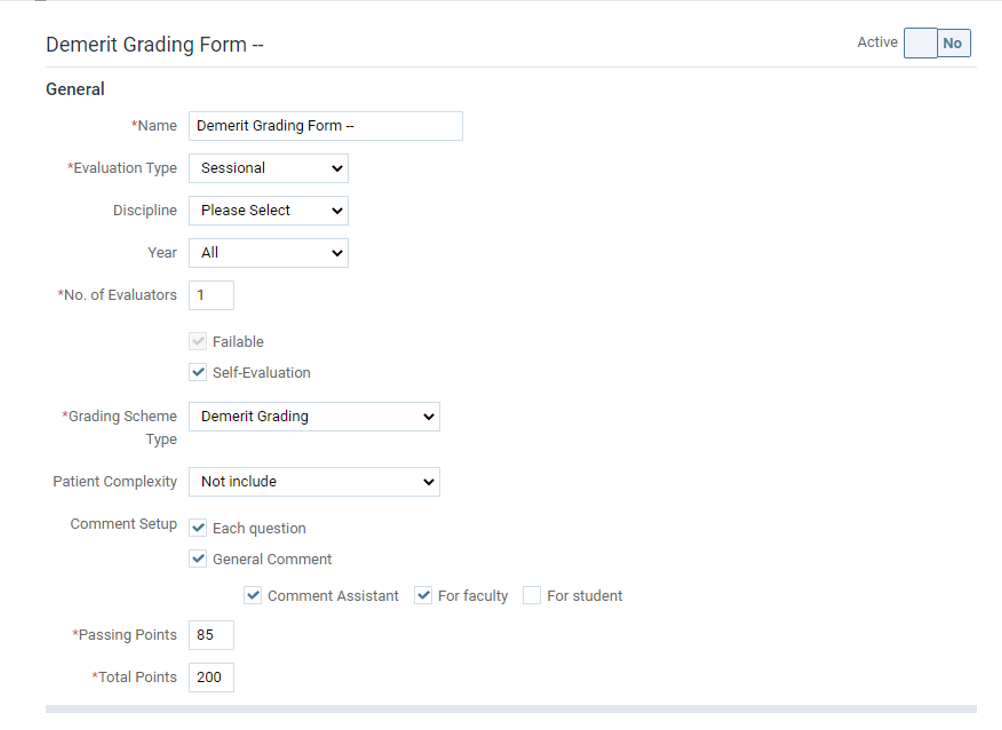
Evaluation forms that grade using demerit points have been improved. When editing evaluation forms (Settings > Academic > Evaluation Forms), users can now modify the Total Points field and enter a number between 1 and 200 to better control the total number of points on a form.
Tip: Forms are set to 100 points by default.
Note: Users must have the Manage Academic Evaluations security right to edit evaluation forms.
Finances
Ability to view all visits when adjusting charges in the ledger
The number of patient visits that a user can view when entering a charge adjustment has been increased from 10. When entering a charge adjustment on a patient record (Patient > Financial > Ledger), users can now clicktap a (new) Load more visits option to view and select from all past patient visits across all locations.
Note: Patient visits are sorted by visit date in descending order.

New warning about cross location payments and credits
We have added a (new) security right that controls whether a warning displays when users apply payments or make credit adjustments to procedures done in a different location. When setting or modifying user security rights (Settings > Location > User Roles), the (new) Warn cross location payment and credit security right is now listed under the Ledger security category.

If set for a role, users with that role can be warned when working with payments and credits from the Ledger page > Patient Walkout window > Payment tab and from the Ledger page > Payment (-) button.
If users attempt to apply a payment or make a credit adjustment to a procedure that was performed in a different location from their current location, a (new) icon and warning display next to the entry in the Applied column.

Ability to remove insurance estimates from patient billing statements, bulk billing statements, and patient walkouts
We have added a (new) security right that allows users to hide insurance estimates from patient billing statements, walkout statements, and bulk billing statements.
Note: Insurance estimates cannot be hidden from eStatements at this time.
When setting or modifying user security rights (Settings > Location > User Roles), the (new) Hide insurance estimates security right is now listed under the Ledger security category.
Note: For all roles in existing organizations, the security right is not enabled by default. For new organizations, the security right is enabled by default only for the Administrator role.

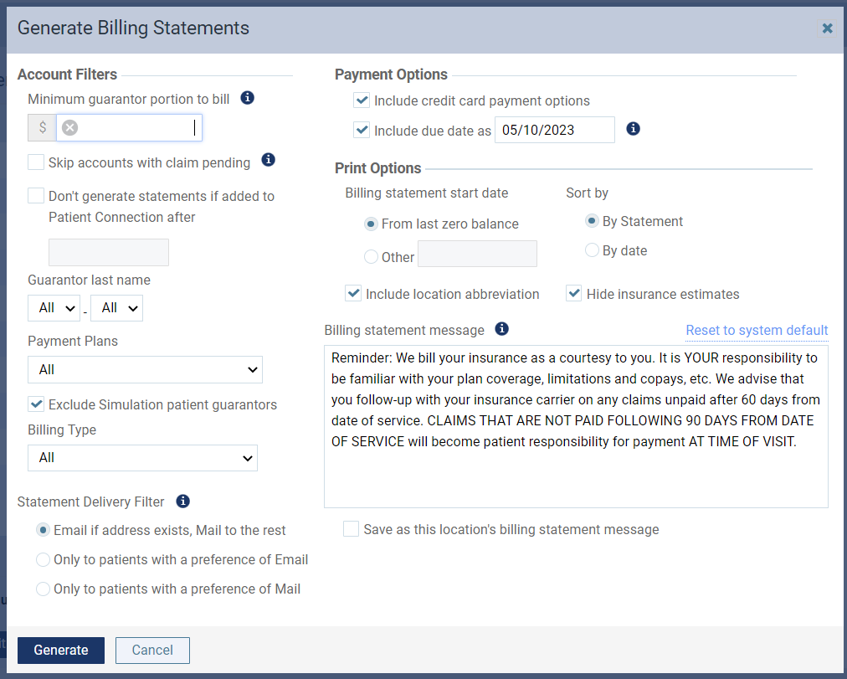
Once set, staff can now generate statements and walkouts and use a (new) Hide insurance estimates check box to hide the insurance portion from the statement so that the total treatment balance displays. When necessary, this allows staff to collect the total treatment balance up front and reimburse the paid amount by insurance to the patient later.
Note: Users must have a role that has the (new) Hide insurance estimates security right to display the (new) Hide insurance estimates check box.
Tip: The (new) Hide insurance estimates check box is selected by default.
The field is available from three places in Ascend Academic:
-
Patient billing statement (Patient > Financial > Billing Statement)

-
Bulk billing statement (Home > Location > Billing Statements)
-
Patient walkout (Patient > Ledger > Patient Walkout button)

Once the billing statement or walkout is generated and printed, the Please pay this amount field will be same as the Total Balance field and the Estimated Insurance and Patient Portion fields will be removed from the summary.
Reporting
Improvements to Statement Submission Report
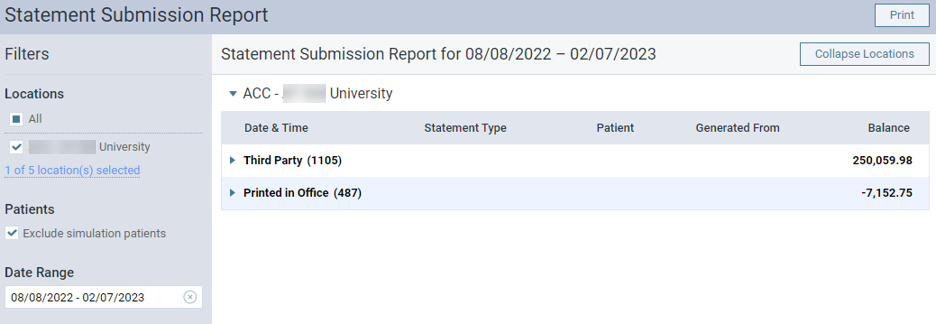
When working with the Statement Submission Report (Home > Reports > Statement Submission Report), the Electronic eStatements and Printed & Mailed for Me categories have been combined into a (new) Third Party category to hold all vendor-handled statements.
Tip: The Third Party category is sorted by patient first and last name to allow users to easily identify how many statements have been sent to each patient.
POE column added to the My Patients List tab in Ongoing Patient Care
When using the My Patients List tab to manage patients (Home > Reports > Ongoing Patient Care), a (new) POE column now displays in place of the DOB column. This indicates the completion date for the latest periodic oral evaluation (a D0120 procedure) associated with a patient.
Note: If a periodic oral evaluation is not associated with a patient, the completion date of the latest comp exam (a D0150 procedure) displays, and if neither procedure is associated with a patient, a link to book a periodic oral evaluation or a comp exam displays.
Note: This feature has limited availability. If you want the feature enabled for your institution, please contact Support.

Audit Log includes more details for deleted payments
For users that monitor ledger transactions, the Audit Log (Home > Reports > Audit Log) now lists additional information about deleted payments. This includes the reason the payment was deleted and the cashbox it was deleted from.
Note: Any payments deleted prior to this update do not display additional information.

Bug Fixes
Progress Notes columns cannot be modified to be ascending/descending
Issue: When users open a patient chart to view the Progress Notes and clicktap a column arrow to modify the column, the entries are not sorted in ascending or descending order.
Solution: Fixed so that the entries are sorted as expected when users clicktap a column arrow.
Insurance payments unable to post
Issue: When entering an insurance payment for a procedure, an error message may display and prevent the payment from being posted.
Solution: Fixed so that the users can enter insurance payments as expected.
Clinical note signature date may display incorrectly on Print Clinical Report
Issue: When users run and print the Print Clinical Report (Patient > Clinical > Print Clinical Report), an incorrect date may display next to the faculty signature.
Solution: Fixed so that the correct signing date displays, as expected.
The category headers on the Proficiency Progress Report are not in bold
Issue: The category headers are not in bold on the Proficiency Progress Report (Academic > Student Progress > Competency Progress tab).
Solution: Fixed so that the category headers are in bold as expected.
When creating a household, no records are inserted into PatientAcademic table
Issue: When users create a new household and add a family member as a new patient through the patient search field, a record is not added to the PatientAcademic table.
Solution: Fixed so that records are added to the PatientAcademic table when a new household is created and family members are added as patients.
Unable to add clinical note addenda without Sign clinical note security right
Issue: Providers without the Sign clinical note security right cannot add addenda to clinical notes as the Save button is grayed out or they receive an error message.
Solution: Fixed so that users with the Create clinical note and Edit clinical note security rights can add addenda to clinical notes successfully.
Error message may display for Deposit Slip Report
Issue: When users attempt to run the Deposit Slip Report (Home > Reports > Deposit Slip Report), a There was an error on the server message may display when users select a date range or preview the report and prevents the report from being generated.
Solution: Fixed so that the Deposit Slip Report can be run without error, as expected.
Users cannot create patients when Only view my patients security right is set
Issue: Users that have the Create a patient security right cannot create new patients if they also have the Only view my patients security right.
Solution: Fixed so that providers with the Create a patient and Only view my patients security rights can create regular and sim patients. They cannot create sim patient templates but can copy existing sim patient templates.
Note: When creating regular and sim patients and copying sim patient templates, the user is assigned as the provider and cannot be modified.
Non-providers with the Only view my patients security right cannot create regular or sim patients or sim patient templates, regardless of other security rights.
Comments
0 comments
Please sign in to leave a comment.